About Utility Tariff
Purpose
The Utility Tariff module allows charging station operators, site hosts, and administrators to configure electricity utility pricing structures charged by power utility companies. Accurately capturing electricity costs enables precise operational expense tracking, profitability and margin analysis, and accurate revenue-share settlements across charging locations.
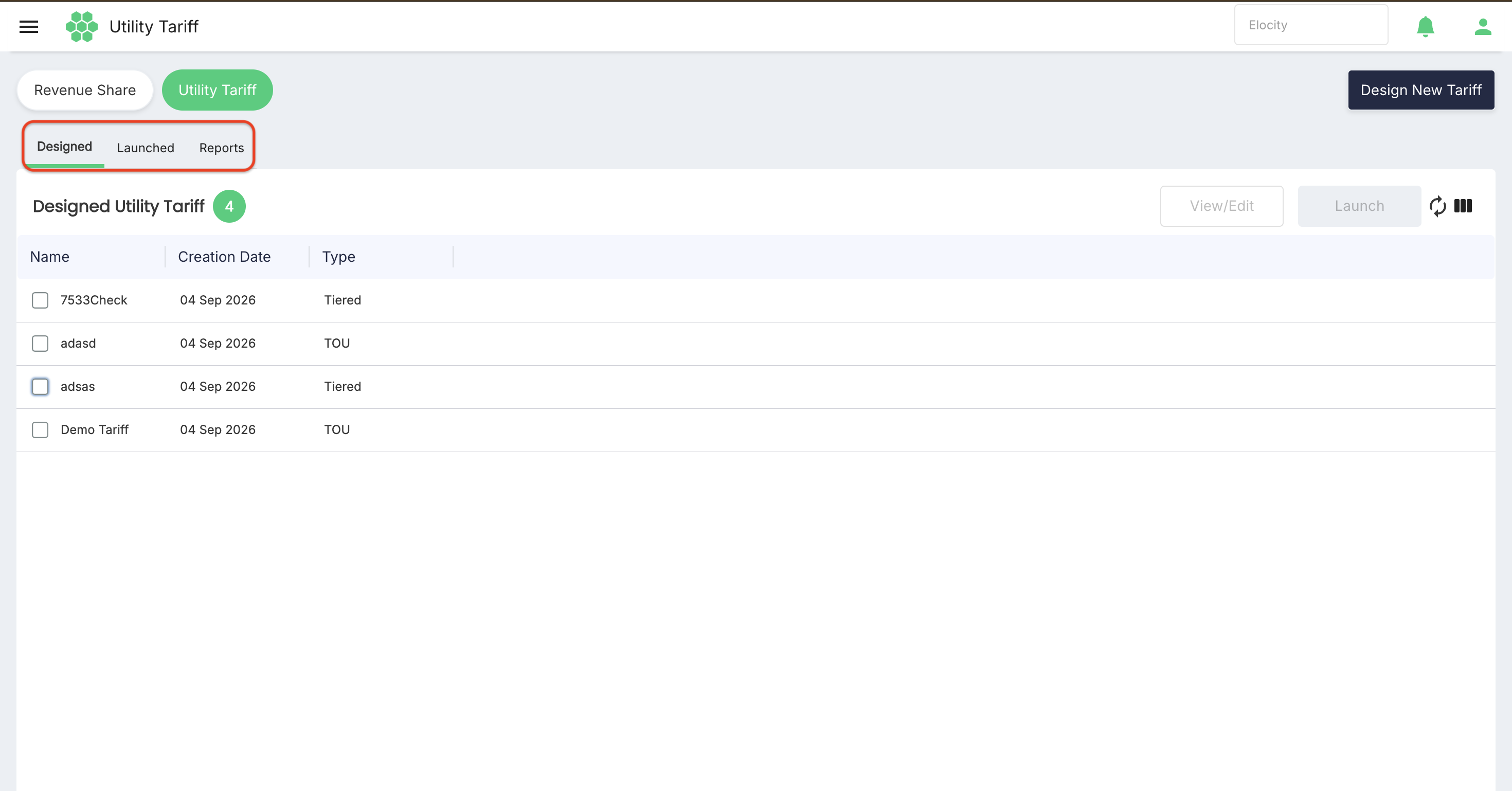
The module contains three working areas:
- Designed - maintains reusable tariff templates configured with Time of Use (TOU) or Tiered pricing rules.
- Launched - schedules and deploys designed tariff profiles to specific network locations, manages active operational lifecycles, and handles deactivation and relaunching.
- Reports - provides graphical insights into monthly electricity expenses and directly compares charging revenue against utility energy costs.
Navigate to Revenue Share > Utility Tariff from the navigation menu.
Accessing the module
- Sign in to the HIEV portal.
- Confirm the required business in the business selector.
- Open Utility Tariff from the navigation menu (or select Revenue Share > Utility Tariff).
- Select Designed, Launched, or Reports.
The business selection determines which tariff profiles, charging networks, active deployments, and analytics are available. Access is controlled through feature-specific permissions assigned to the user's role.
Utility tariff workflow
Use the module in the following order:
- Design a reusable tariff profile under Designed using Time of Use (TOU) or Tiered pricing.
- Define time intervals, active days of the week, or energy consumption thresholds with unit prices.
- Save the profile in the Designed list.
- Select the tariff profile and Launch it to one or more network charging locations.
- Set the deployment name, active schedule dates, and description.
- Monitor deployed tariffs under Launched.
- Modify active launched tariffs, or deactivate schedules when operational conditions change.
- Re-apply expired or deactivated schedules using the Relaunch workflow.
- Review monthly utility expenses and revenue margins under Reports.
Supported tariff types
The module supports two primary tariff structures to match utility billing plans:
- Time of Use (TOU): Applies variable electricity rates based on specific hours of the day and days of the week. This allows defining separate rates for Off Peak, Mid Peak, and On Peak windows, ensuring energy costs reflect utility billing schedules accurately.
- Tiered: Applies rates based on cumulative energy consumption brackets (kWh). Different unit prices are assigned to progressive consumption ranges, allowing costs to vary as energy usage increases.
Designed Utility Tariffs
The Designed tab lists all configured tariff templates that are available for deployment.
Designed list
The number beside Designed Utility Tariff represents the tariff templates currently returned for the selected business.
| Column | Description |
|---|---|
| Name | Display name of the designed tariff template. |
| Creation Date | Date when the tariff profile was created. |
| Type | Pricing methodology applied (TOU or Tiered). |
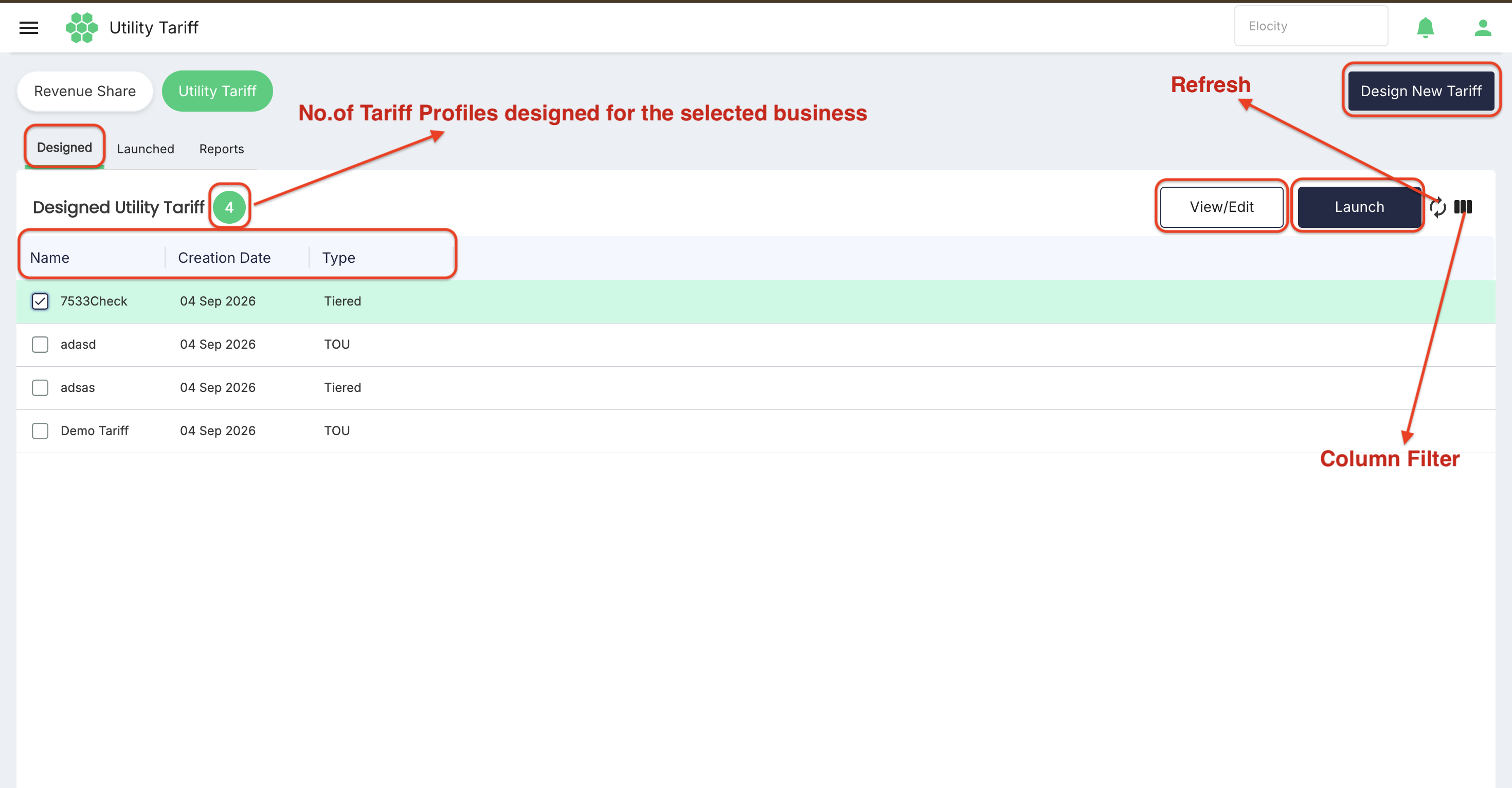
The page provides:
- Refresh (
⟳) to fetch the latest tariff records from the server. - Column Filter to show or hide Name, Creation Date, and Type columns.
- View/Edit to inspect or modify a selected tariff template.
- Launch to deploy a selected tariff template to network locations.
- Design New Tariff button at the top right to create a new tariff profile.
Showing and hiding columns
-
Select the Column Filter icon in the toolbar above the grid.
-
Check or uncheck the columns you want to display:
- Name
- Creation Date
- Type
-
Select Deselect All if you want to clear all selections.
-
Select Apply to save your changes and update the grid view.
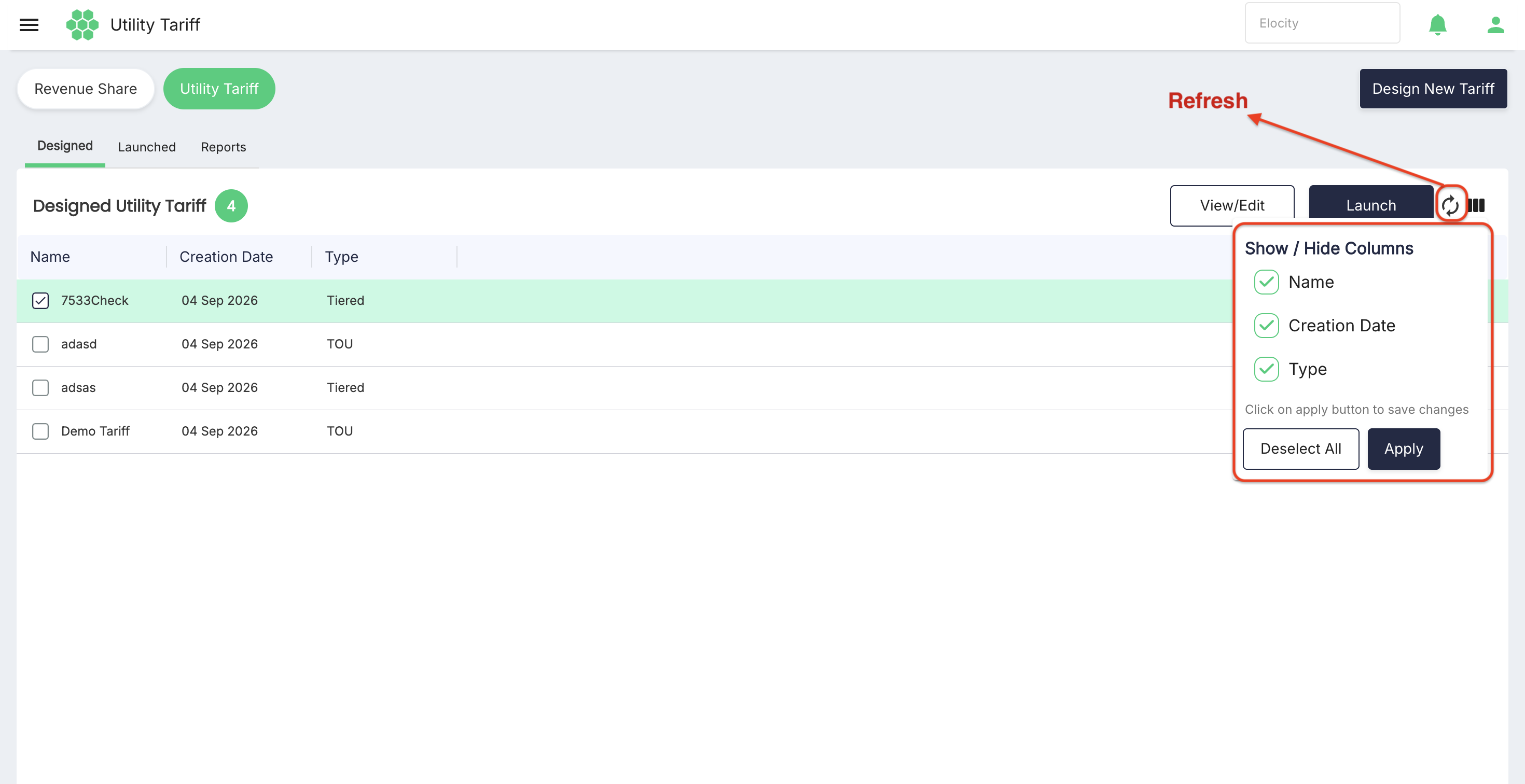
Changing column visibility only adjusts your on-screen display and does not delete or alter any underlying tariff data.
Refreshing records
Select the Refresh (⟳) icon located in the grid toolbar to re-query the server and display the latest designed tariff profiles without reloading the entire web page.
Designing a Time of Use (TOU) tariff
- Select Design New Tariff.
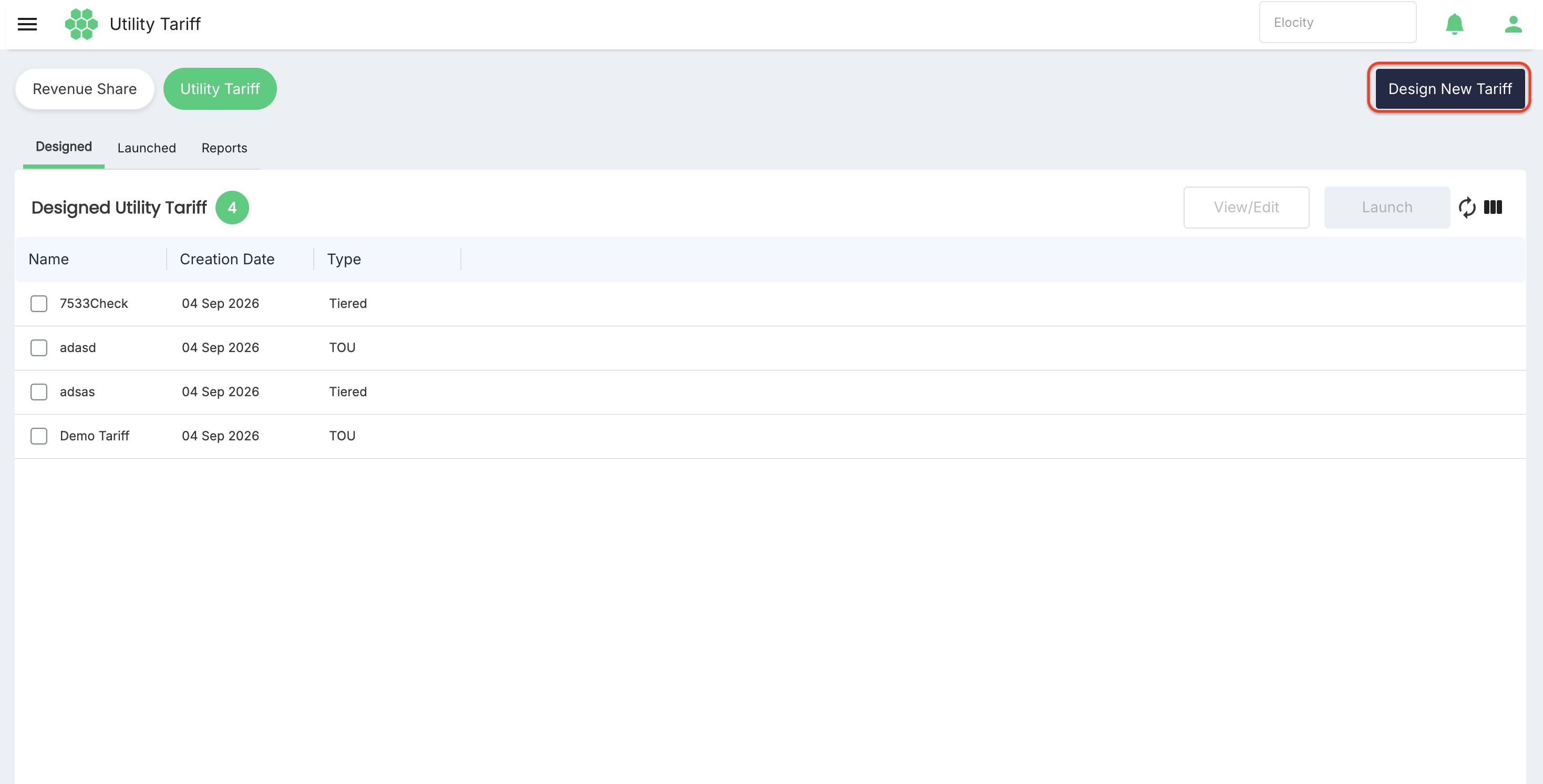
- Enter the required Name*.
- Keep the toggle set to TOU.
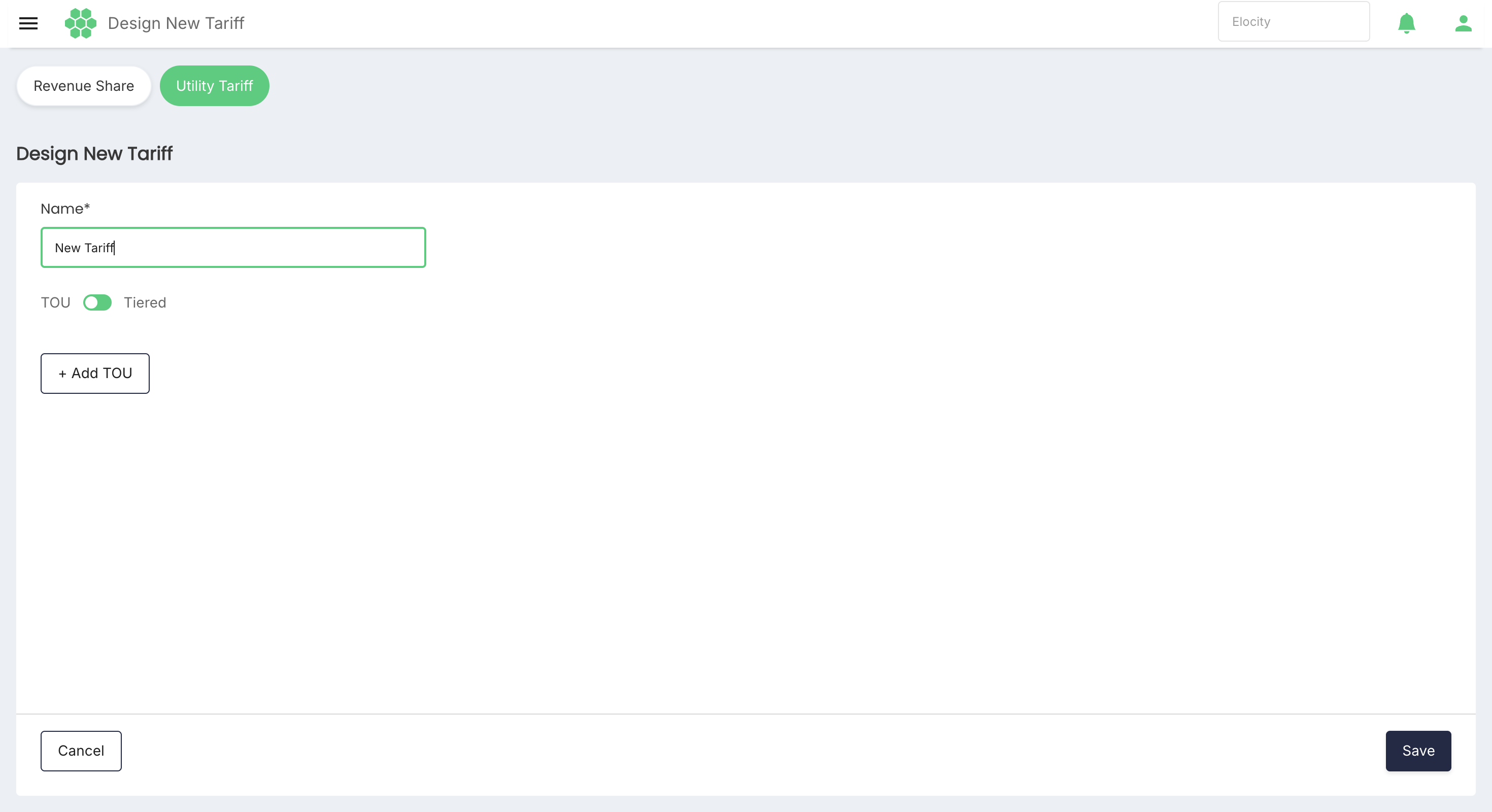
- Select the TOU Type dropdown (Off Peak, Mid Peak, or On Peak).
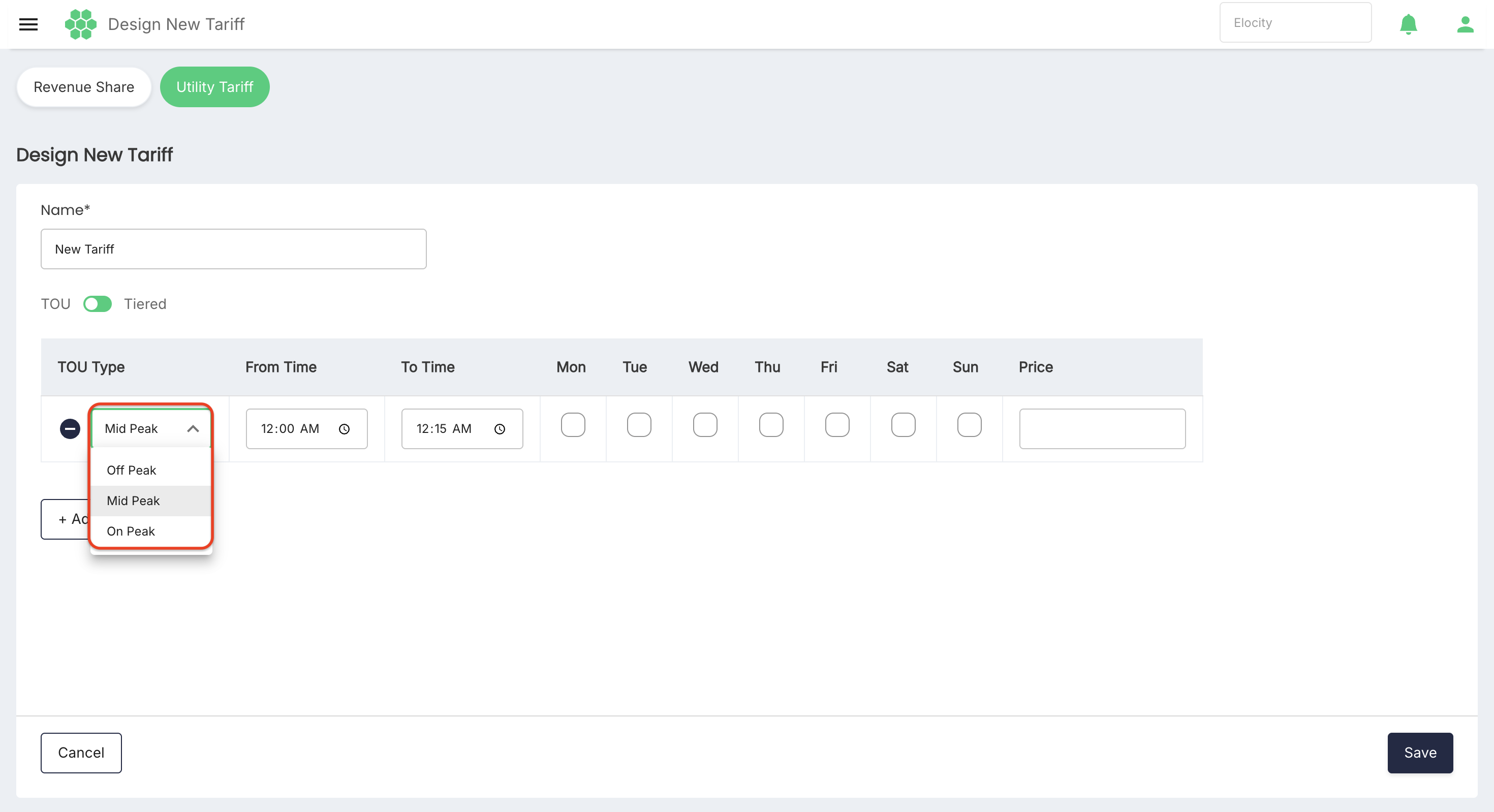
- Set the time window using From Time and To Time pickers.
- Select the applicable day checkboxes (Mon, Tue, Wed, Thu, Fri, Sat, Sun).
- Enter the unit electricity Price per kWh for this time band.
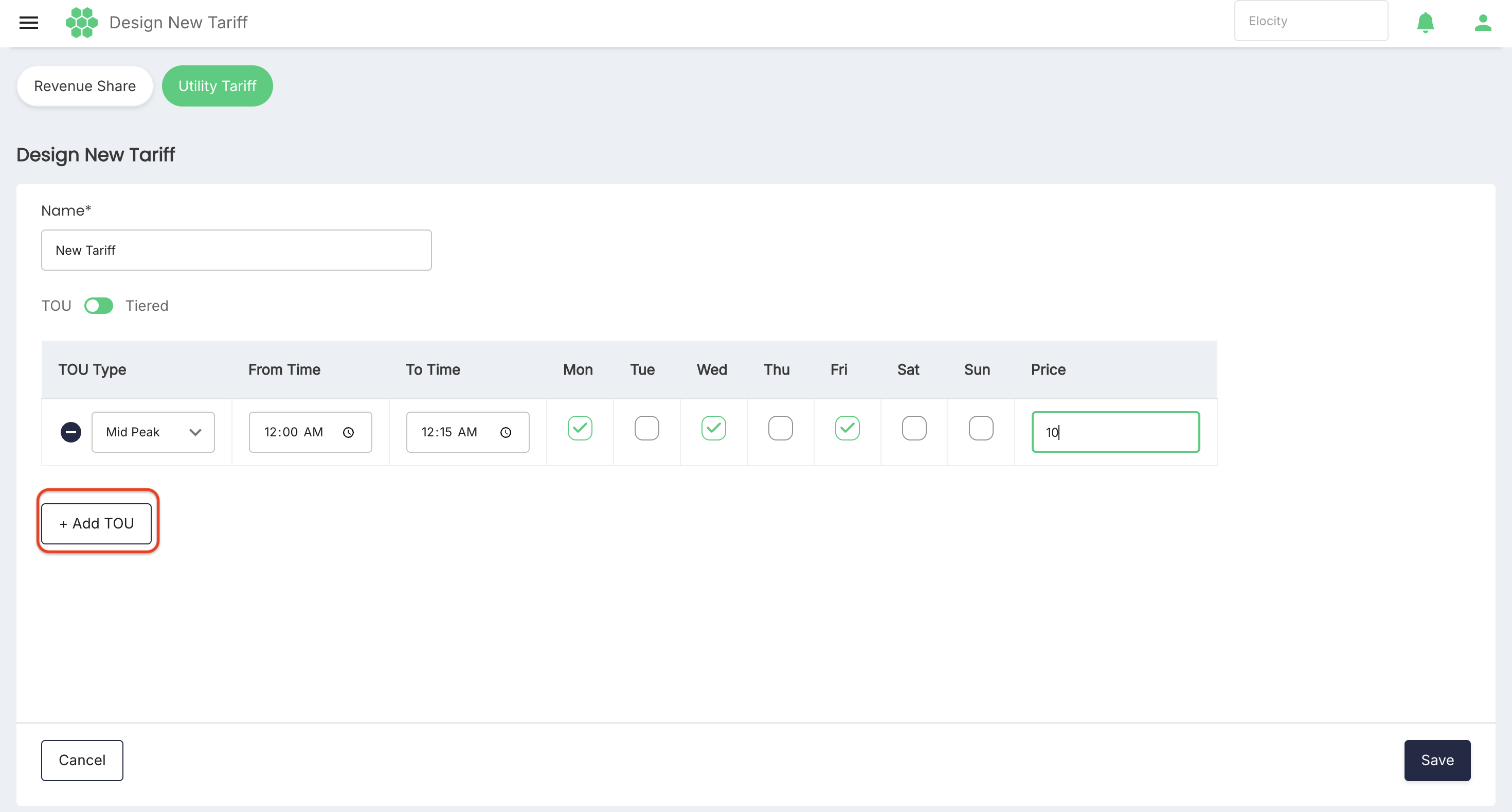
- Select + Add TOU to add additional time-band rows as required.
- Select the minus icon (
-) to delete an unwanted row.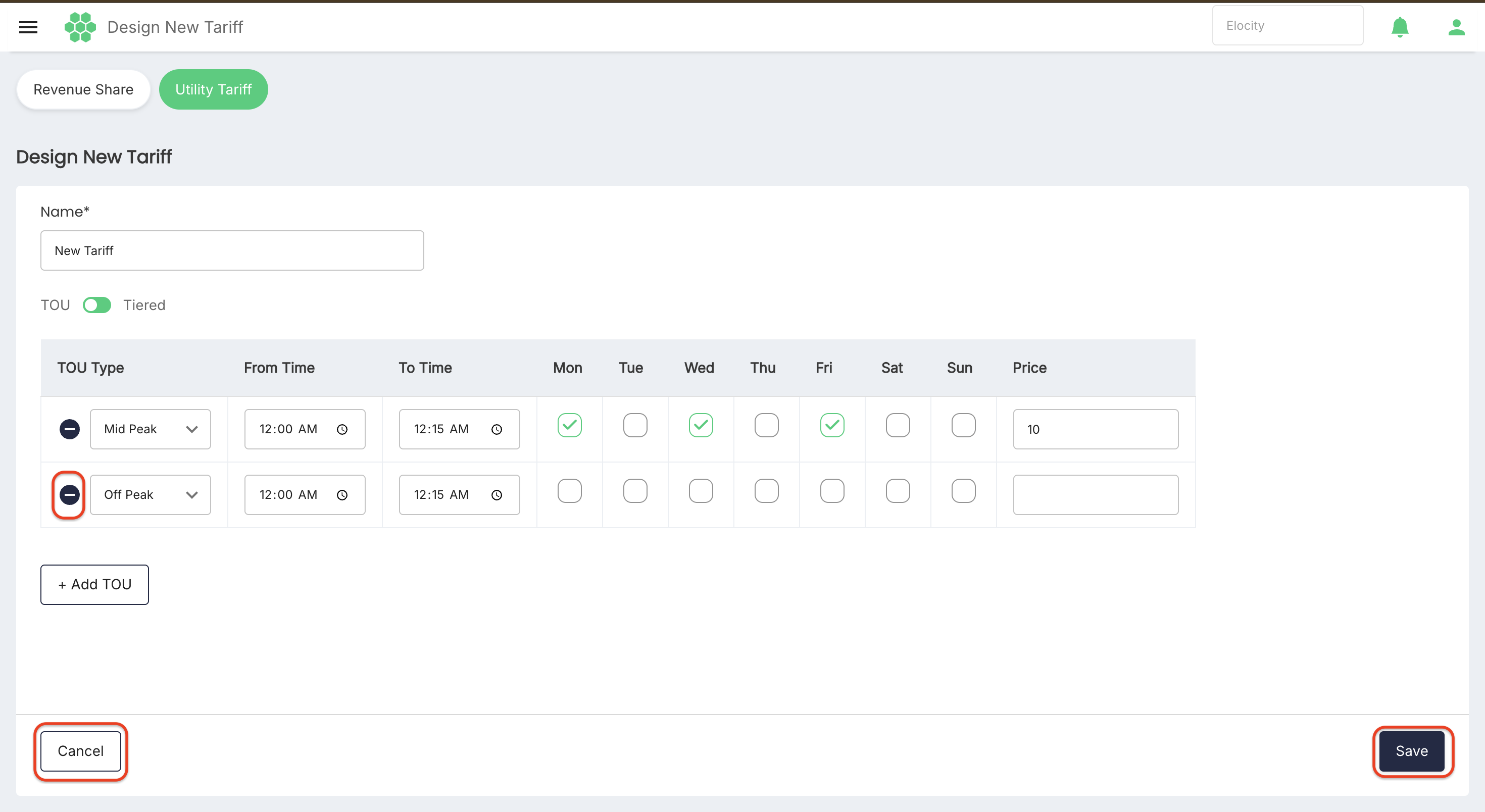
- Select Save to save the profile, or select Cancel to discard changes.
Designing a Tiered tariff
- Select Design New Tariff.
- Enter the required Name*.
- Switch the toggle to Tiered.
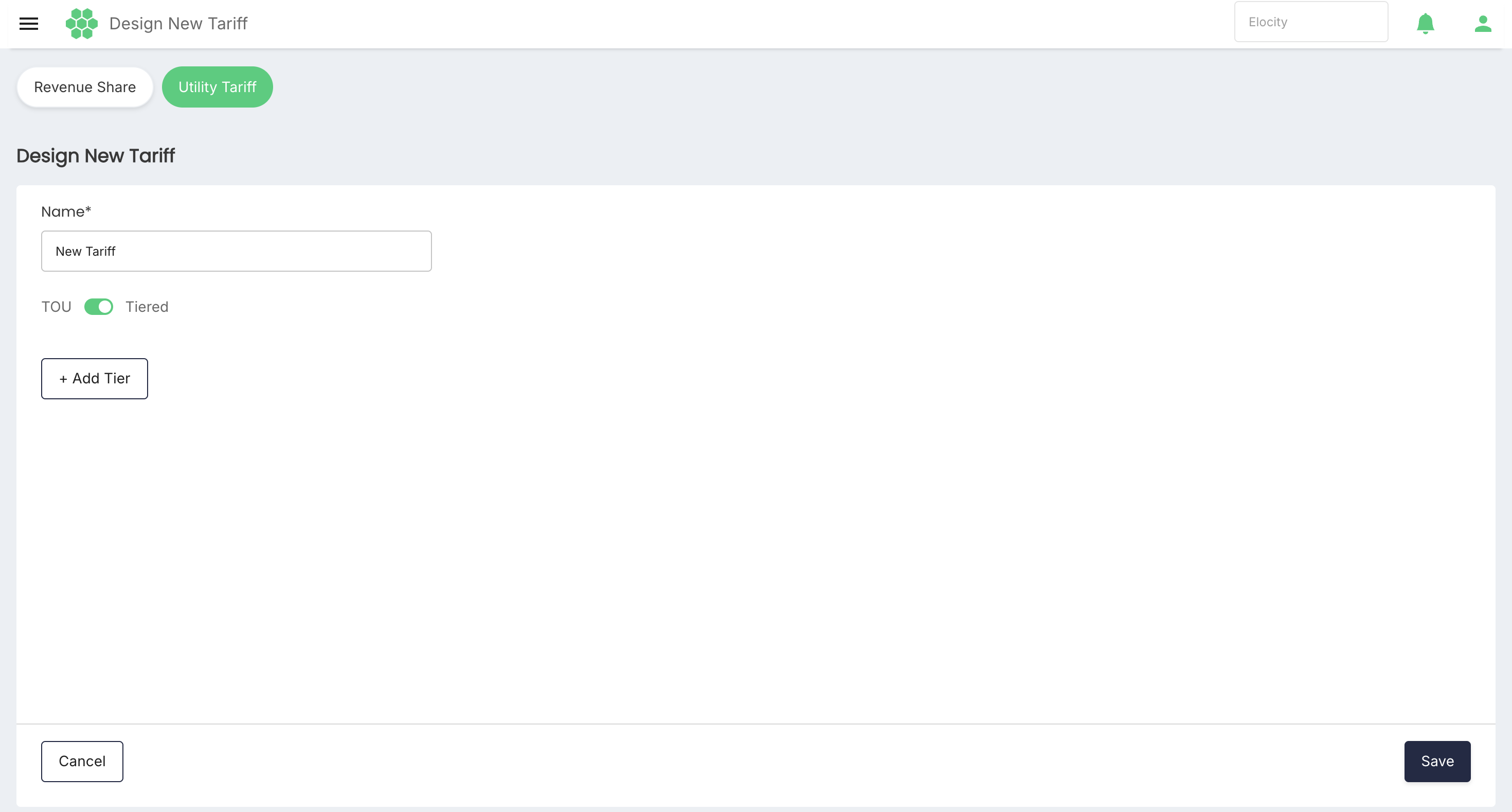
- Enter the minimum consumption threshold in kWh(Min).
- Enter the maximum consumption threshold in kWh(Max).
- Enter the unit Price per kWh for that consumption bracket.
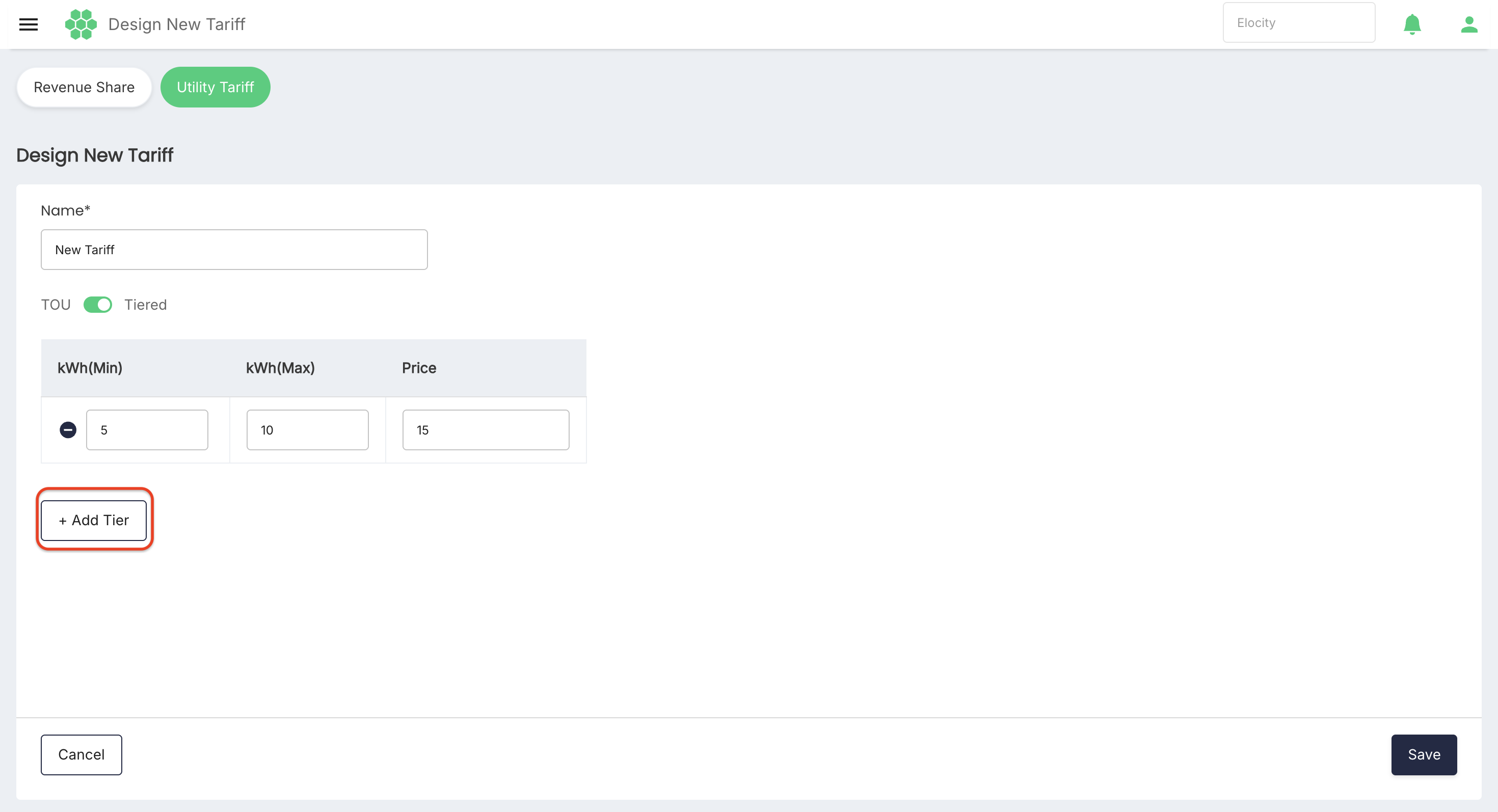
- Select + Add Tier to add subsequent consumption brackets.
- Select the minus icon (
-) to remove an unwanted tier.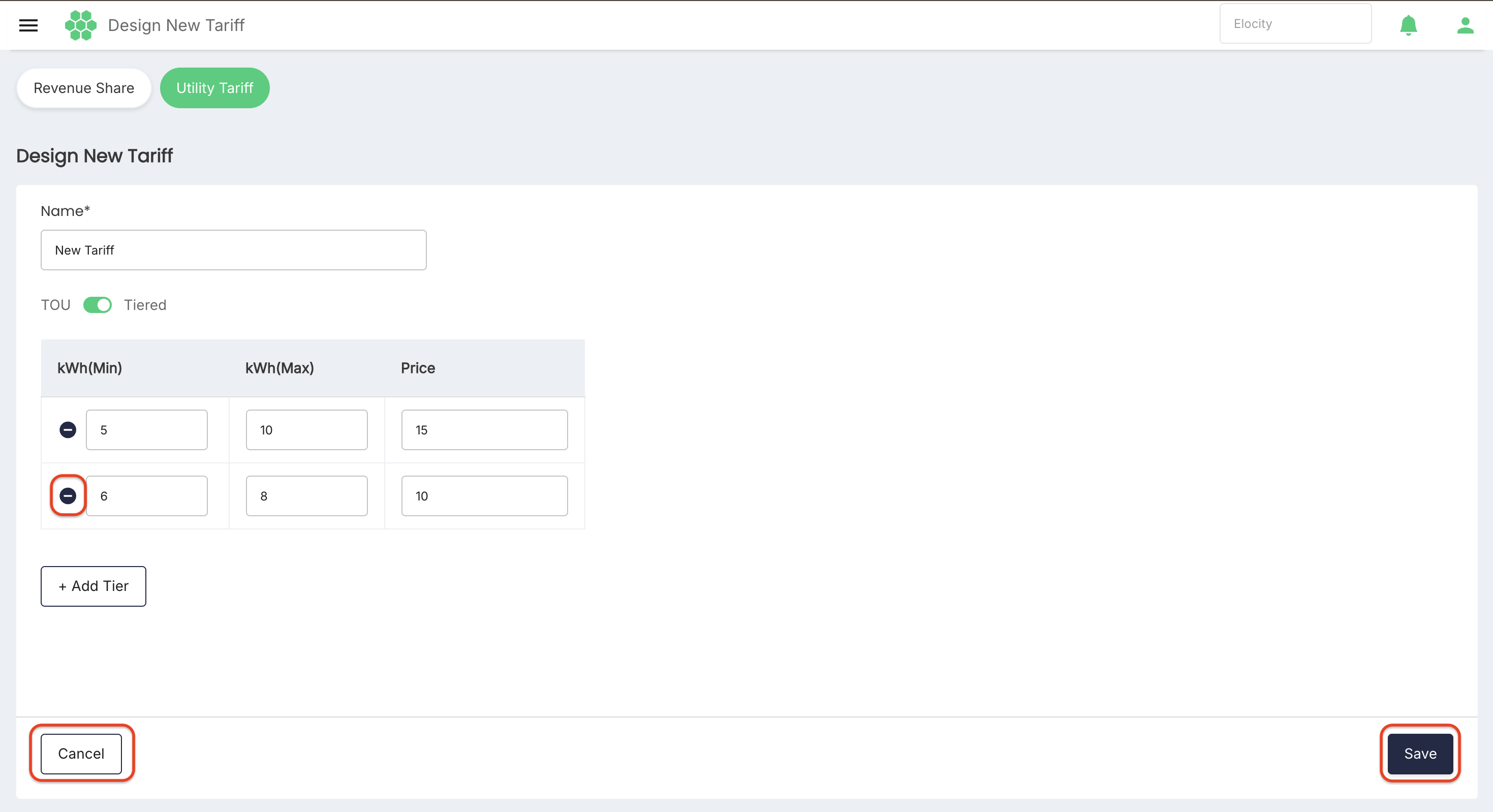
- Select Save to store the profile, or select Cancel to discard.
Viewing or editing a designed tariff
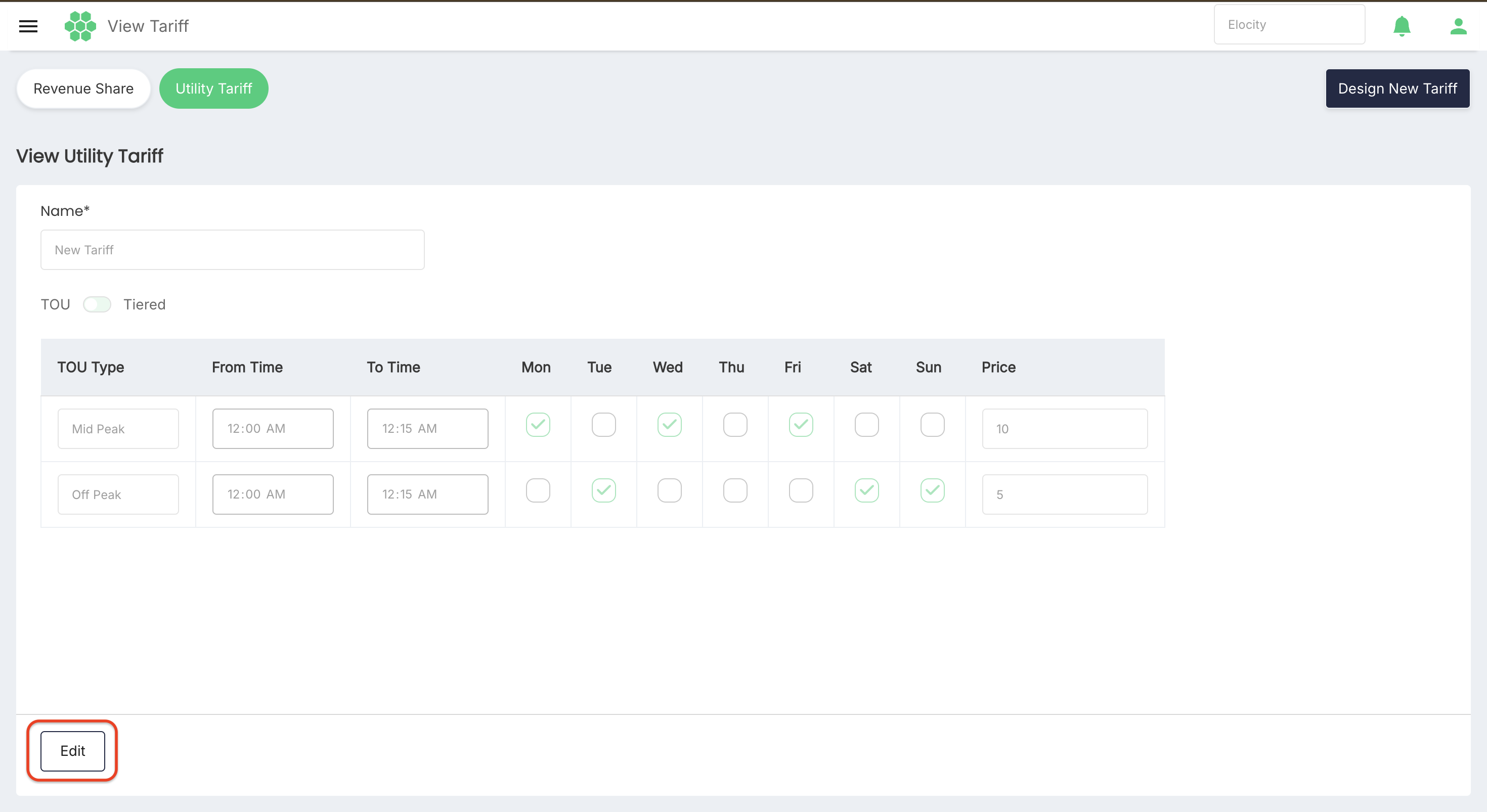
- Locate the tariff in the Designed Utility Tariff grid and select its checkbox.
- Select View/Edit.
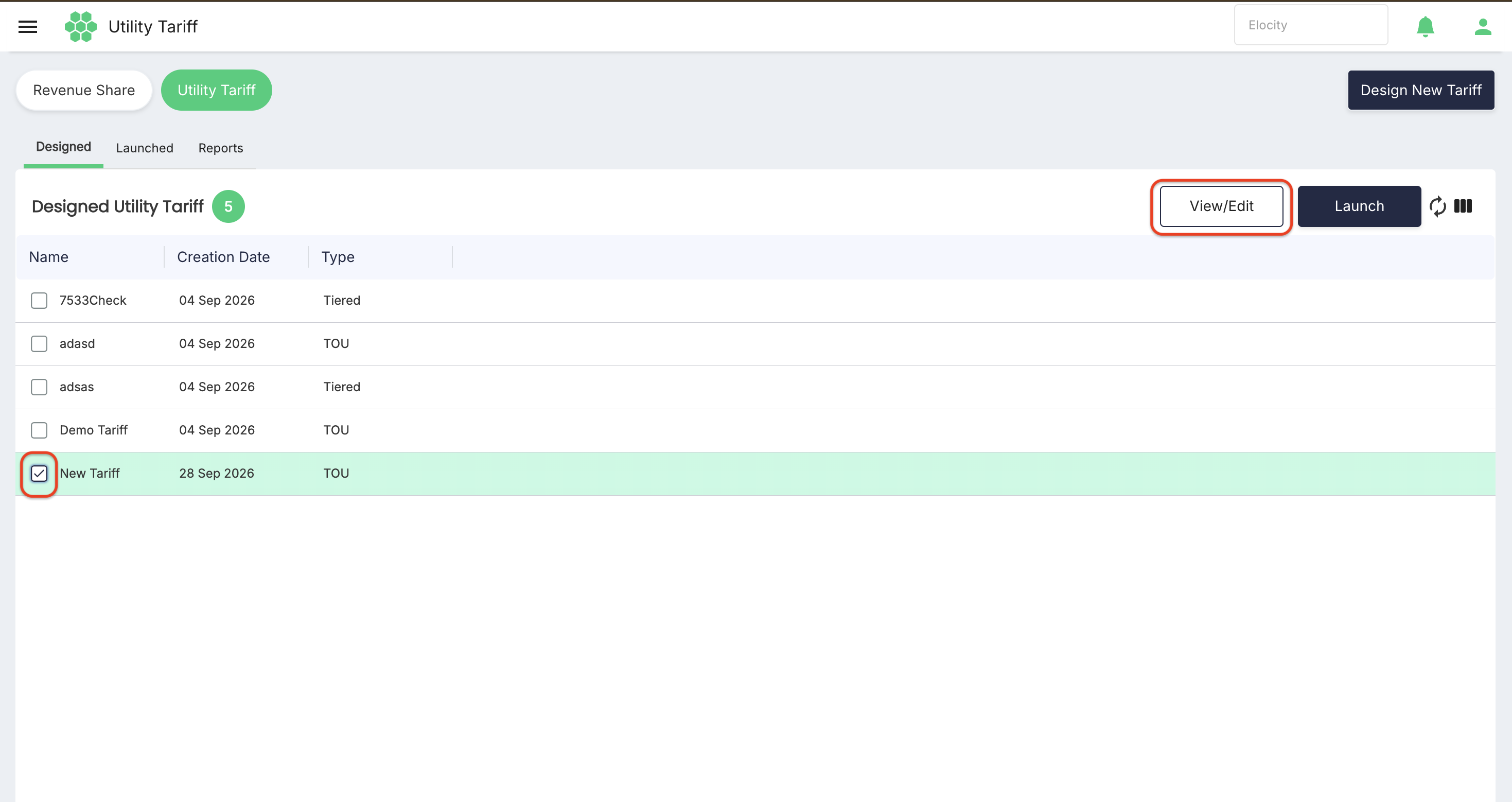
- Review the read-only details including Name, Type, and pricing rules.
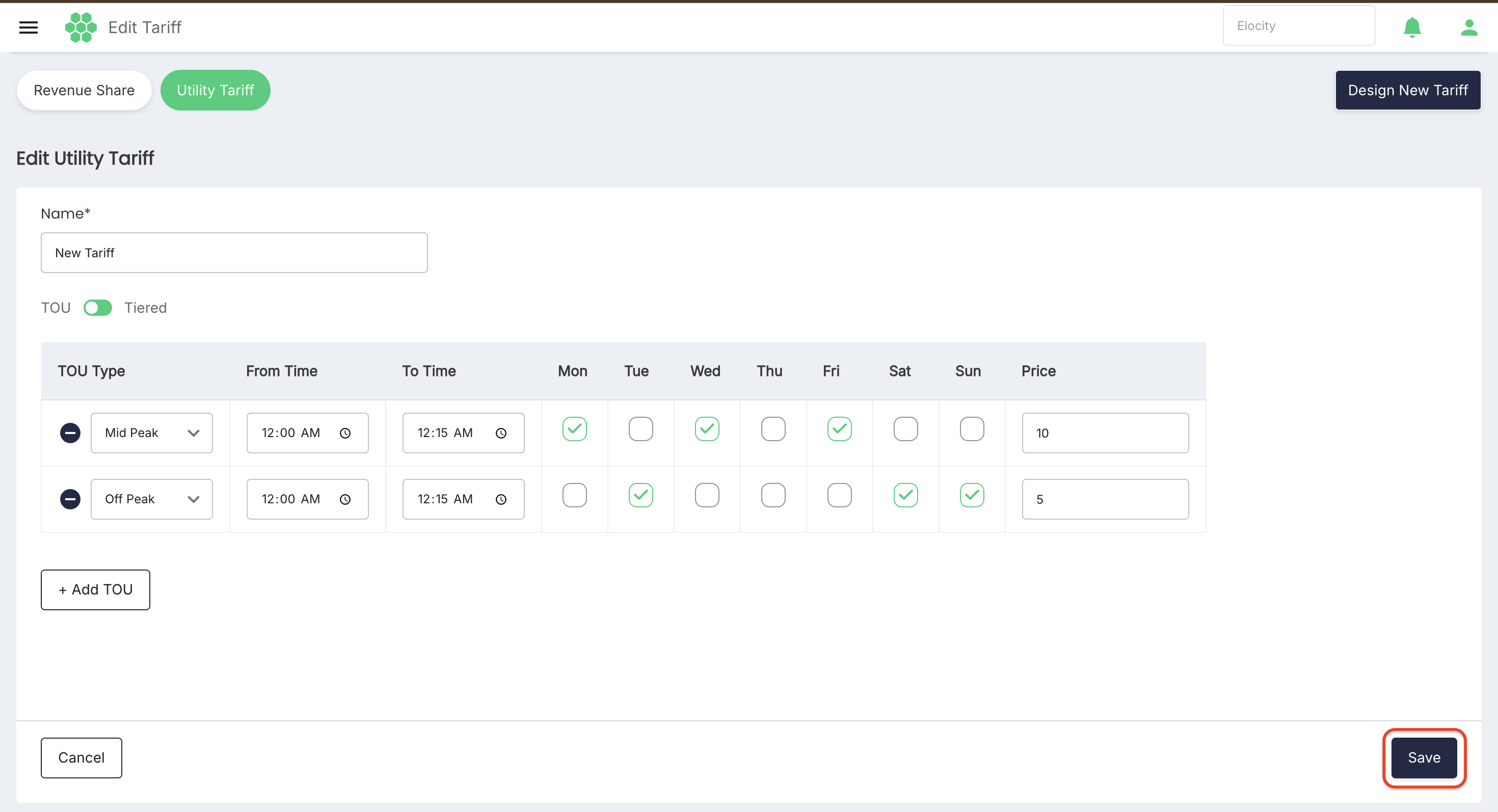
- Select Edit at the bottom left to enable editing.
- Update the name, time intervals, day selections, tiers, or prices.
- Select Save to retain changes, or Cancel to leave it unchanged.
Launching a tariff profile
Launching activates a designed tariff profile for one or more EV charging locations over a specified timeframe.
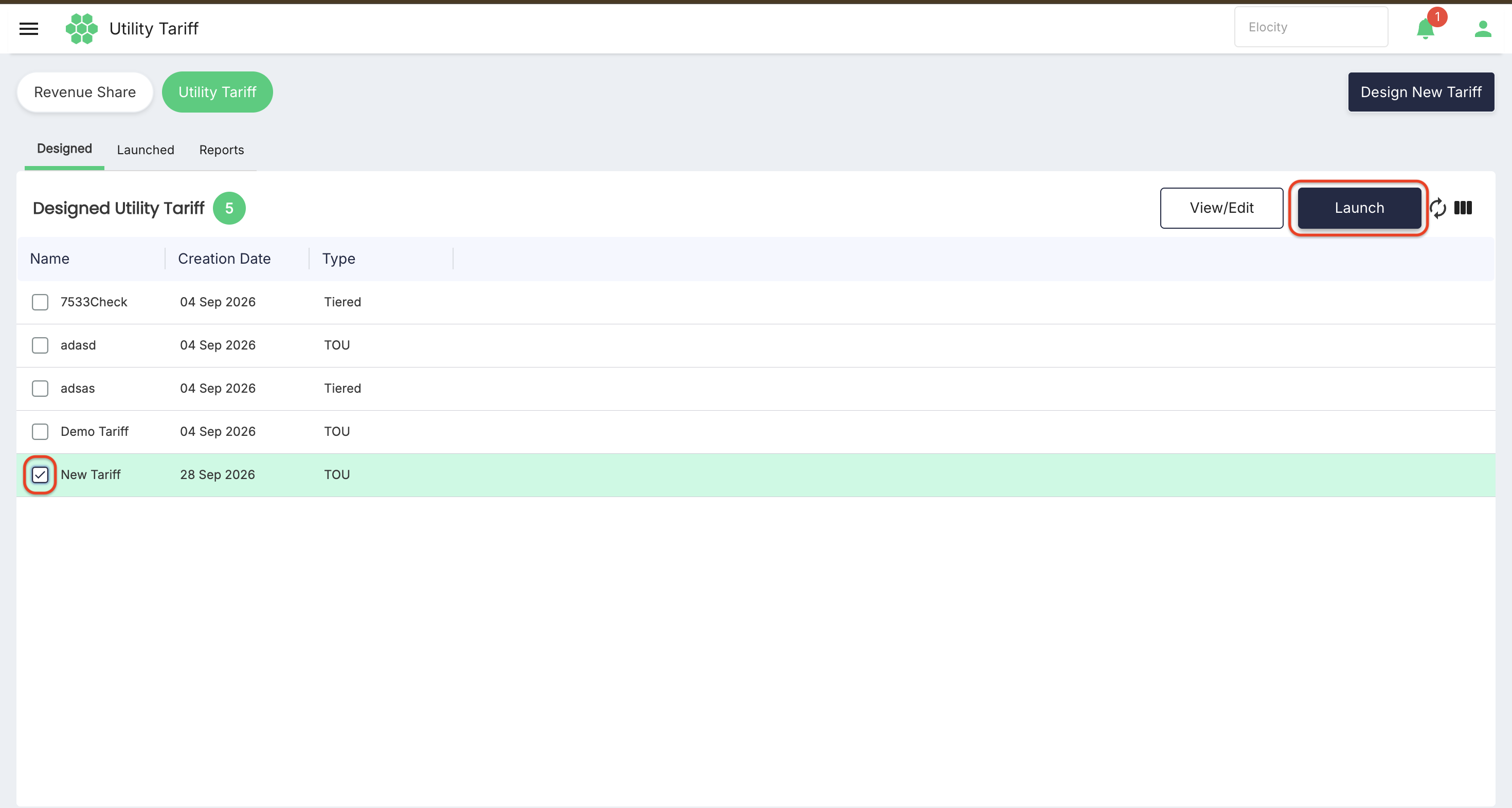
- In the Designed Utility Tariff list, select the checkbox for the required profile.
- Select Launch.
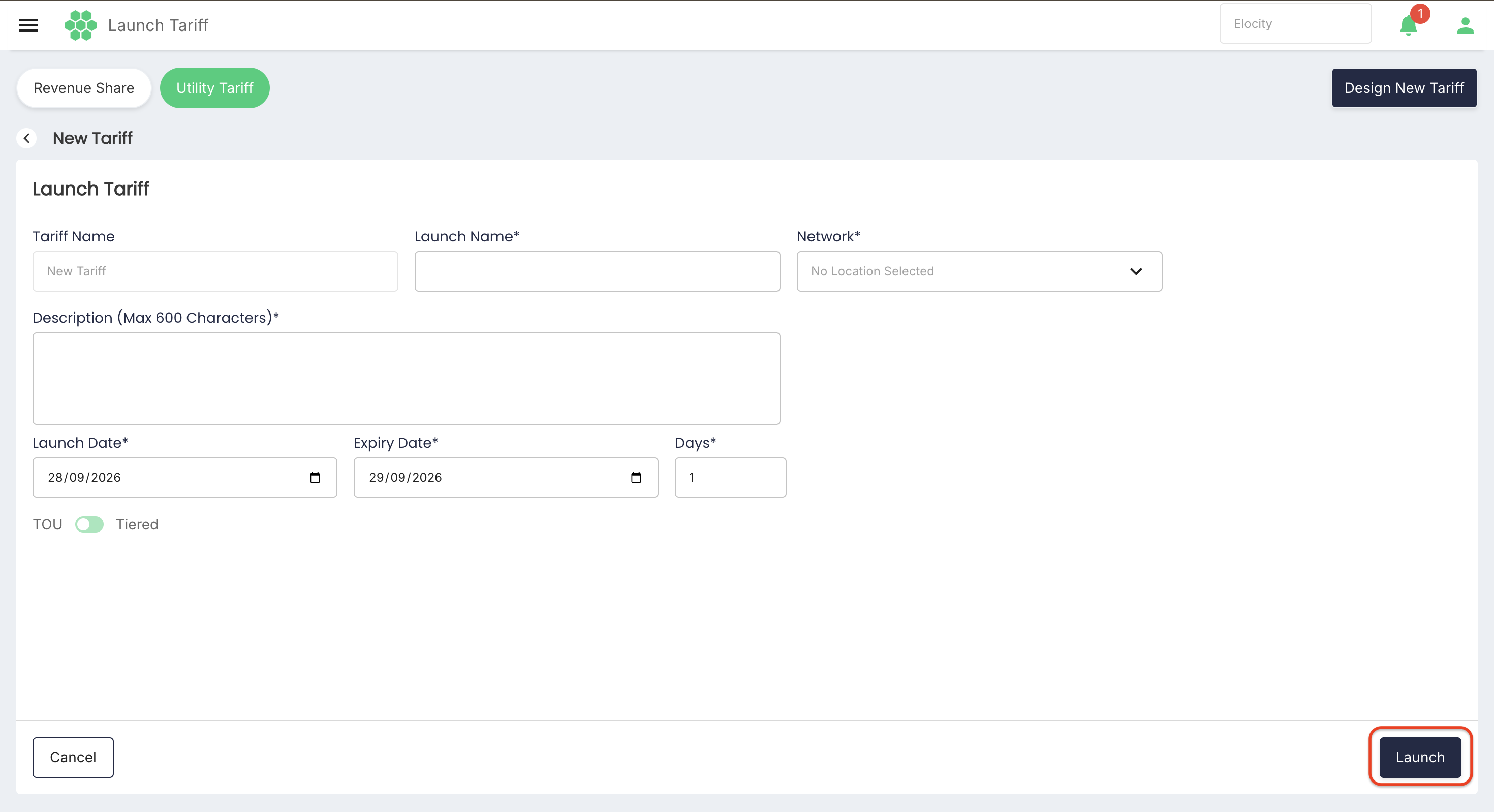
- Review or enter the following details:
- Tariff Name: Pre-populated display name of the selected tariff template.
- Launch Name*: Enter a descriptive identifier for this deployment.
- Network*: Open the location selector to choose networks, provinces/states, cities, or individual charging stations.
- Description (Max 600 Characters)*: Enter operational notes or reference details.
- Launch Date*: Select the effective start date.
- Expiry Date*: Select the termination date.
- Days*: System-calculated active duration based on start and expiry dates.
- TOU / Tiered: Displays the underlying pricing rules configured for this tariff.
- Select Launch.
Upon launch, the tariff schedule transitions to the Launched section.
Launched Utility Tariffs
The Launched tab displays all active, expired, and deactivated tariff deployments across the charging network.
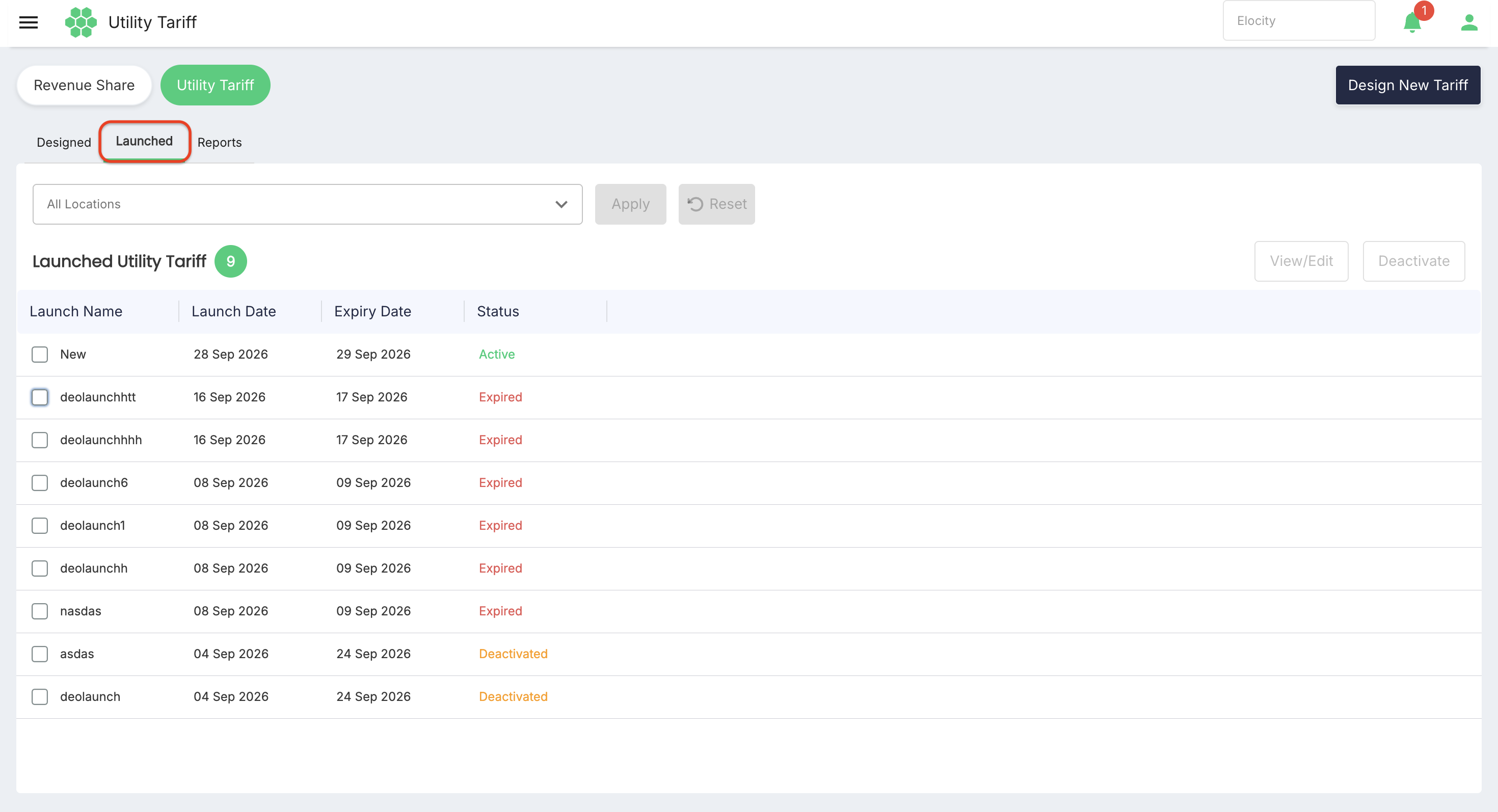
Location filter
Use All Locations at the top of the tab to filter launched tariffs by charging location scope:
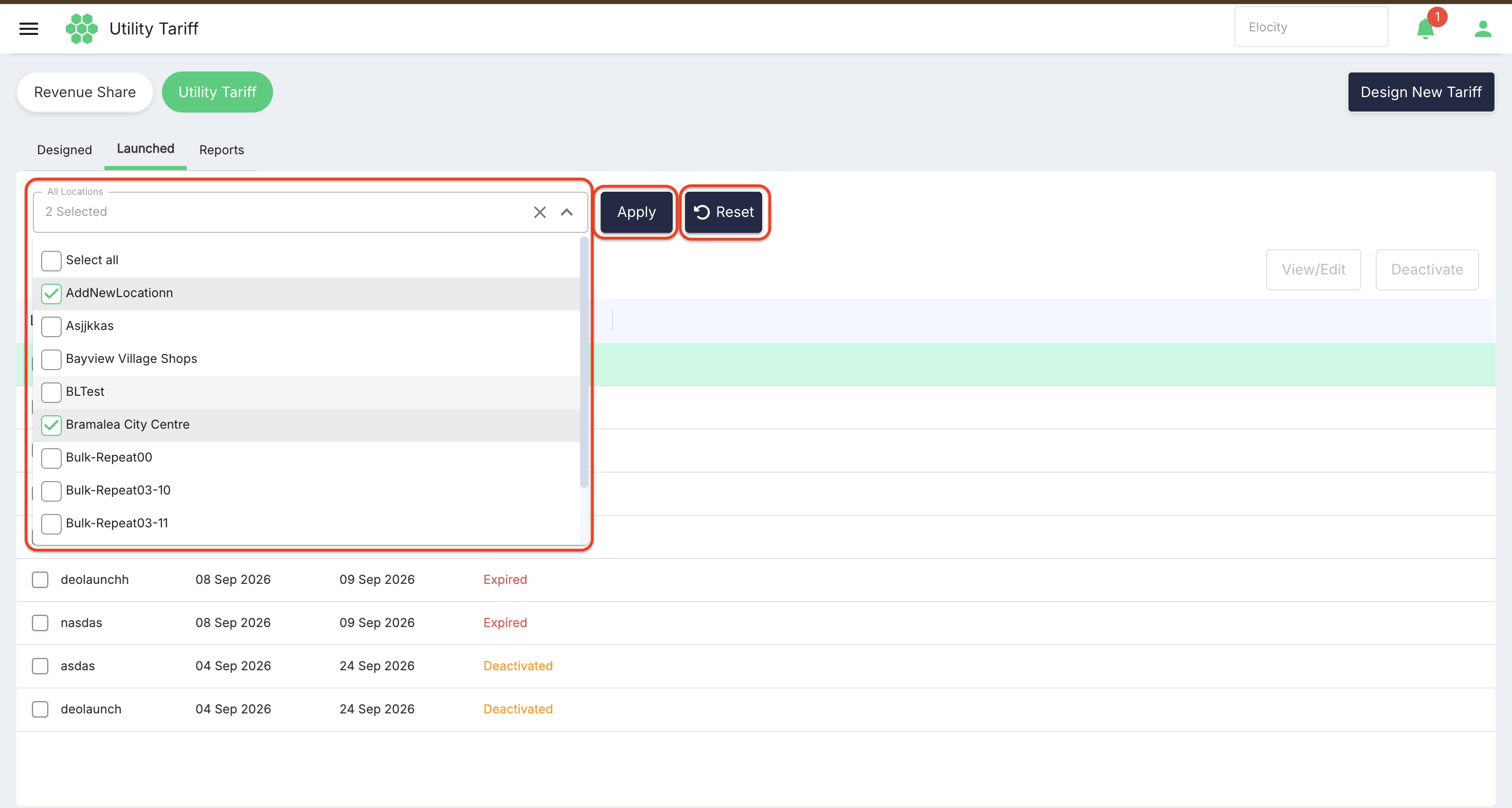
- Open the dropdown and select the desired locations.
- Select Apply to refresh the grid with matching records.
- Select Reset to restore default selections.
Launched list columns
The number beside Launched Utility Tariff displays the count of matching launched records.
| Column | Description |
|---|---|
| Launch Name | Name assigned to the specific tariff launch. |
| Launch Date | Date when the tariff schedule took effect. |
| Expiry Date | Date when the tariff schedule reaches termination. |
| Status | Operational state: Active, Deactivated, or Expired. |
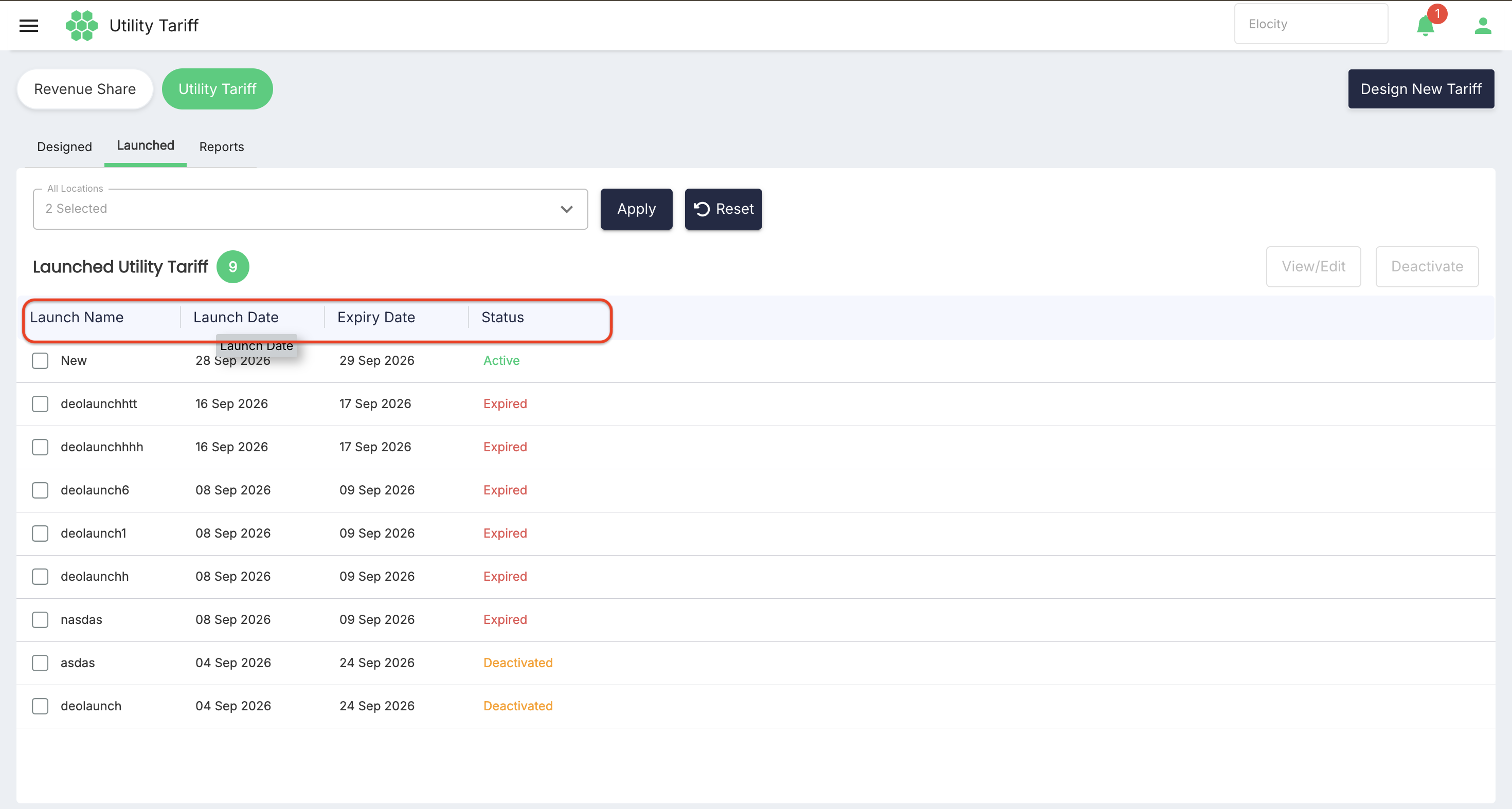
Status lifecycle and editing rules
- Active (Green): The tariff is currently governing electricity cost calculations for assigned locations. Active tariffs can be viewed, edited, or deactivated.
- Deactivated (Amber): The tariff was manually stopped by an operator prior to its expiry date. Deactivated tariffs cannot be edited directly; they must be relaunched.
- Expired (Red): The tariff has passed its scheduled expiry date. Expired tariffs cannot be edited directly; they must be relaunched.
Viewing or editing an active launched tariff
- In the Launched grid, select the checkbox next to an Active tariff.
- Select View/Edit.
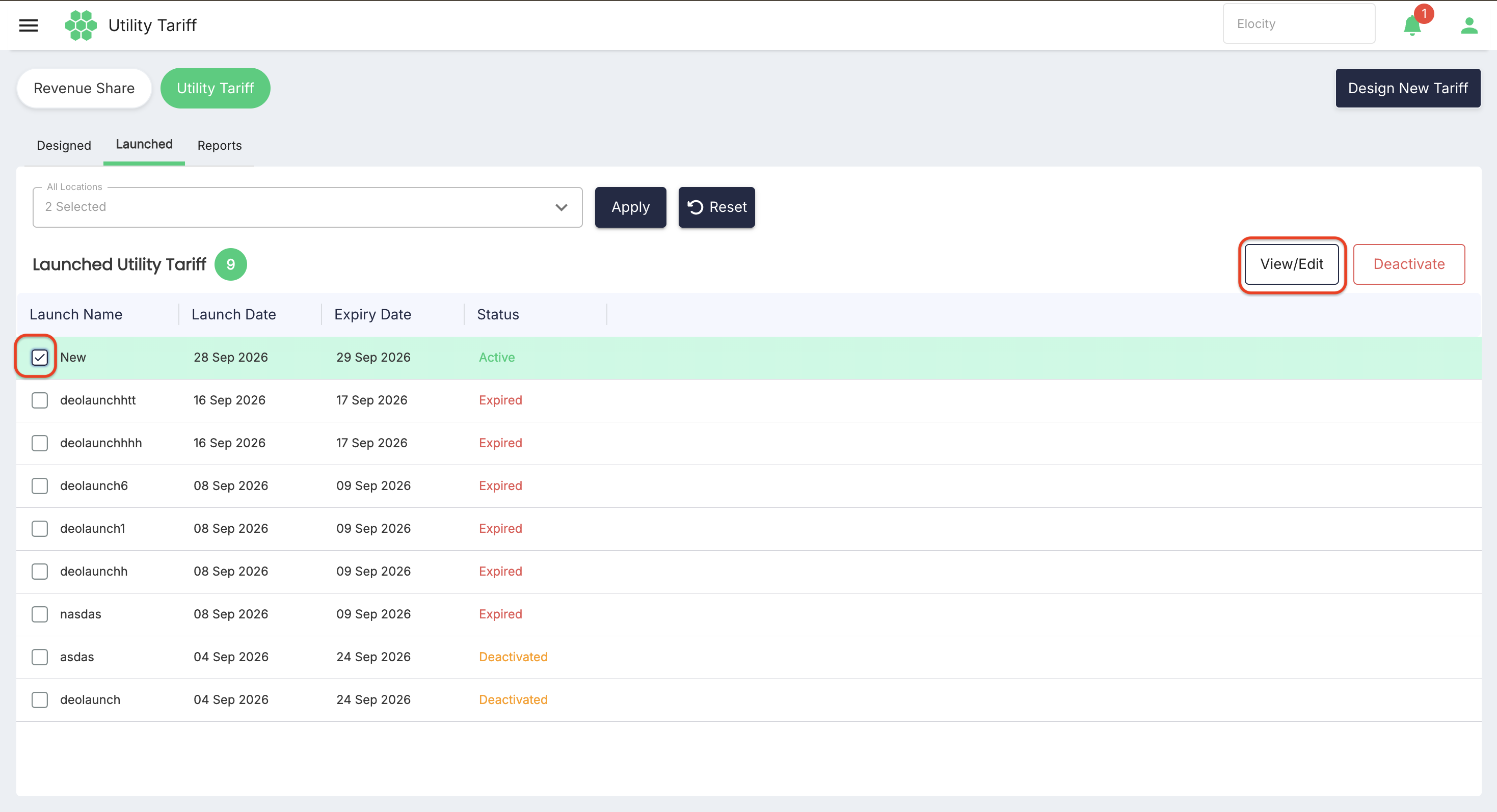
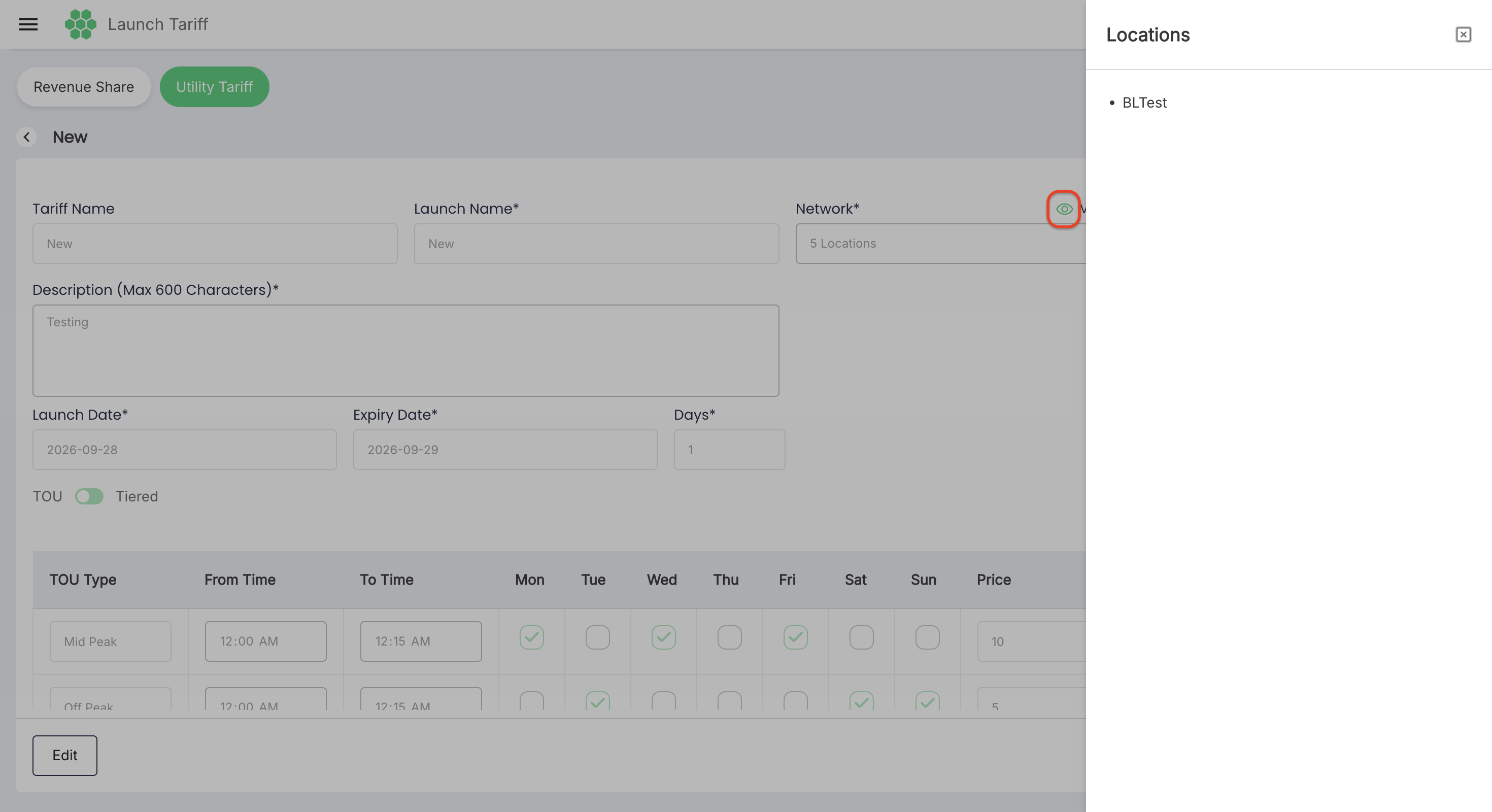
- Review the launch configuration. Select 👁 View Location beside Network to verify assigned charging locations.
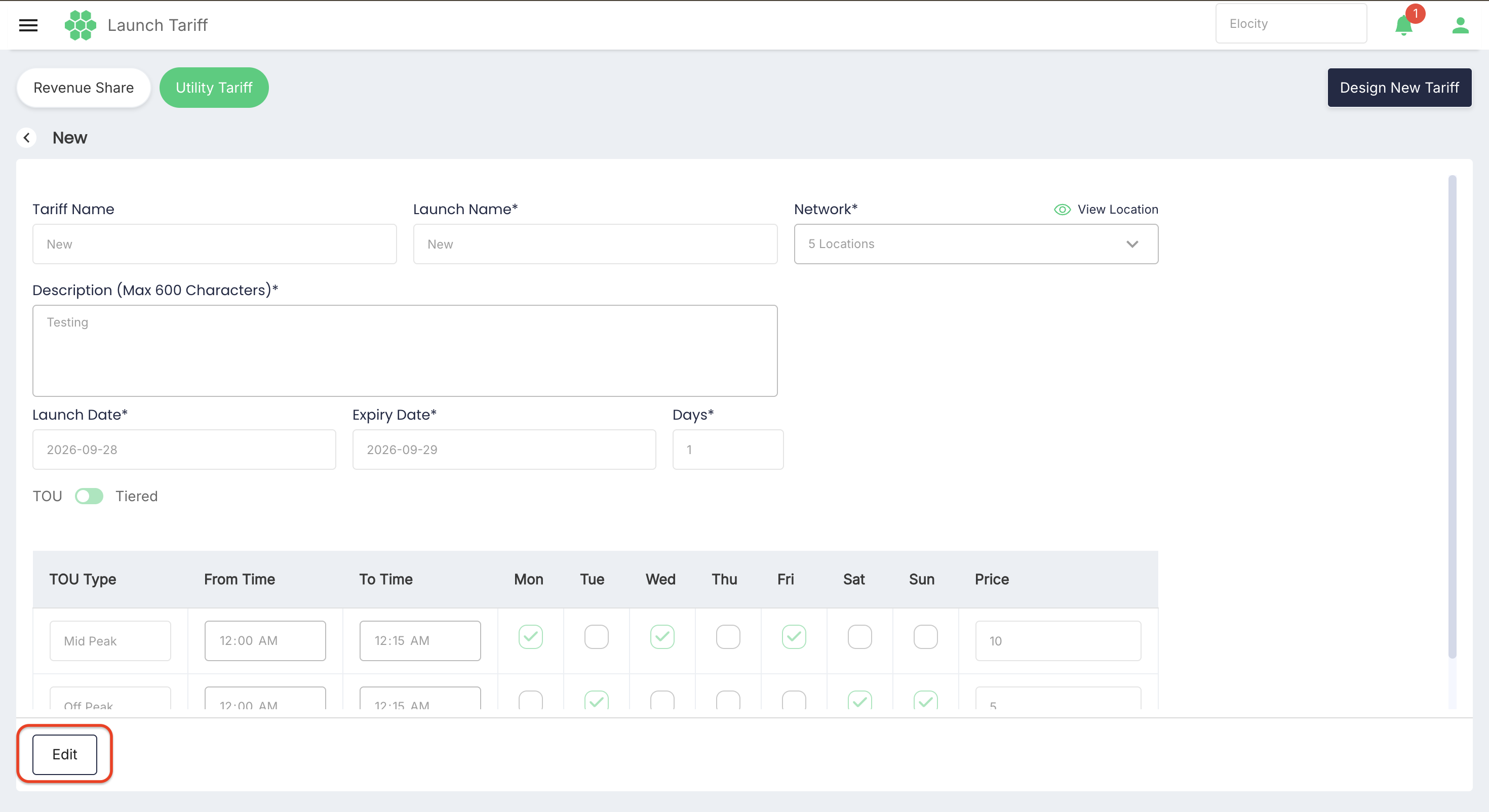
- Select Edit at the bottom left to enable editing.
- Update deployment parameters, notes, or rates as needed.
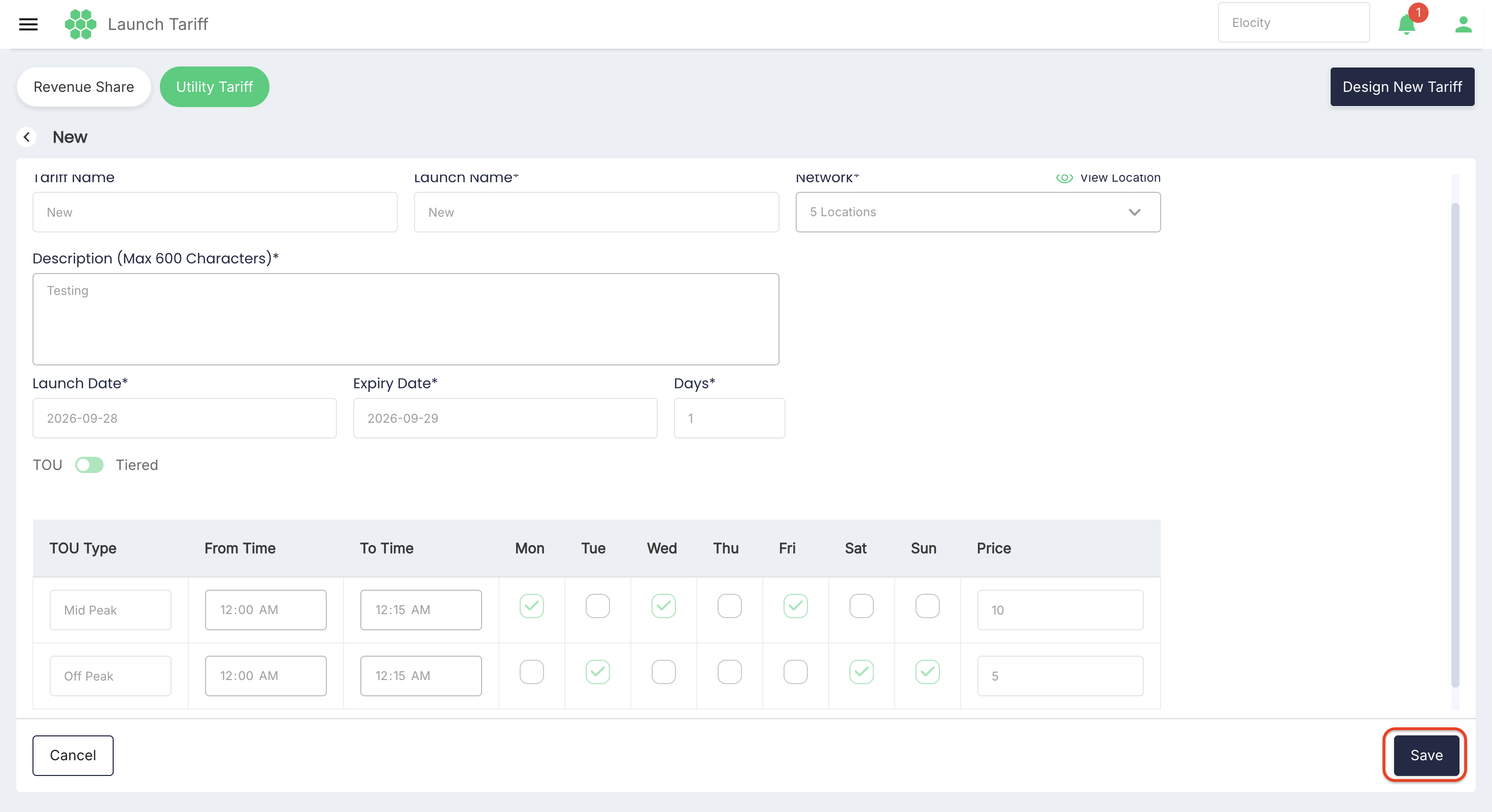
- Select Save to retain changes.
Deactivating a launched tariff
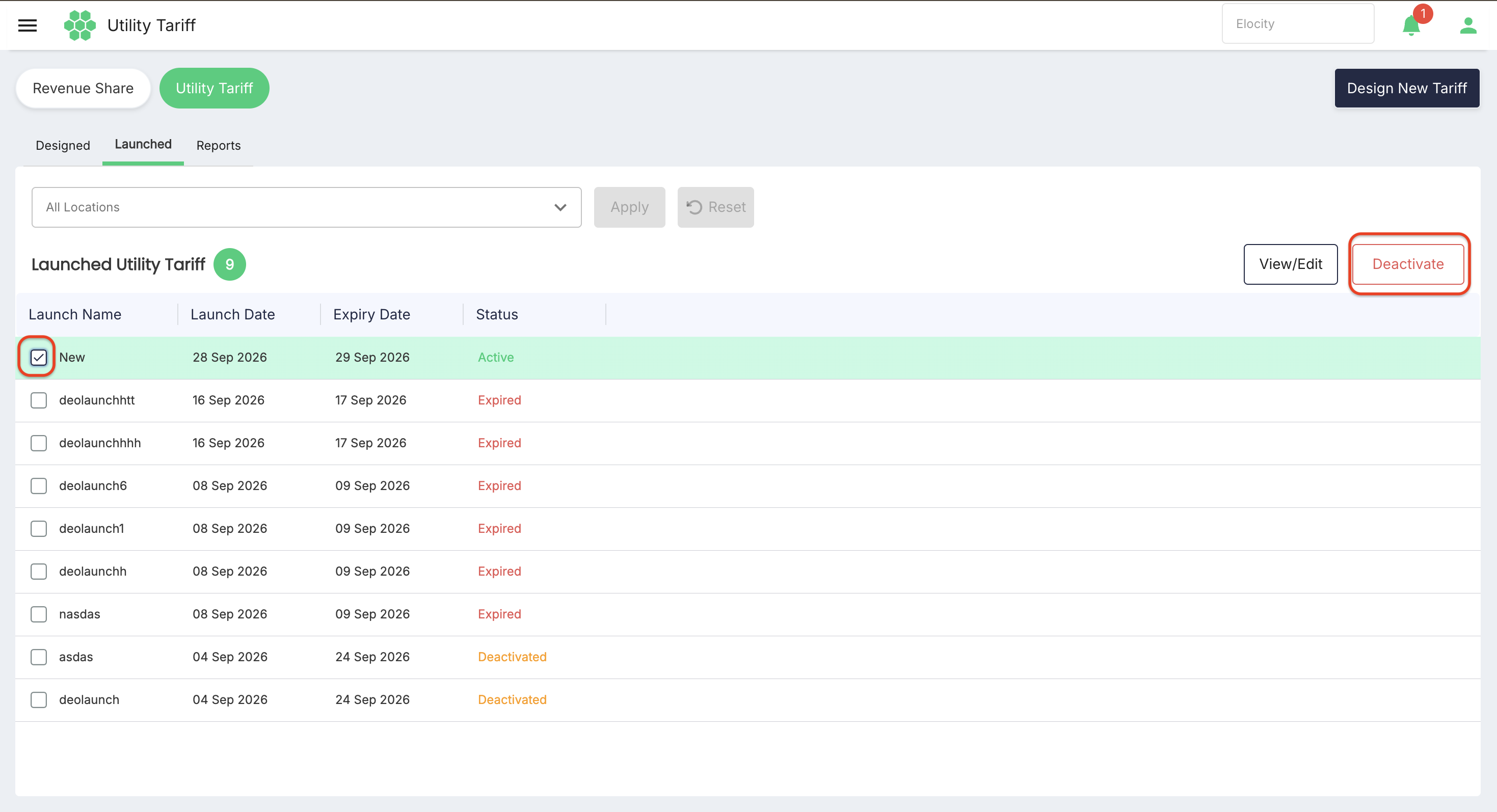
- In the Launched grid, select the checkbox next to one or more Active tariffs.
- Select Deactivate in the top-right toolbar.
- Review the confirmation prompt and select Continue.
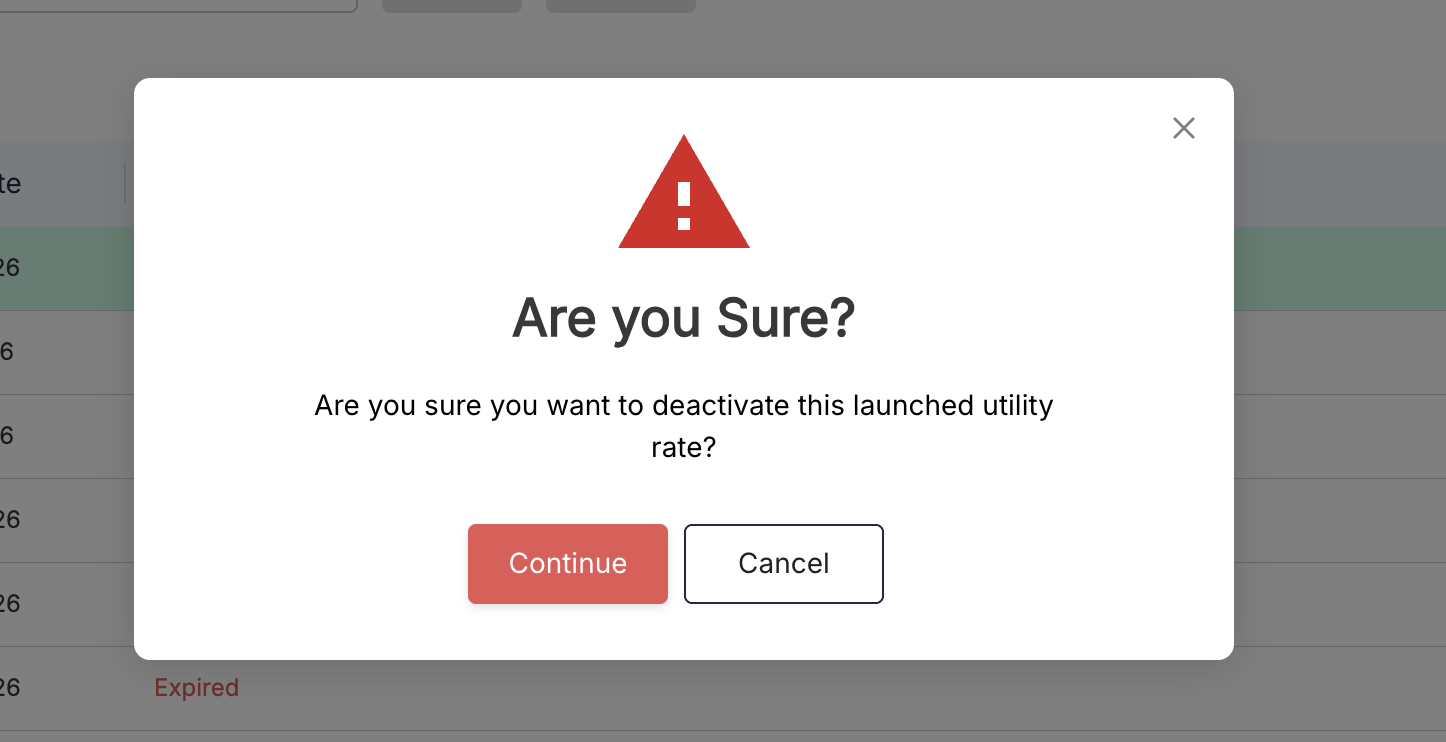
- The status immediately updates to Deactivated, and the tariff ceases calculating costs for future sessions.
Relaunching an expired or deactivated tariff
- In the Launched grid, select the checkbox next to an Expired or Deactivated tariff.
- Select Relaunch in the top-right toolbar.
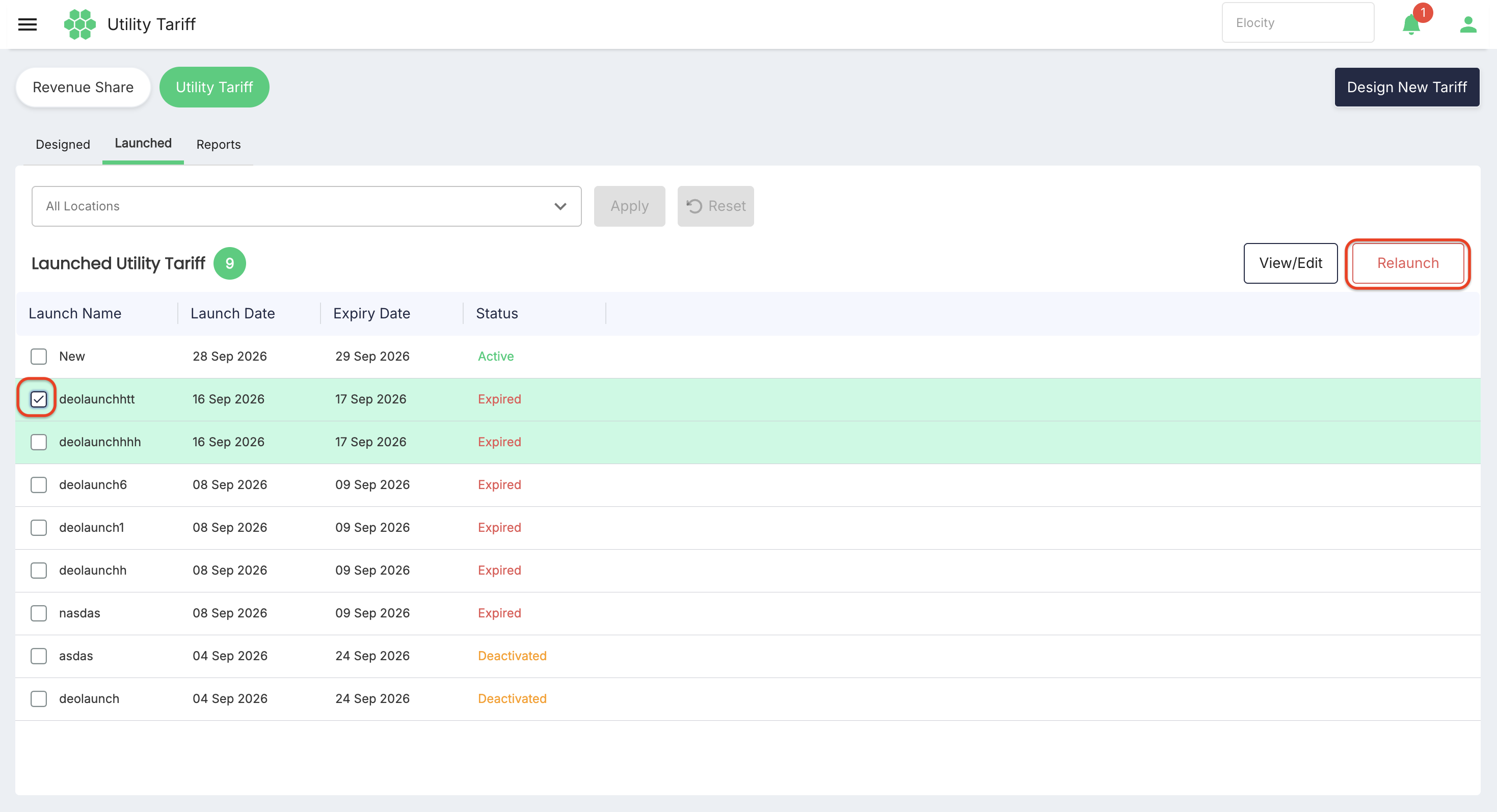
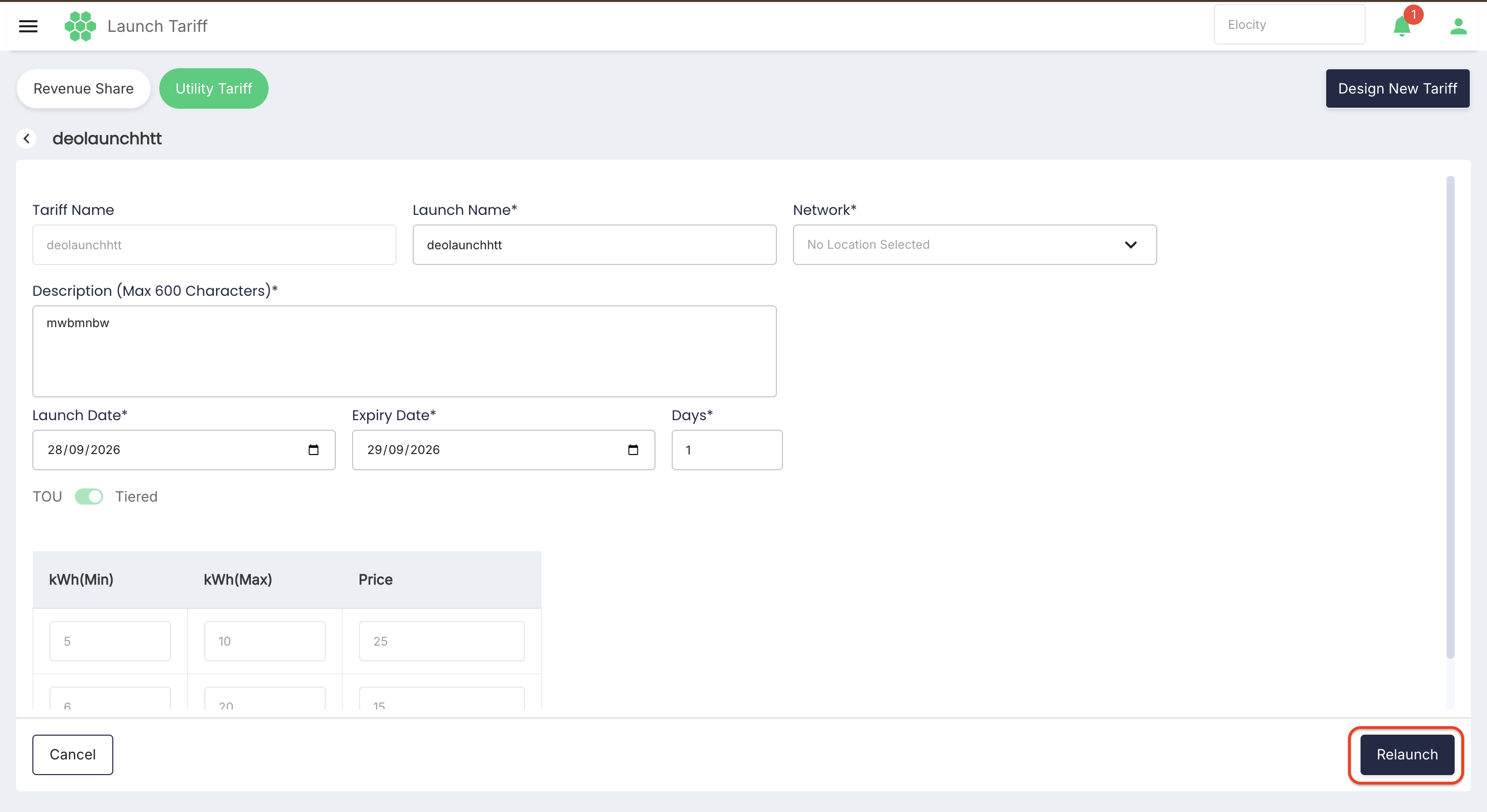
- In the configuration screen, provide the updated deployment details:
- Update the Launch Name if required.
- Confirm or update the Network location assignments.
- Set the new Launch Date* and Expiry Date*.
- Review or modify the TOU time slots or Tiered rates.
- Select Relaunch.
Reports
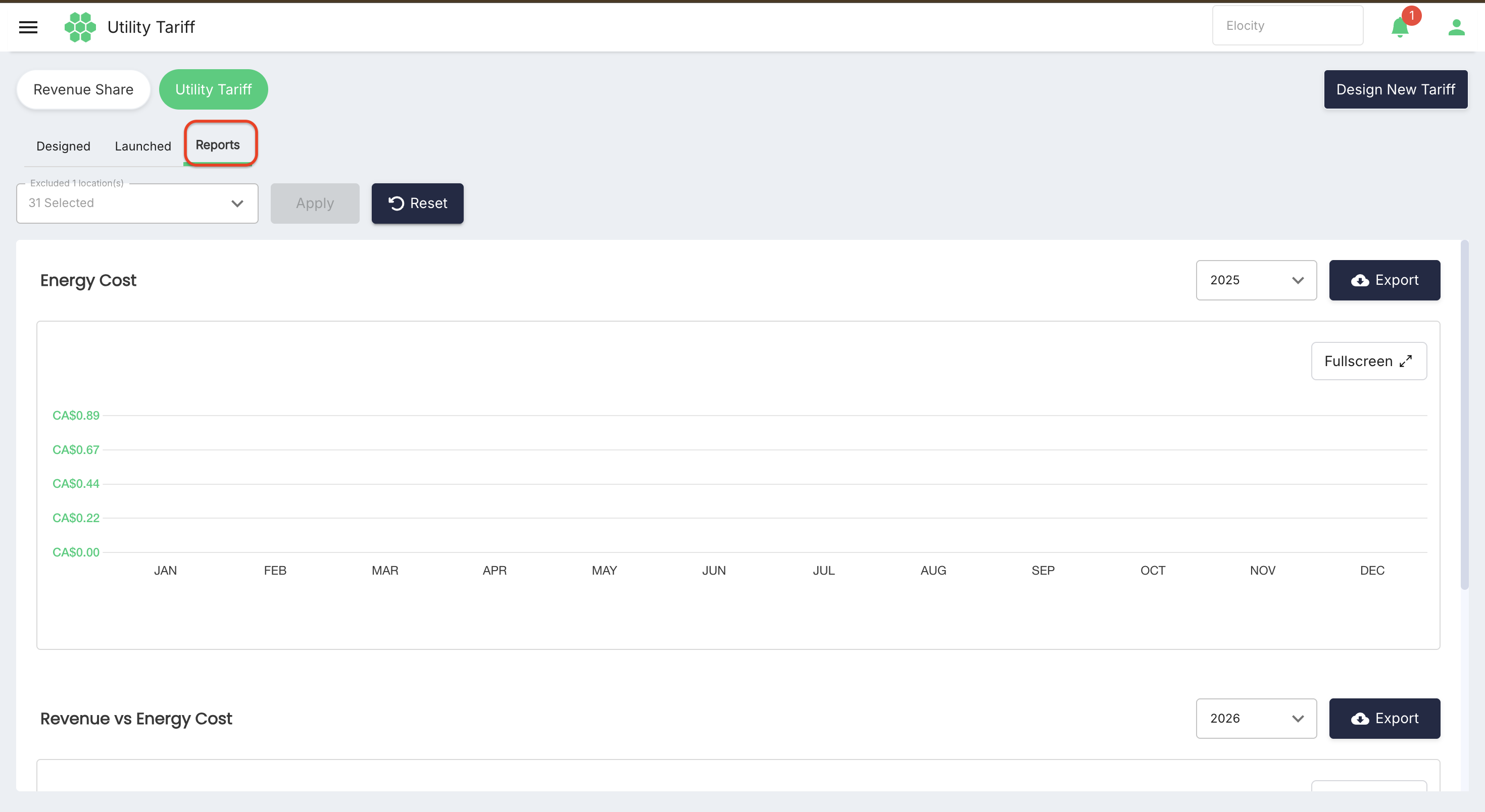
The Reports tab provides graphical analytics on electricity costs incurred through configured utility tariffs and compares energy expenses directly against charging revenue.
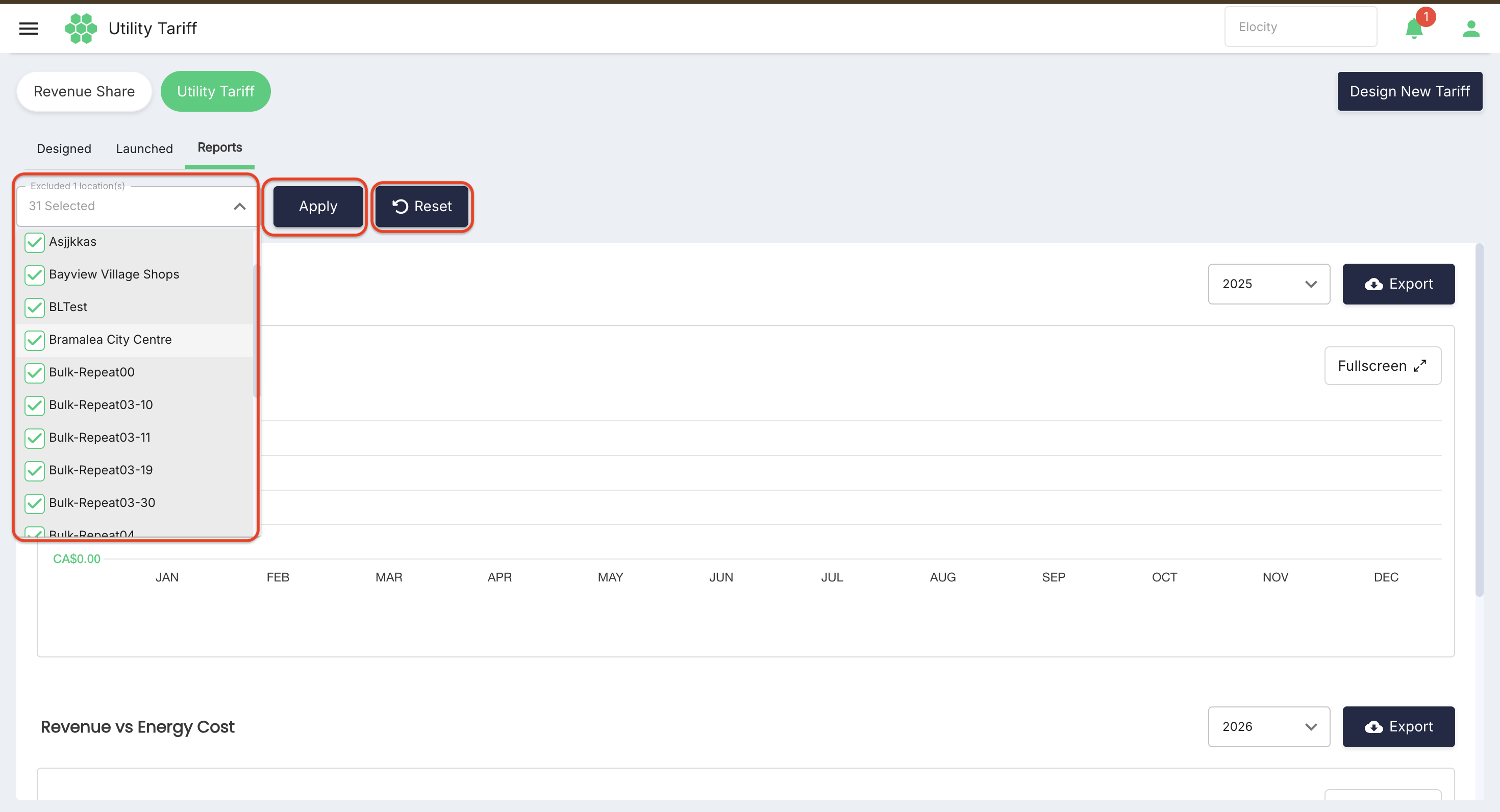
Report location filter
Select All Locations at the top of the tab to scope the charts to specific charging stations or entire networks. Select Apply to generate the charts, or Reset to return to default.
Energy Cost chart
The Energy Cost chart displays total monthly electricity costs calculated from the active utility tariffs.
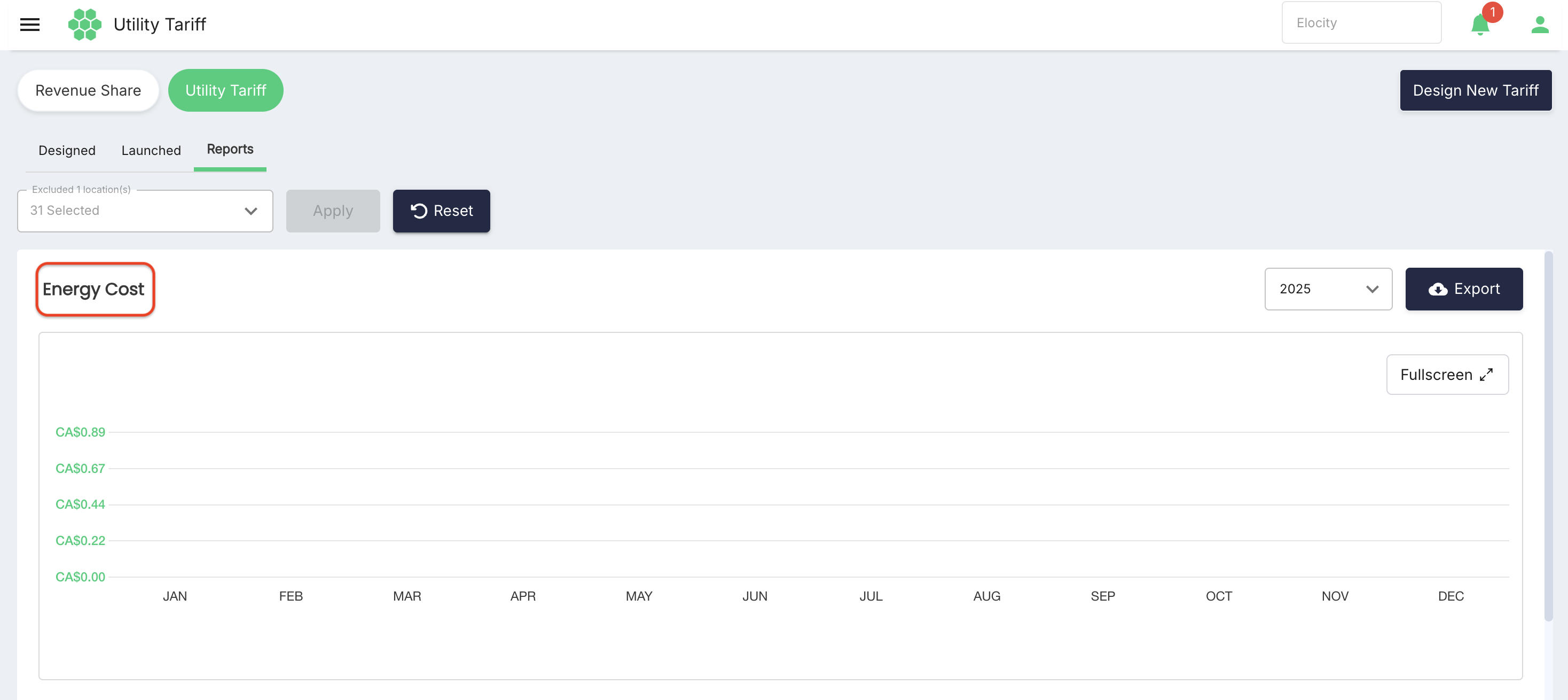
- Year Filter: Select the required calendar year from the dropdown (e.g.,
2026) to review annual cost trends. - Monthly Breakdown: Displays cost totals in configured currency (e.g.,
CA$) across all 12 months (JAN – DEC). - Fullscreen View (
⤢): Expands the chart to full-screen mode. - Export (
☁ Export): Downloads chart dataset for accounting and offline analysis.
Revenue vs Energy Cost chart
The Revenue vs Energy Cost chart compares gross charging revenue against utility electricity expenses month by month.
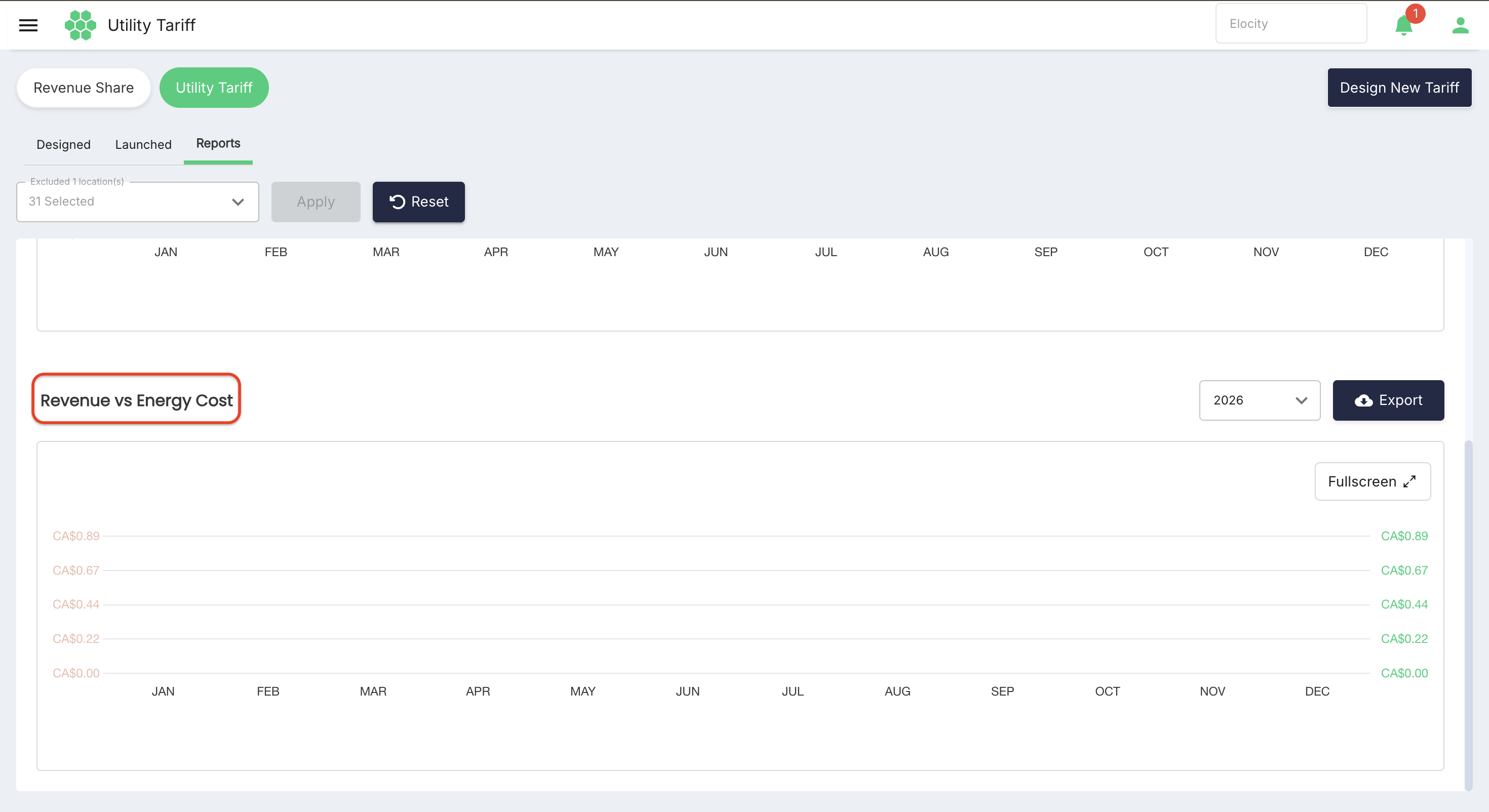
- Profitability Analysis: Evaluates operational margins by contrasting revenue against electricity costs.
- Year Filter: Switch between calendar years to track cost trends and profitability over time.
- Fullscreen View (
⤢): Expands the comparative chart to full-screen mode. - Export (
☁ Export): Exports the comparative dataset.
Confirmed product rules
- A tariff profile must be designed and saved before it can be launched to network locations.
- The system supports two tariff structures: Time of Use (TOU) and Tiered.
- Multiple time bands (Off Peak, Mid Peak, On Peak) can be assigned to different days of the week in a single TOU tariff.
- Active launched tariffs can be viewed and edited directly.
- Expired and Deactivated tariffs cannot be edited; they must be re-deployed using the Relaunch action with new effective dates.
- Deactivating an active tariff immediately halts its application to subsequent charging sessions.
- Reports maintain monthly energy cost data and allow year-wise filtering, full-screen viewing, and file export.
- Currency display aligns with the deployment's configured currency symbol (e.g.,
CA$). - Access to designing, launching, editing, deactivating, and viewing reports is controlled by feature-specific role permissions.