Exports
Application: HIEV Administration Portal
Page: Administration > Exports
Page URL: https://hiev.ca/ca/export-history
Document status: Draft based on the current portal interface reviewed on 22 July 2026
1. Overview
The export framework supports two ways of generating report files:
- Synchronous export: the report is generated immediately and a file URL or download is returned directly.
- Asynchronous export: a named export request is created, processed in the background, and tracked for later download.
The export mode is controlled by the application's client-side configuration. Users do not select the mode from the All Exports page, and the portal does not automatically switch between modes.
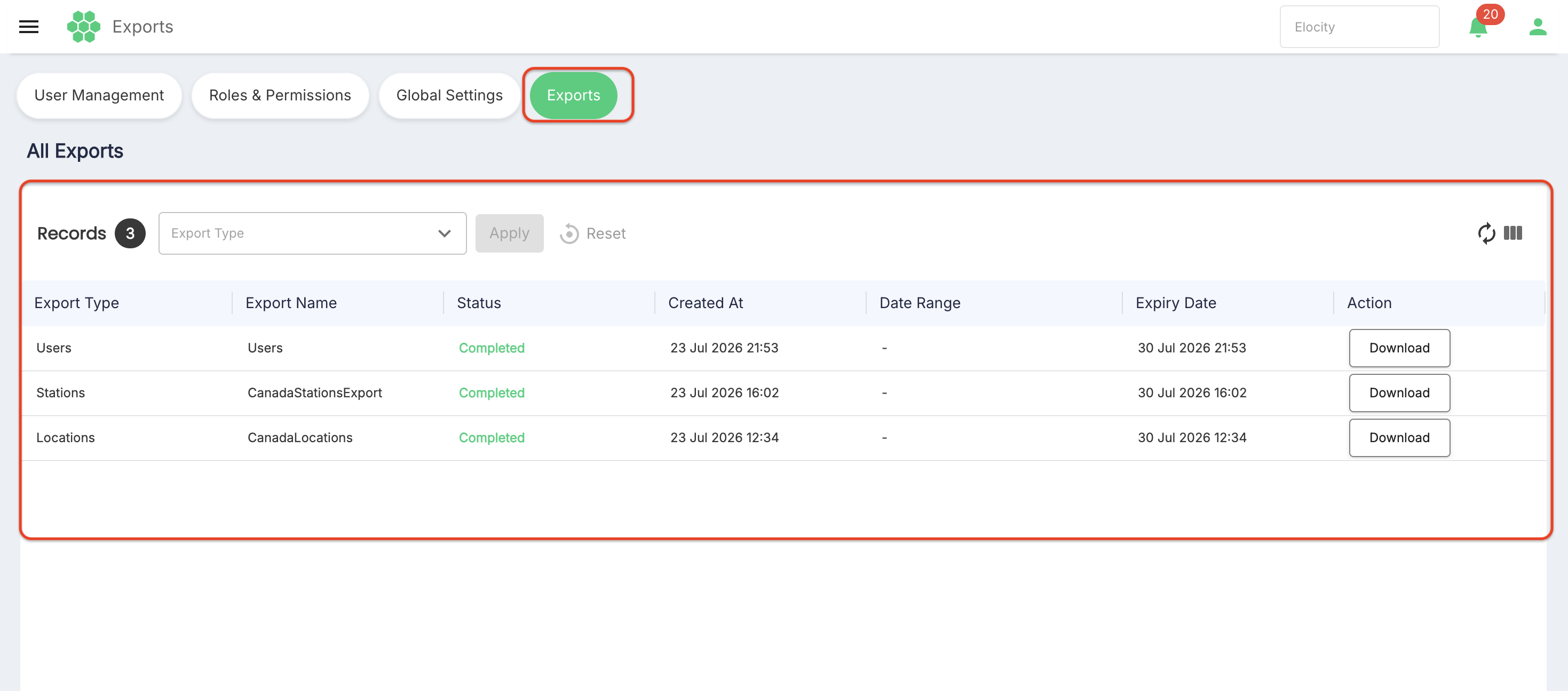
The live Exports page is the history and download area for export requests. It allows the user to review export records, filter them by export type, refresh the results, control the visible columns, and use the Download action shown for completed records.
2. Accessing Exports
- Sign in to the HIEV Administration Portal.
- Open the Administration area.
- Select Exports.
- The portal opens All Exports.
The page also provides navigation to:
- User Management
- Roles & Permissions
- Global Settings
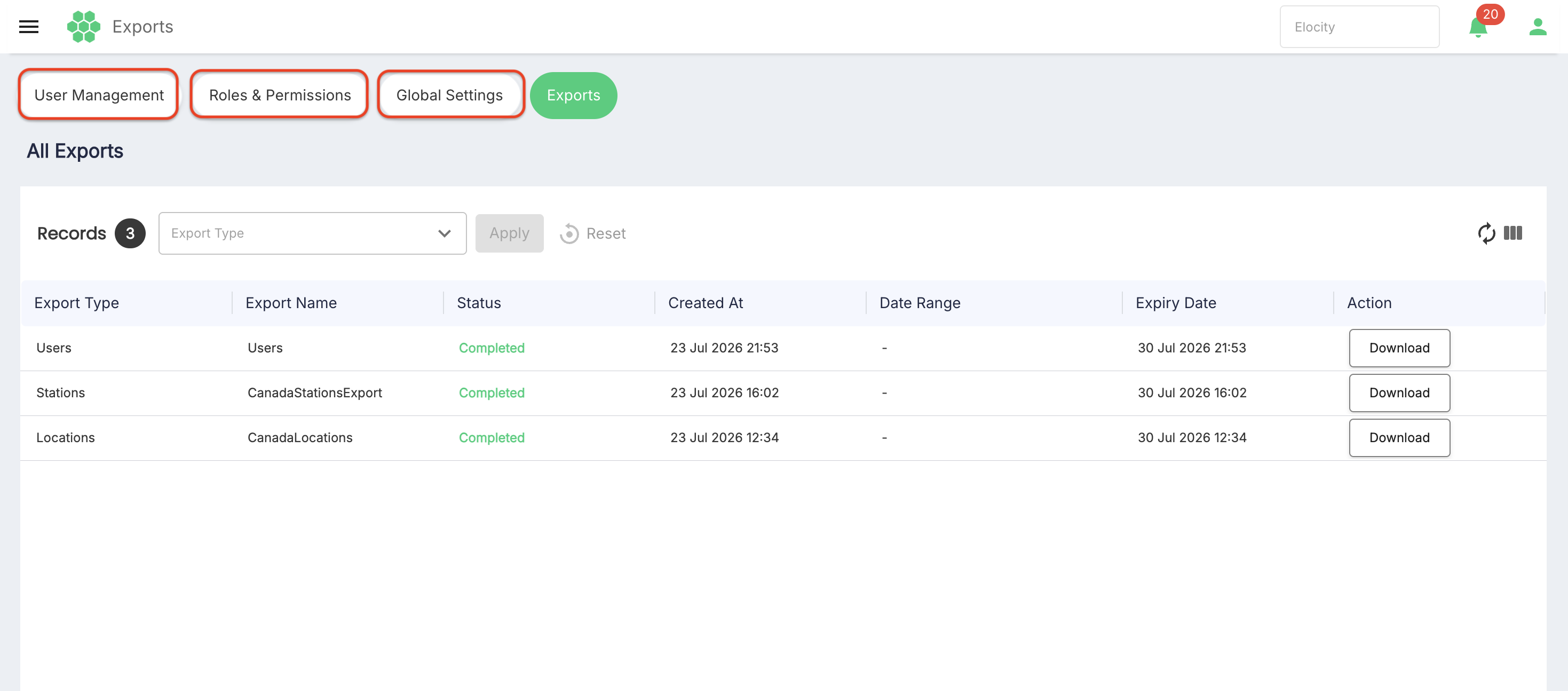
Those modules are outside the scope of this guide.
Business context
The live page displayed All Businesses. Individual business entries were present but disabled in the reviewed session. The page is intended to display only export requests created by the signed-in user; the relationship between request ownership and business scope requires confirmation.
3. Starting an Export
Exports are initiated from the portal feature that owns the report, not from the All Exports page.
3.1 Synchronous export
The synchronous workflow is:
- From a report or data page, select its Export action.
- The portal generates the report immediately.
- A file URL or direct download is returned.
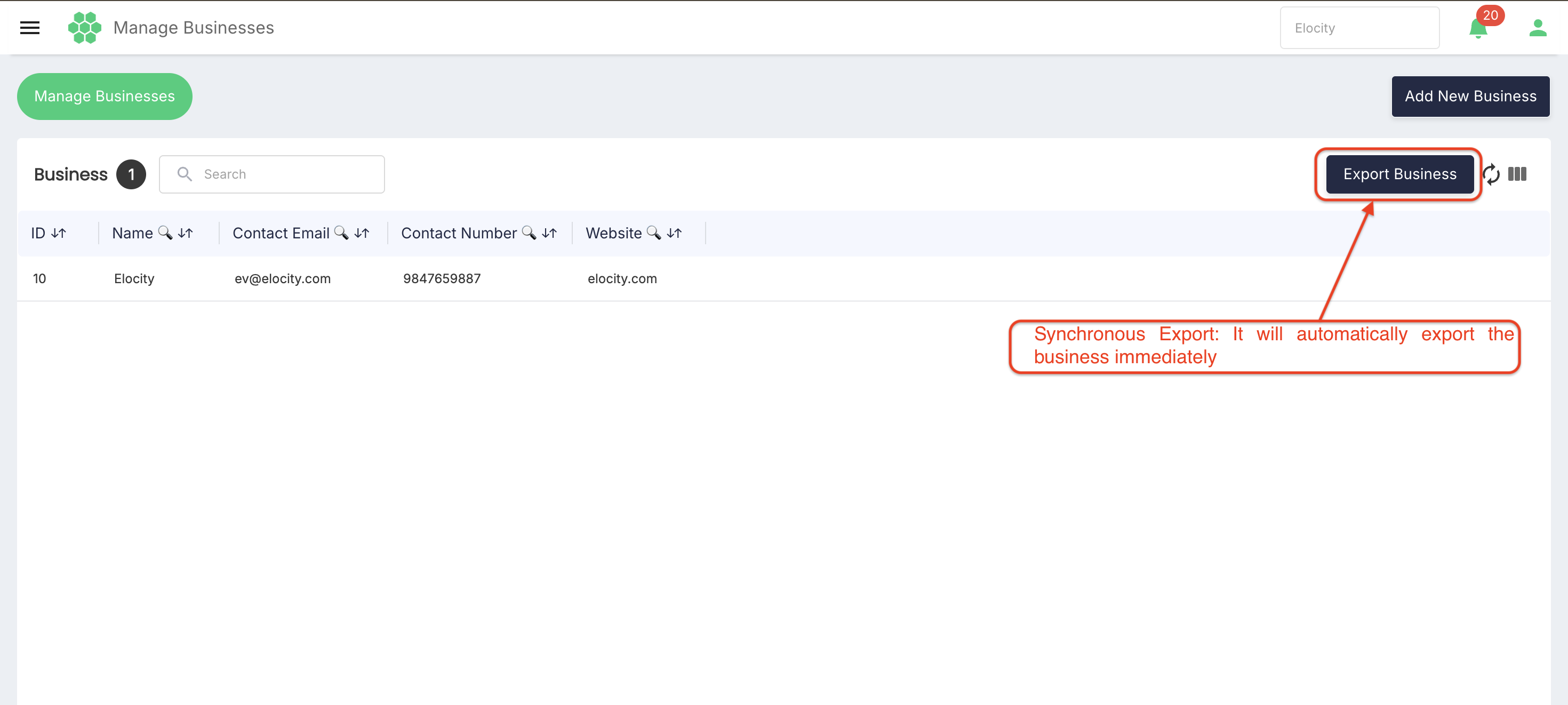
The live review did not initiate an export, so the file formats, filenames, progress state, and error behavior for synchronous exports were not verified.
3.2 Asynchronous export
The asynchronous workflow is:
- From a report or data page, select its Export action.
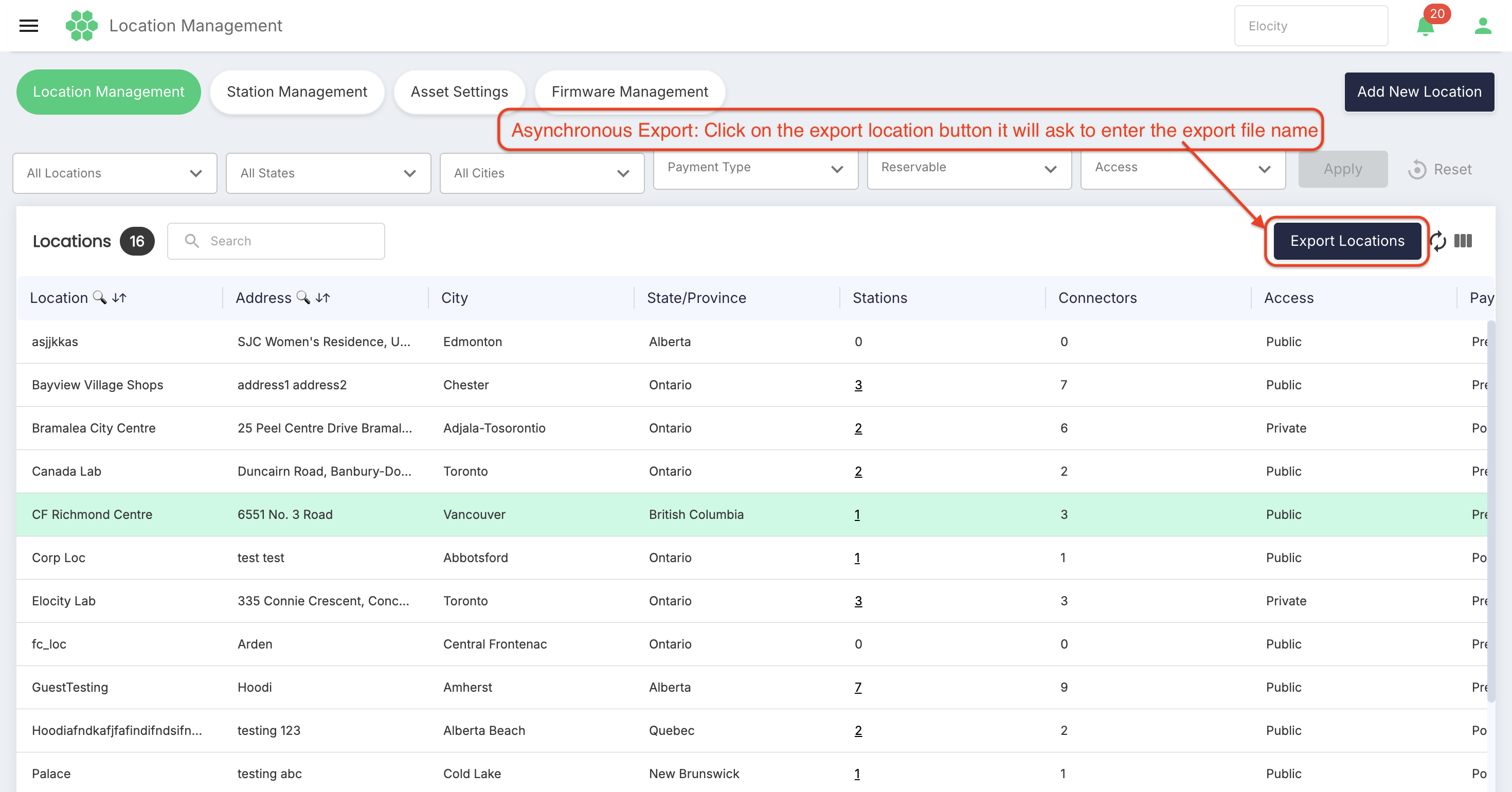
- Enter an Export Name when prompted.
- Submit the request.
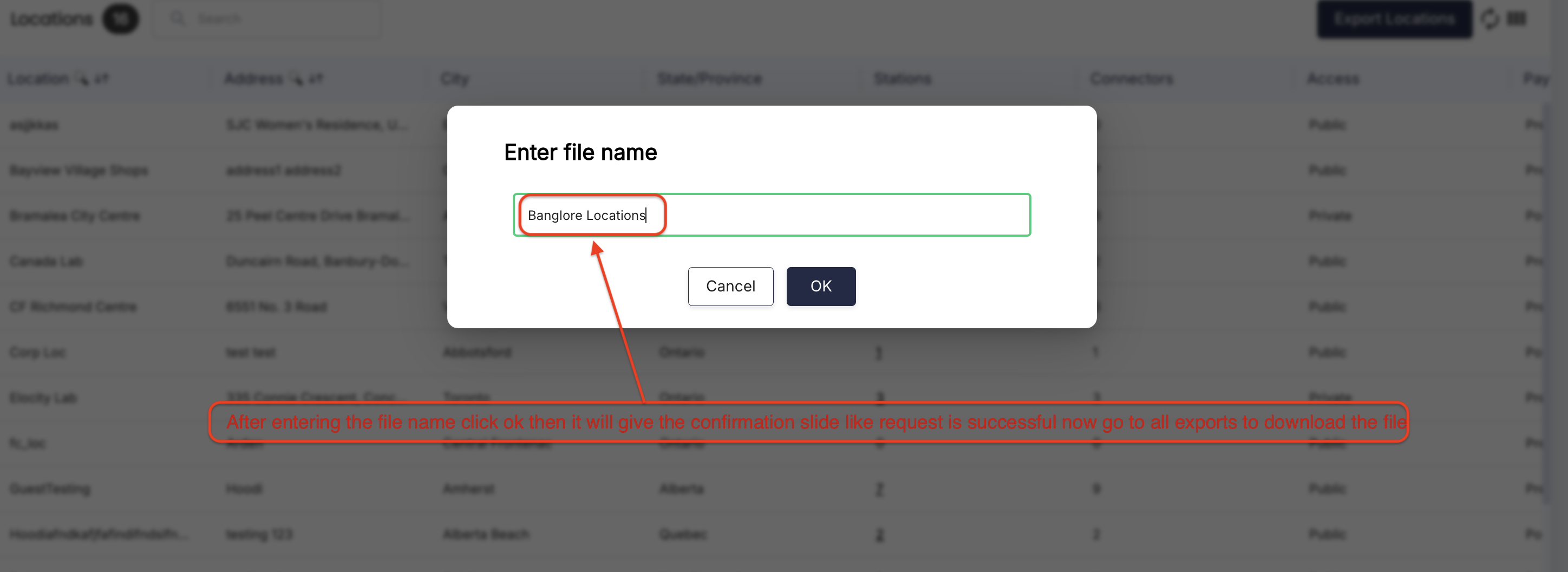
- The request is created and processed in the background.
- A success popup provides:
- Check Requests, which opens the export-request history.
- Close, which closes the popup.
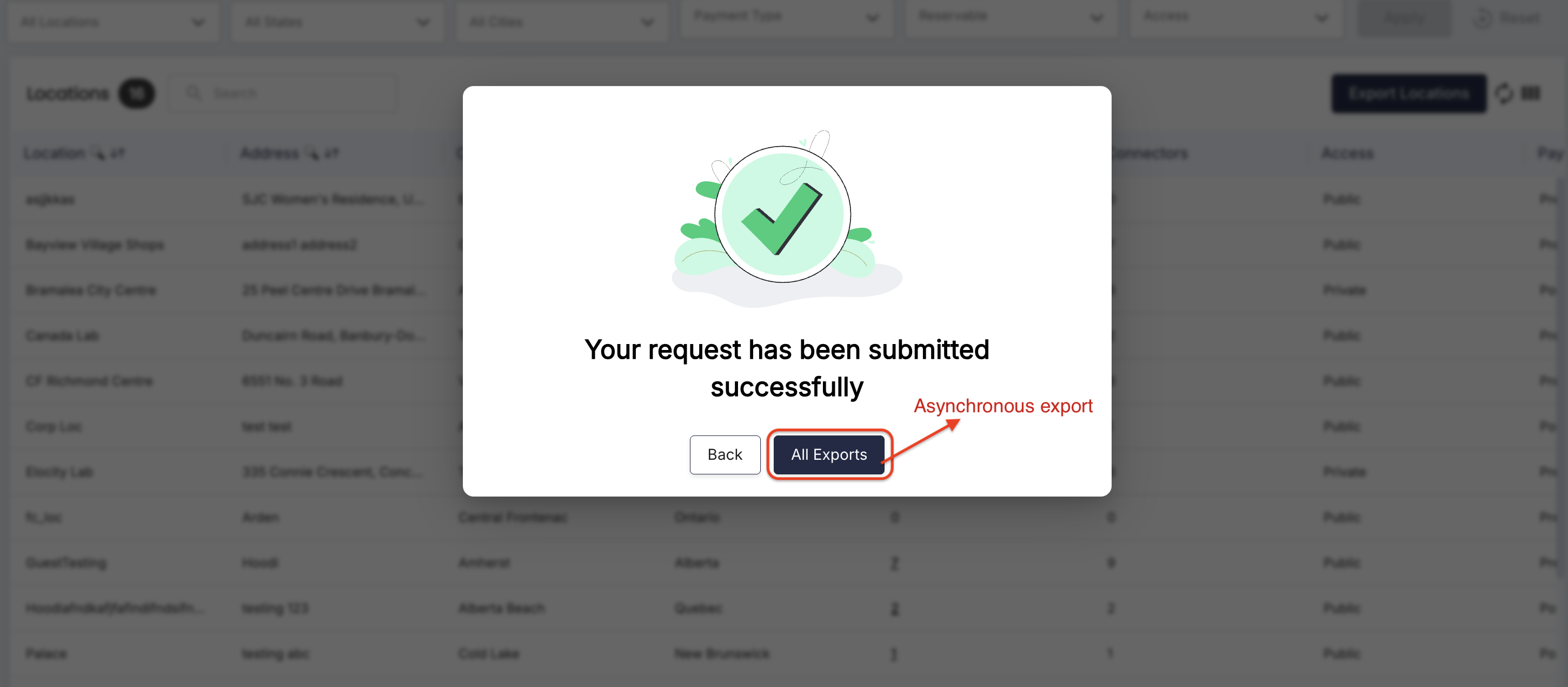
Export names are provided by the user, and the same name may be reused. The live review did not submit a request or verify the popup.
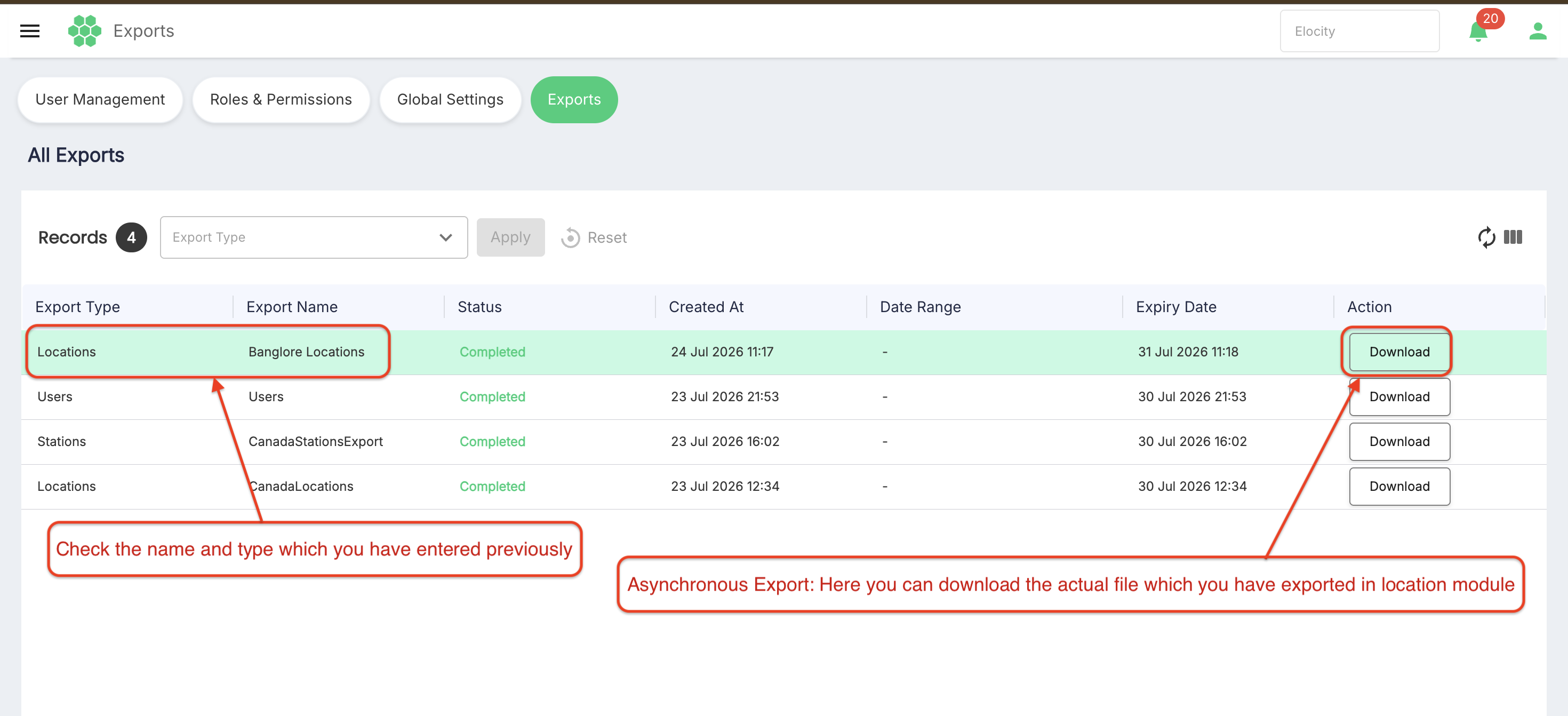
4. All Exports Page
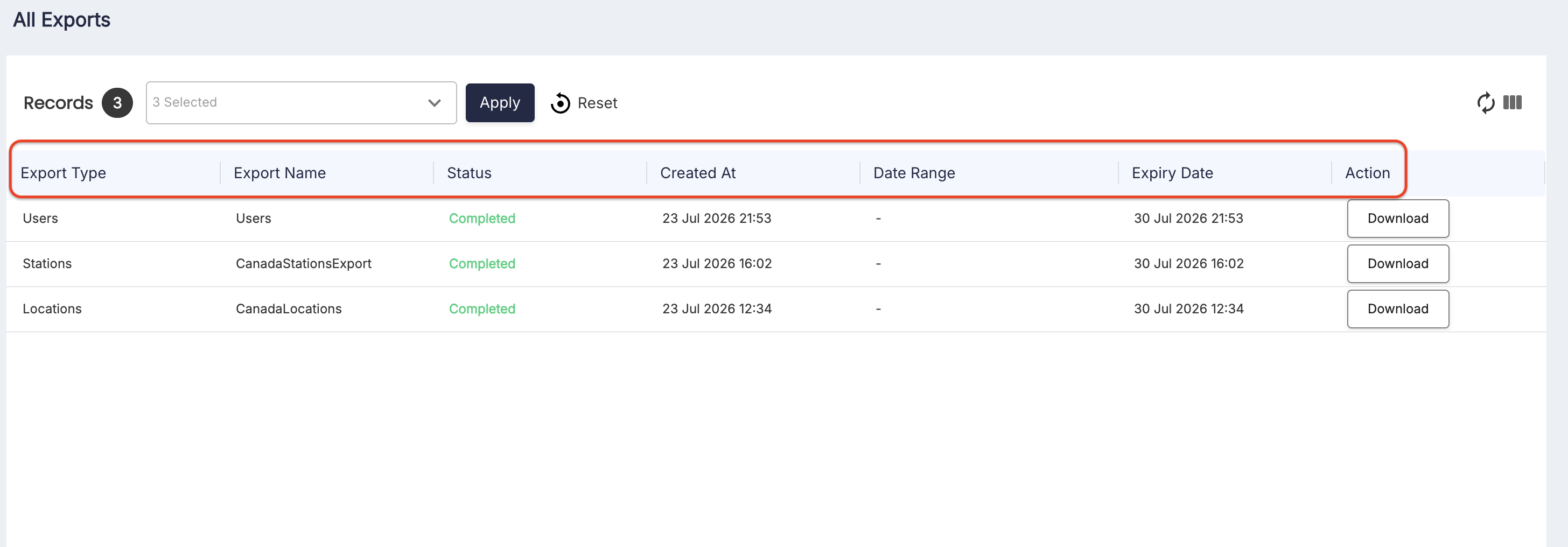
The live page contains:
- Records count (e.g.,
Exports 1). - Export Type multi-select filter.
- Apply.
- Reset.
- Refresh (⟳).
- Column Filter (|||).
- Export-history grid.
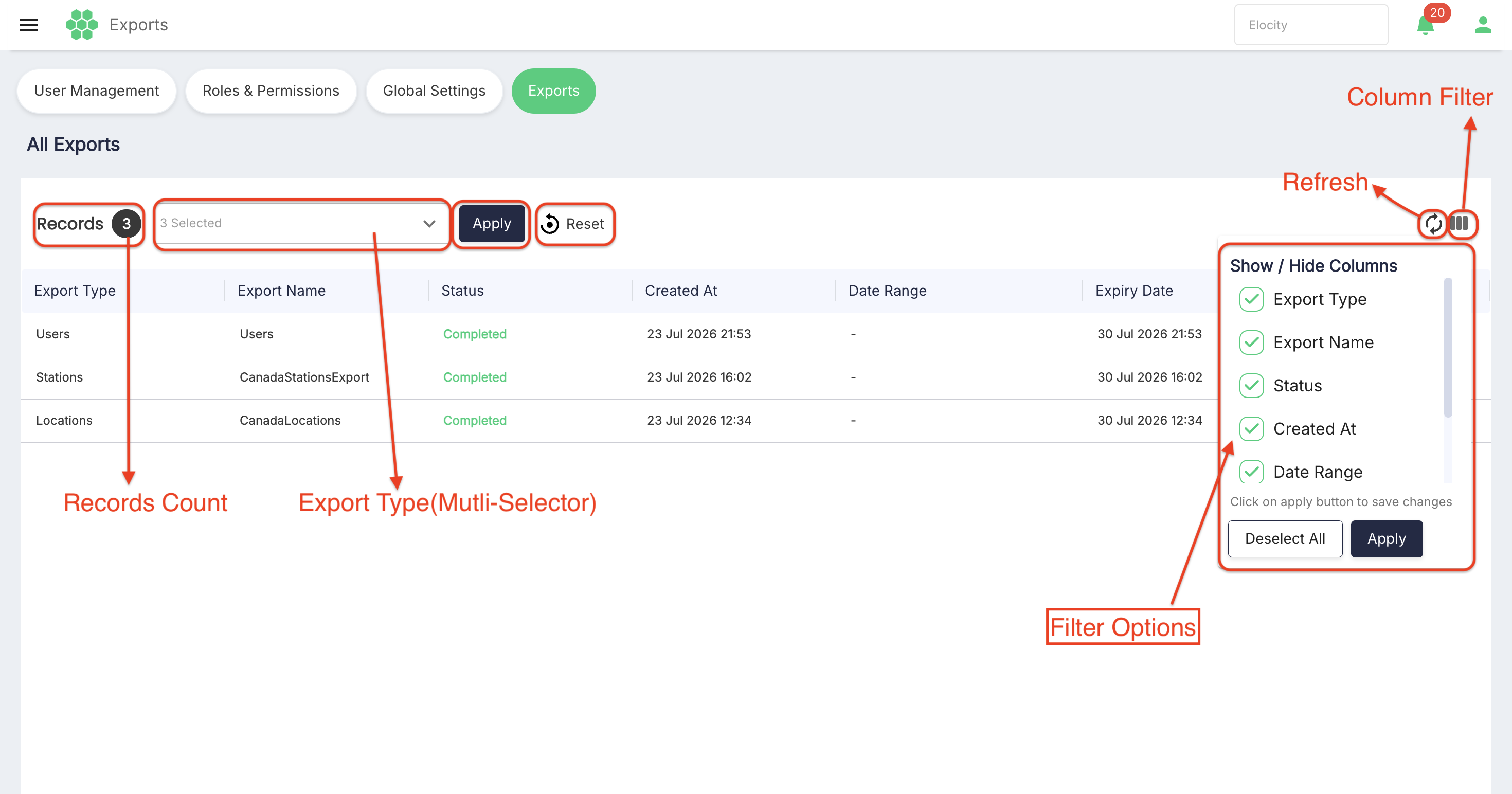
The Records count changes to match the filtered results. The reviewed unfiltered page displayed 14 records.
5. Export-History Columns
| Column | Description |
|---|---|
| Export Type | Report or dataset associated with the export request. |
| Export Name | User-provided name of an asynchronous export request. Name reuse is allowed. |
| Status | Current state displayed for the request. The reviewed records displayed Completed; other processing and failure states were not available during the review. |
| Created At | Date and time when the export request was created. |
| Date Range | Reporting period used for the export. A hyphen (-) was displayed for an export without a visible date range. |
| Expiry Date | Date and time shown for expiry of the downloadable file (typically 7 days after creation). |
| Action | Contains the Download action when the interface makes it available. |
6. Filtering by Export Type
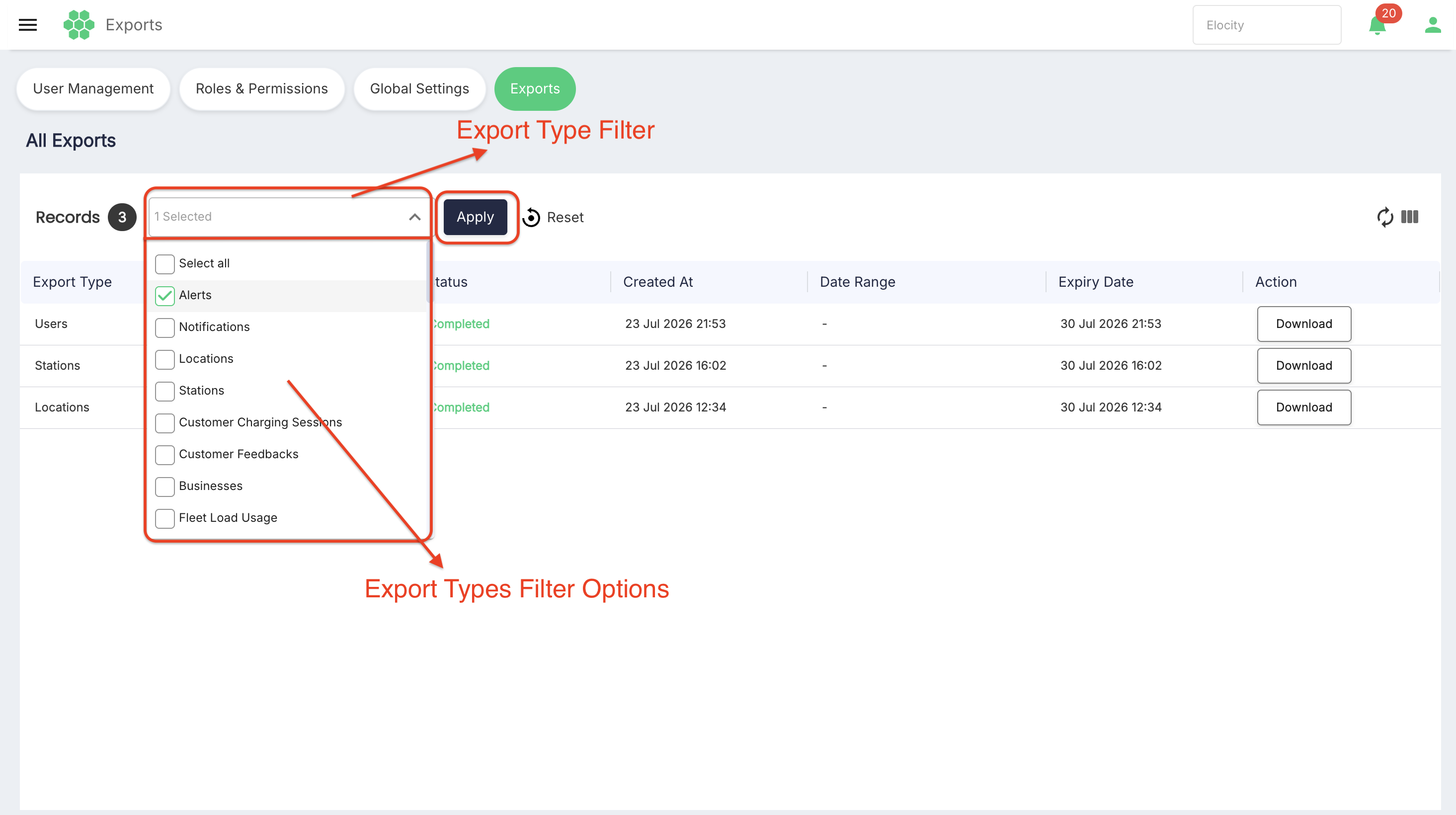
The Export Type control supports multiple selections.
- Select Export Type or its Open button.
- Select one or more export types.
- Use Select all if every currently listed type is required.
- Close the selection panel.
- Select Apply.
- Review the updated Records count and grid.
Observed behavior:
- The control displays the number of selected types, such as
1 Selectedor43 Selected. - Apply is unavailable until the filter selection changes.
- Applying the Stations filter reduced the reviewed results from 14 records to one record.
- A Clear control is displayed after a selection is made.
- Select Reset to clear the filter and restore the unfiltered results.
The live filter contained 43 export types.
7. Refreshing Export History
Select Refresh to request the latest export records.
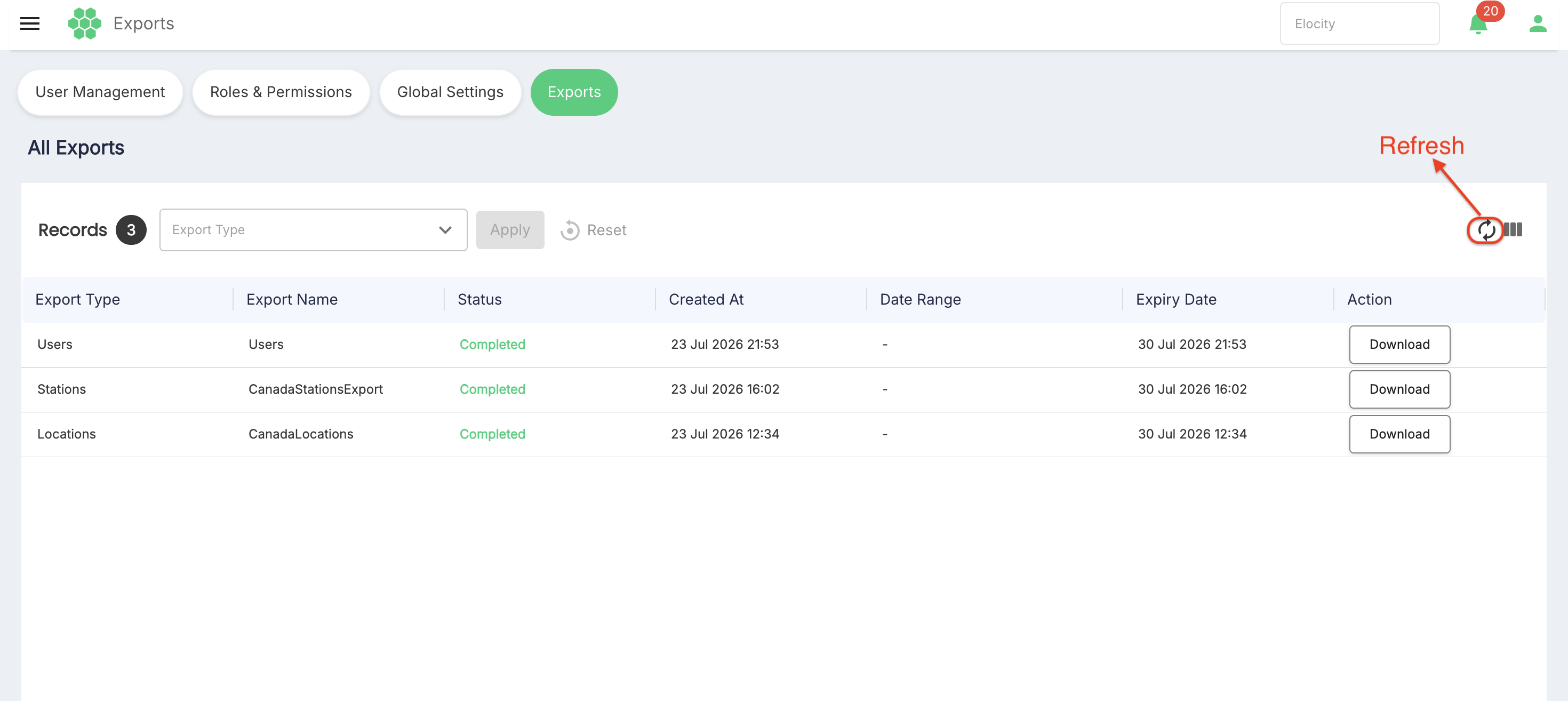 During the refresh:
- A loader is displayed.
- Refresh and Column Filter are temporarily unavailable.
- The grid is repopulated when loading finishes.
Manual refresh was the only refresh behavior verified on the live page. Automatic updates for queued or in-progress requests require confirmation.
8. Showing or Hiding Columns
Use Column Filter to control which grid columns are displayed.
- Select Column Filter.
- In the scrollable Show / Hide Columns panel, select or clear any of the column checkboxes.
- Select Deselect All to clear all column selections.
- Select Apply in the column panel to save the presentation change.
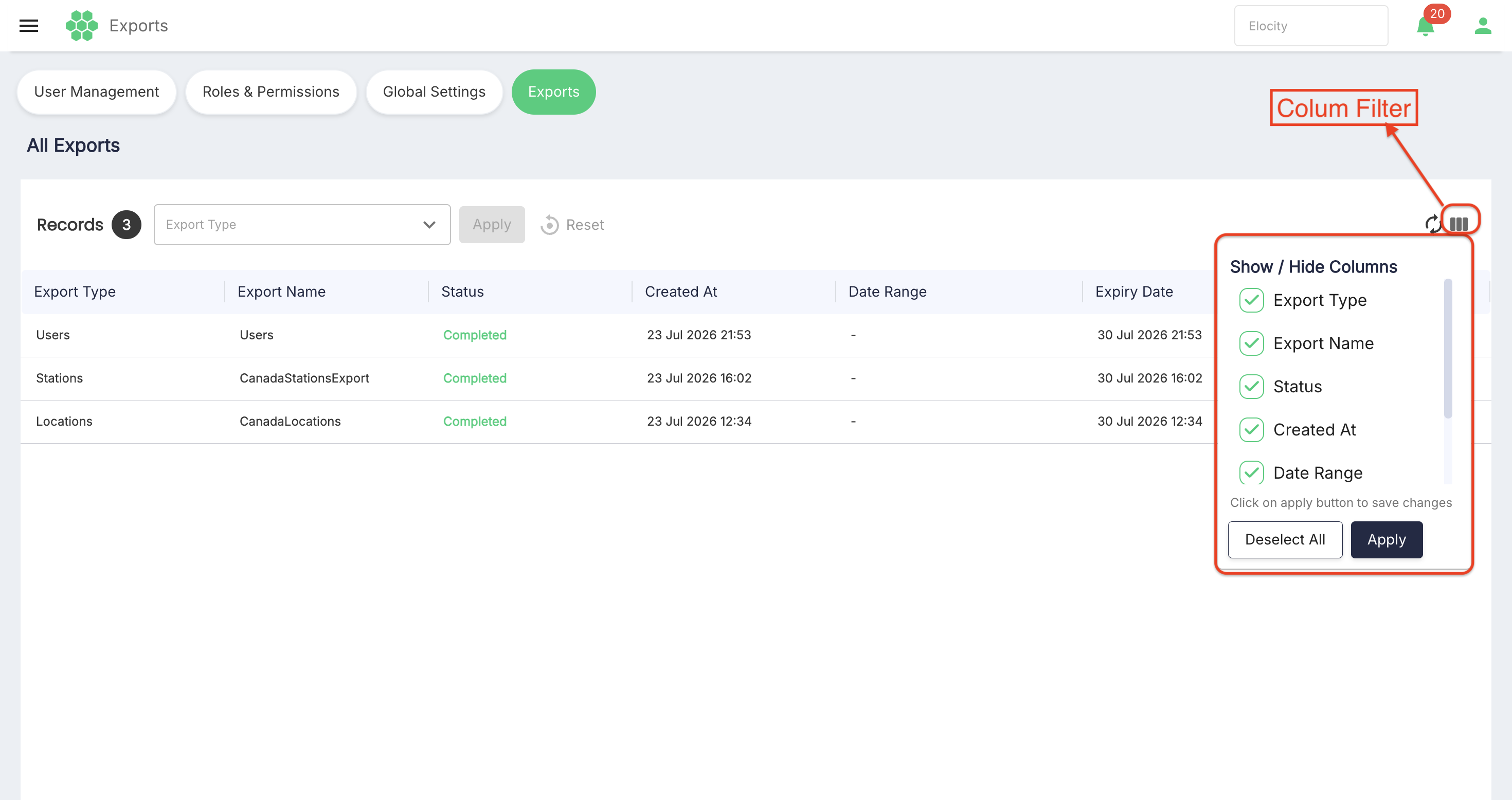
The panel contains:
- Export Type
- Export Name
- Status
- Created At
- Date Range
- Expiry Date
- Action
This control changes the grid presentation; it does not change an export request or downloaded file.
9. Request Statuses
The asynchronous status model includes:
QueuedIn ProgressSuccessFailedExpired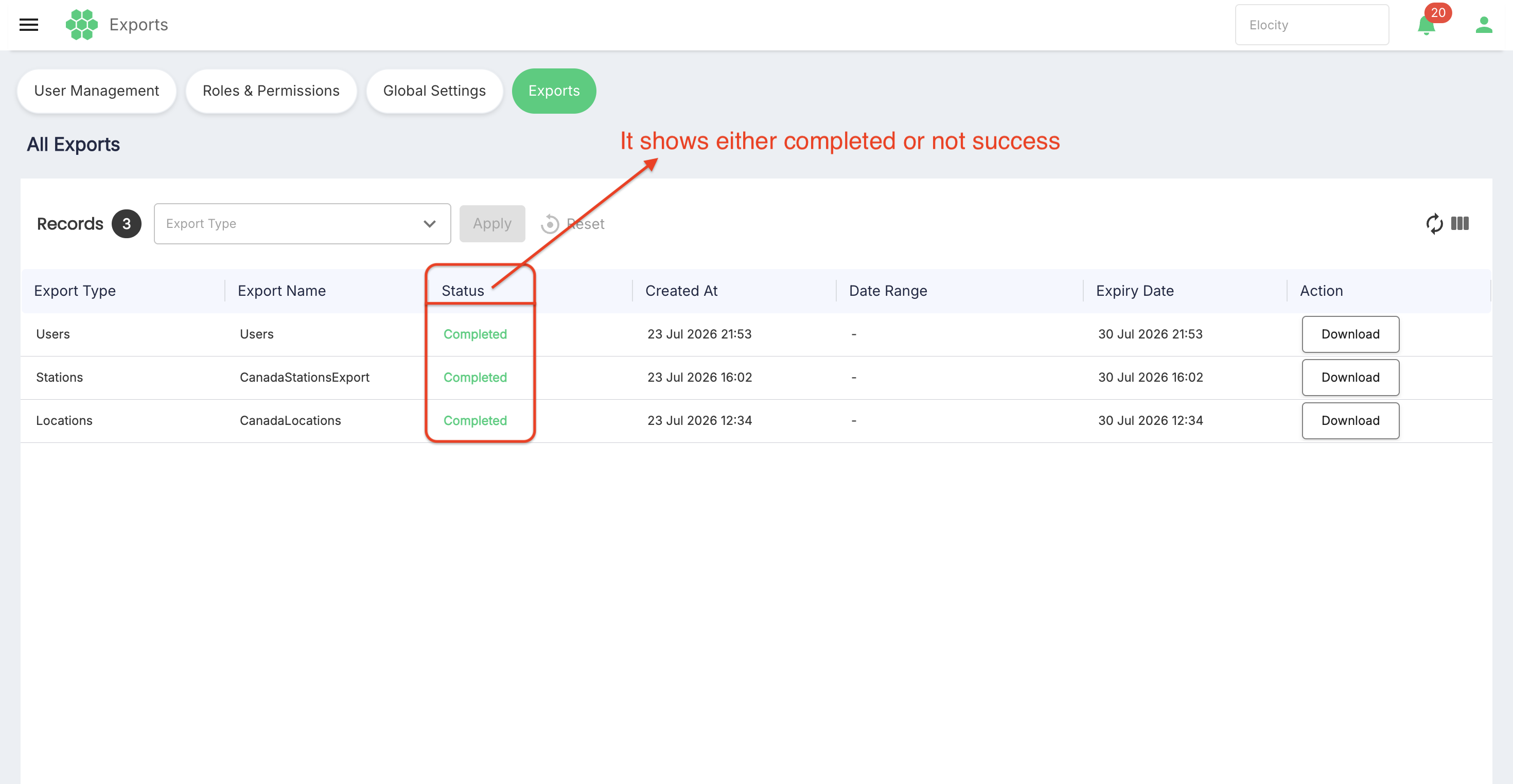
The live records displayed Completed, not Success. No live Queued, In Progress, Failed, or Expired record was available during the review. The canonical success status and exact transitions must be confirmed before this section can be published as an operational status guide.
10. Downloading an Export
The live grid displays a Download button in the Action column for the reviewed Completed records.
- Locate the required export by its type, name, creation time, and date range.
- Confirm that the request belongs to you and that its expiry date is still valid.
- Select Download.
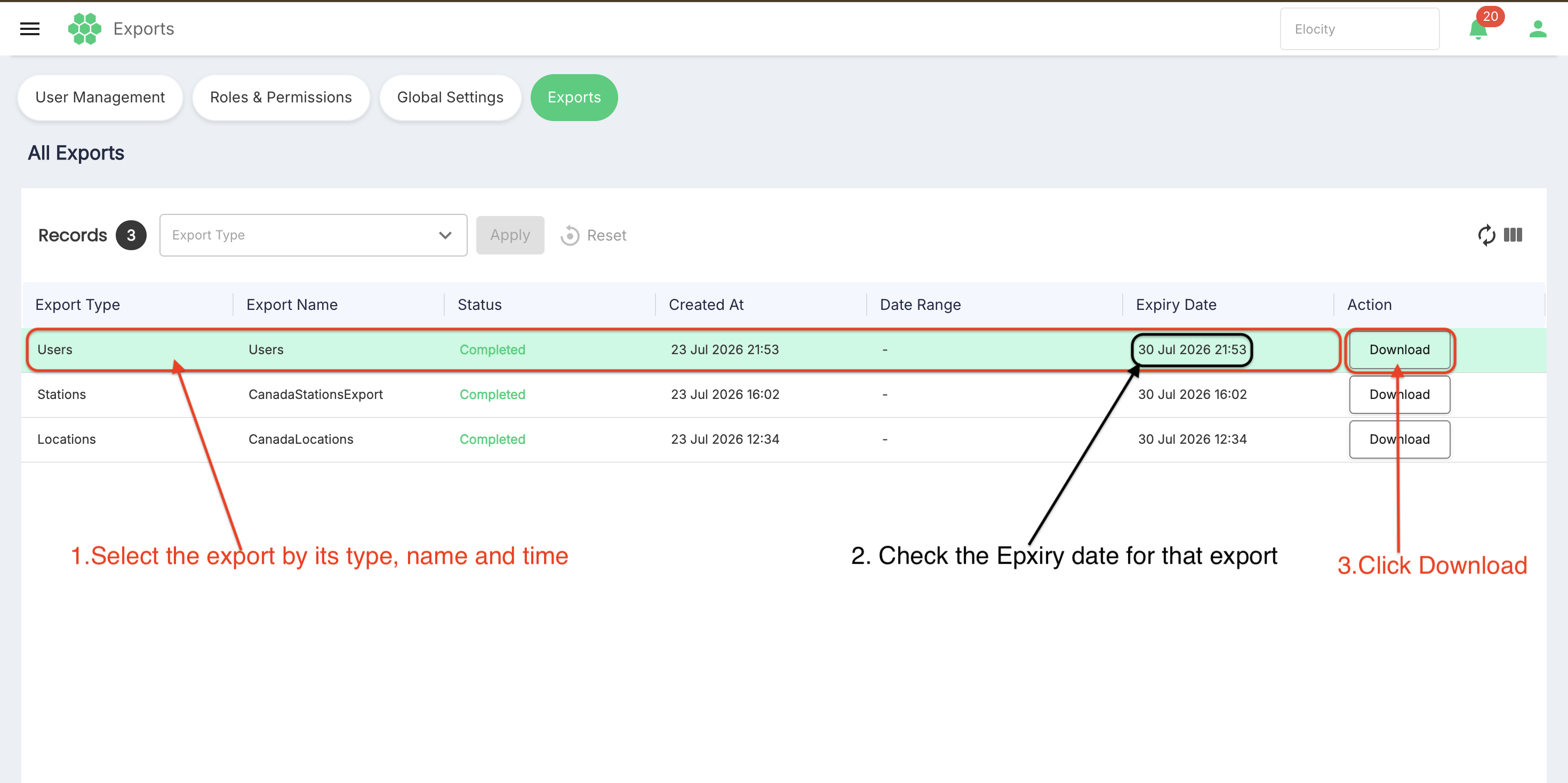
When Download is selected:
- The selected row is highlighted in light green.
- A toast notification appears in the top-right corner:
- Download Completed
[Export Name] has been downloaded.Check your browser's Downloads folder if you don't see it.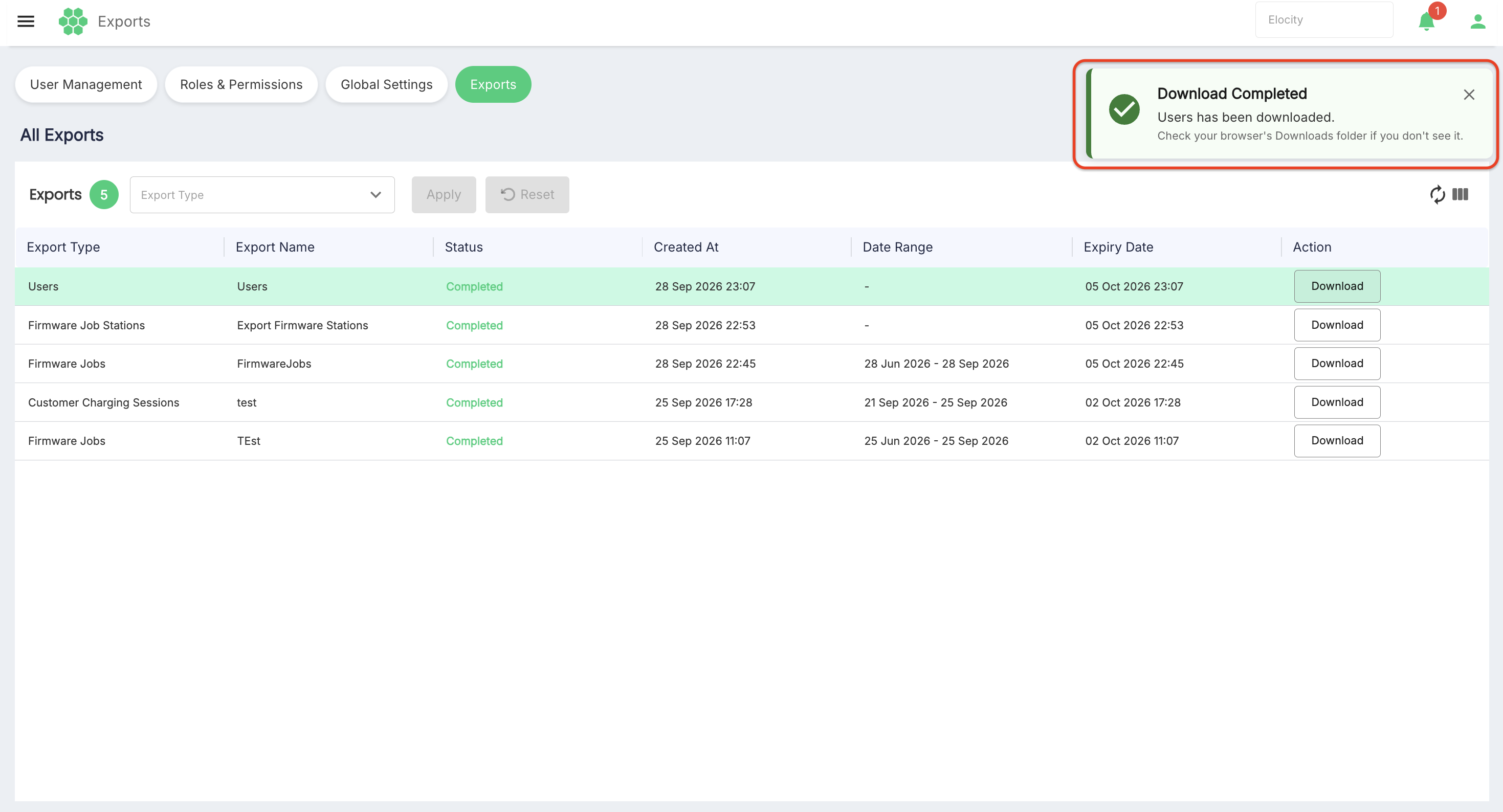
- The file is saved directly to your browser's default download location.
The download was not selected during the review because the report could contain business or customer data. The downloaded file format, filename, browser behavior, and invalid-link message therefore require confirmation.
A download should be available only after the request completes successfully. The reviewed interface displayed Download for Completed records, including records whose displayed expiry date was earlier than the review date. This behavior must be clarified before publishing definitive expiry instructions.
11. Expiry Rules
The export framework uses these expiry rules:
- Download links are valid for seven days by default.
- The expiry duration is configurable by the backend.
- Expired requests remain visible in history with
Expiredstatus.
The live Created At and Expiry Date values were generally approximately seven days apart. However, older records continued to display Completed and Download after their visible expiry dates had passed. Do not rely solely on the presence of Download as proof that the file remains available until this behavior is clarified.
12. Sorting and Status Filtering
The export framework defines these table capabilities:
- Filtering enum-based fields such as Status and Export Report Type.
- Sorting sequence-based fields such as Created At and Export Name.
The live page exposed the Export Type filter. It did not expose a labelled Status filter. Selecting the Created At header during review did not change the row order or expose a sort direction. Status filtering and sorting therefore require implementation confirmation.
13. Ownership and Security
Users can view only their own export requests.
Recommended handling:
- Confirm the export type, name, date range, and creation time before downloading.
- Download files only to an approved device and location.
- Handle exported customer, financial, charging-session, location, and operational data according to organizational privacy and retention policies.
- Do not share a generated URL or exported file unless authorized.
The permission required to open export history or download a file was not identified in the live interface.