My Profile
Purpose
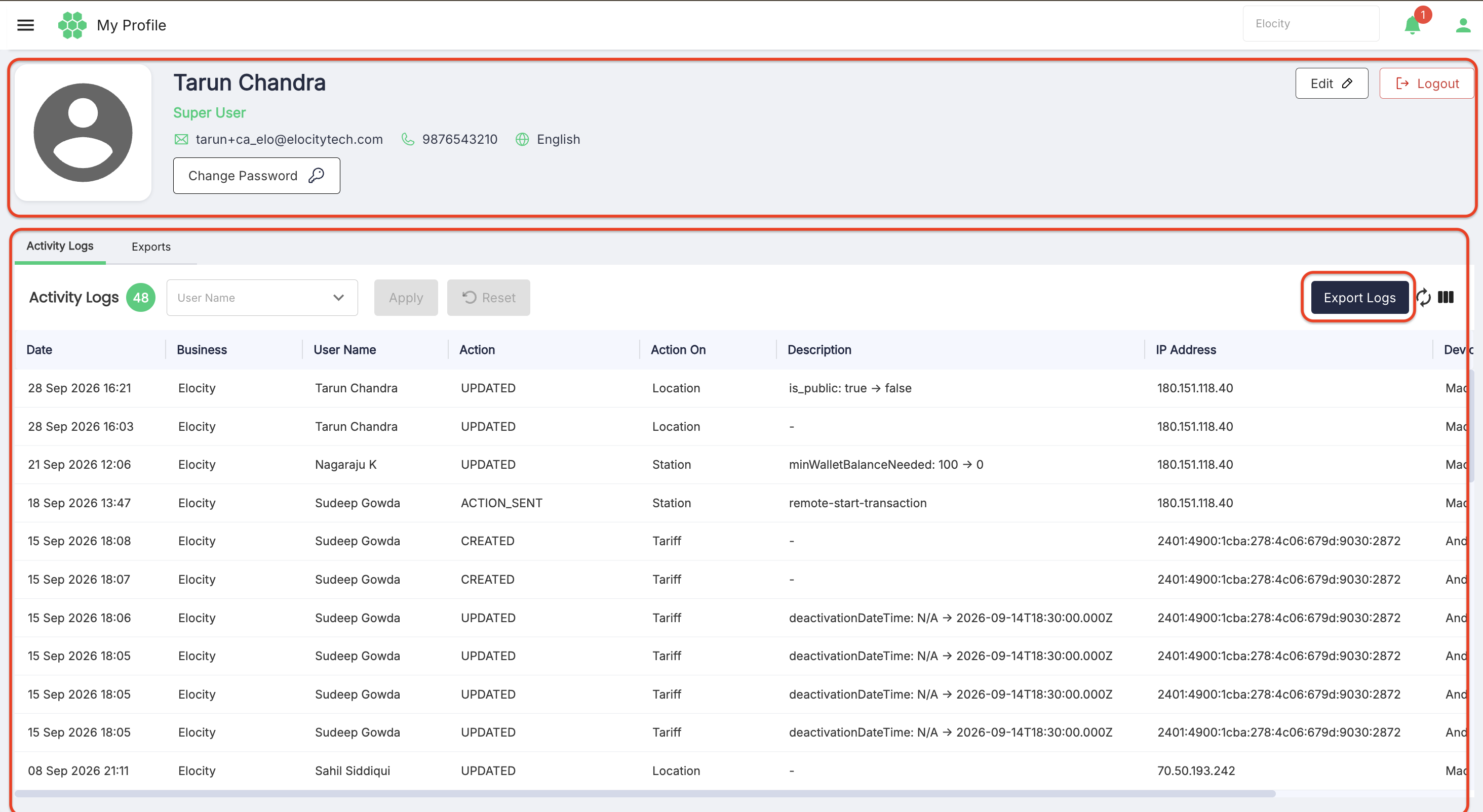
The My Profile page allows an authorized portal user to manage their personal account settings, update contact details, change their account password, securely log out, review the portal-wide User Activity Logs, and access their generated Exports history.
The page provides two primary functional areas:
- Profile Header & Account Settings — View and edit profile details (name, email, contact number, language), change password, and sign out.
- Activity Logs & Exports Hub — Track administrative audit events via the User Activity Log Framework and download asynchronous report exports.
Accessing My Profile
- Sign in to the HIEV portal.
- Select your User Avatar icon located in the top-right header.
- Select My Profile from the dropdown menu.
Profile Header & Identity Information
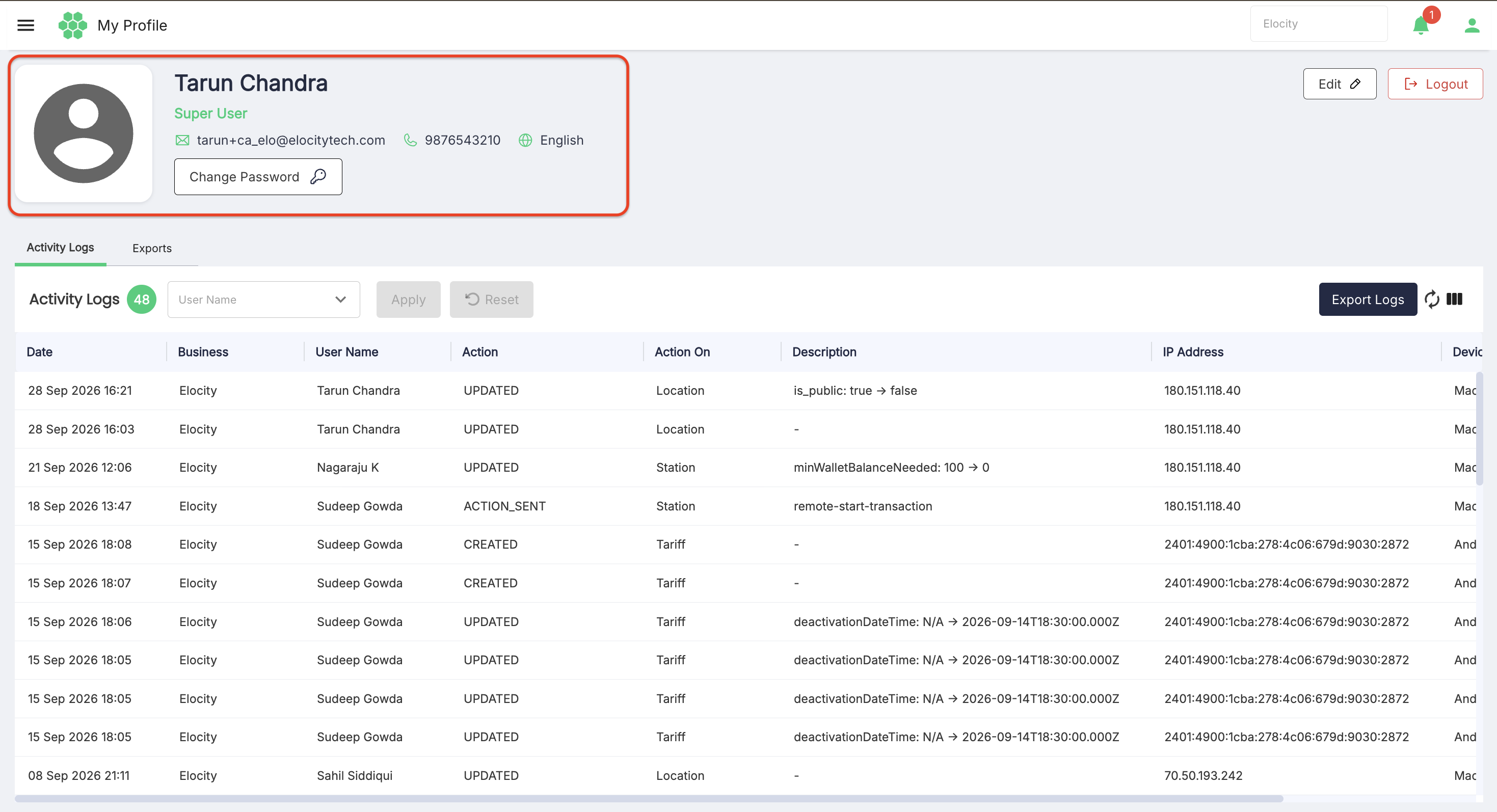
The top profile card displays the signed-in user's identity and account configuration:
- Avatar: User profile picture or placeholder icon.
- Full Name: The user's registered first and last name.
- Role Badge: Assigned administrative role displayed in green (e.g.,
Super User,Administrator). - Primary Email: Registered email address used for portal communication and login.
- Contact Number: Verified phone number associated with the account.
- Language: Current portal interface language (e.g.,
English).
Managing Account Settings
The profile card provides three key account actions:
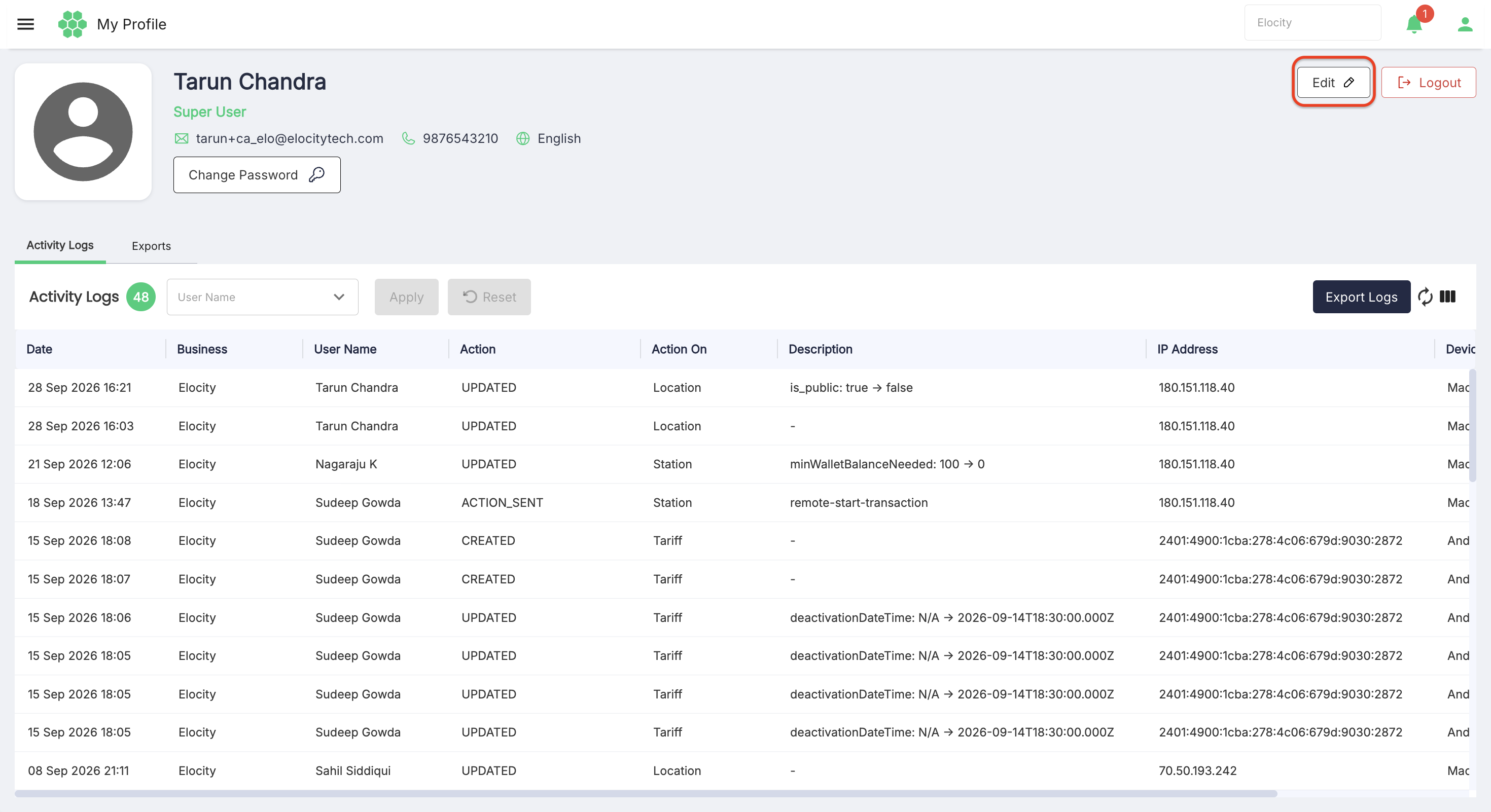
1. Editing Profile Details
Select Edit ✎ in the top-right corner of the profile card to update personal information:
- Open the Edit Profile drawer.
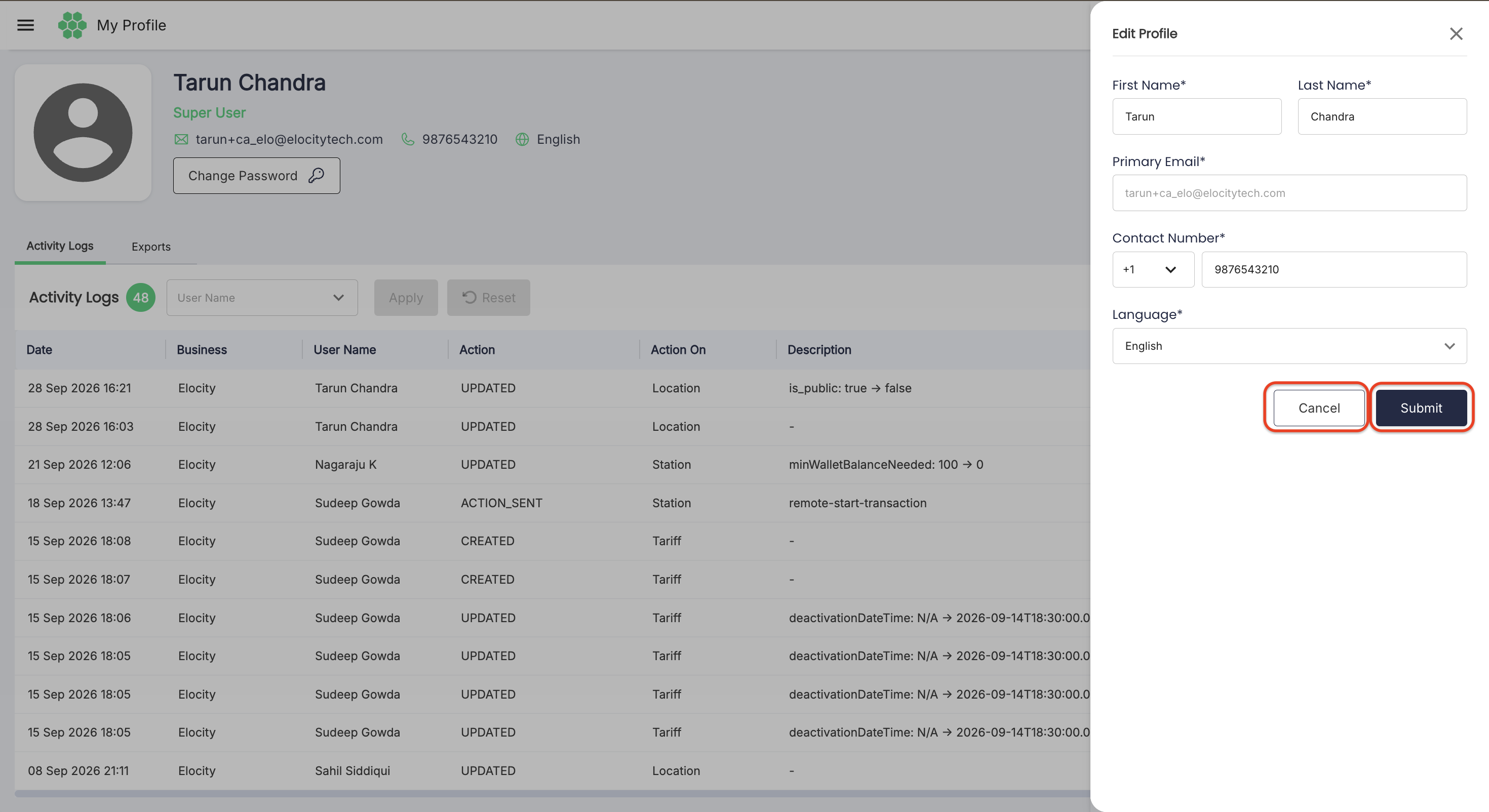
- Update the available fields:
| Field | Requirement | Description |
|---|---|---|
| First Name* | Required | User's given first name. |
| Last Name* | Required | User's family last name. |
| Primary Email* | Read-Only | Primary login email address. This field is locked to maintain account integrity. |
| Contact Number* | Required | Country code selector (+1 ⌵) and contact phone number. |
| Language* | Required | Dropdown selector to choose the interface language (e.g., English). |
- Select Submit to save changes, or Cancel to discard edits.
2. Changing Account Password
Select Change Password 🔑 beneath your contact information to update your portal login credentials:
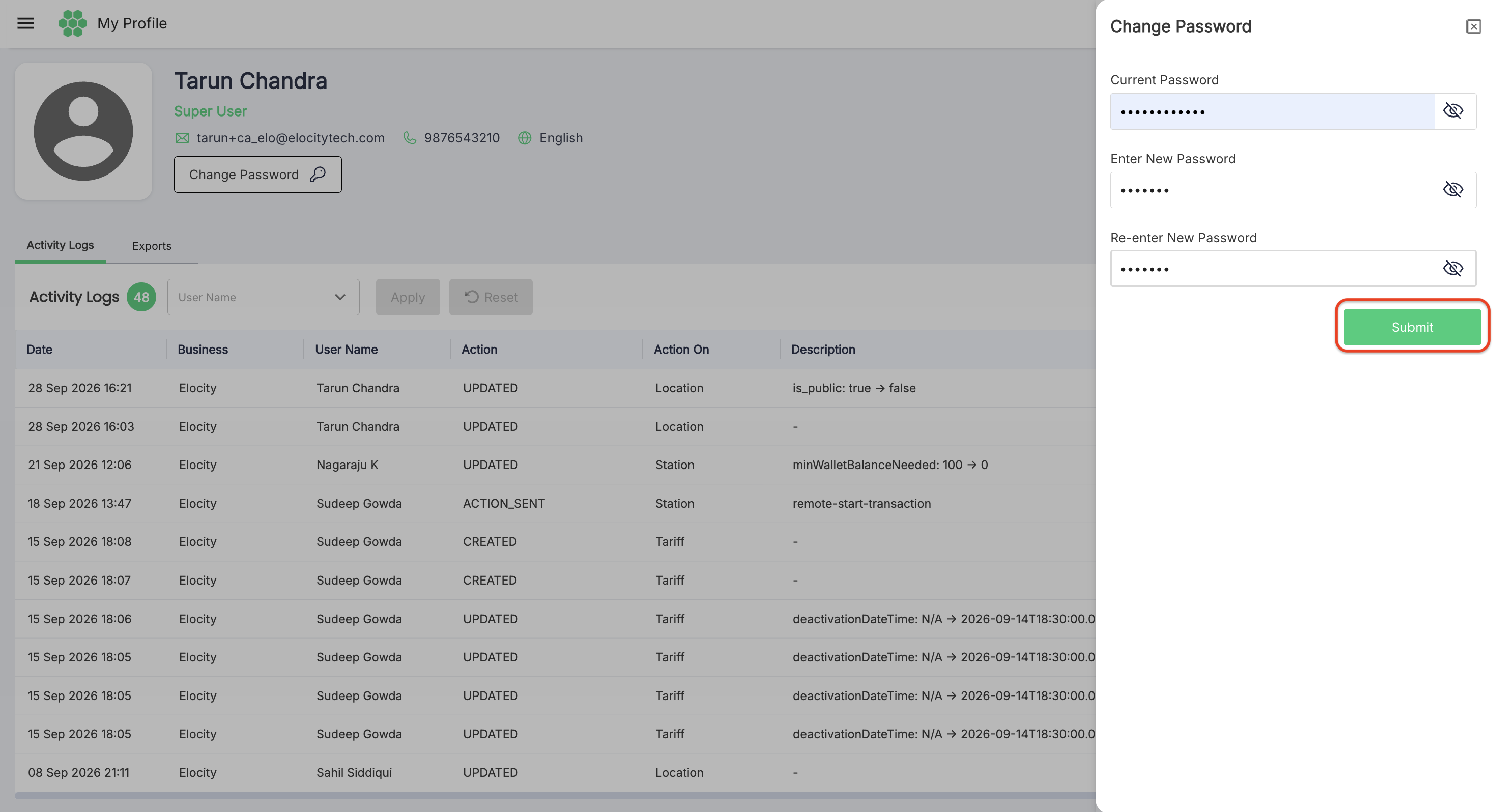
- Open the Change Password drawer.
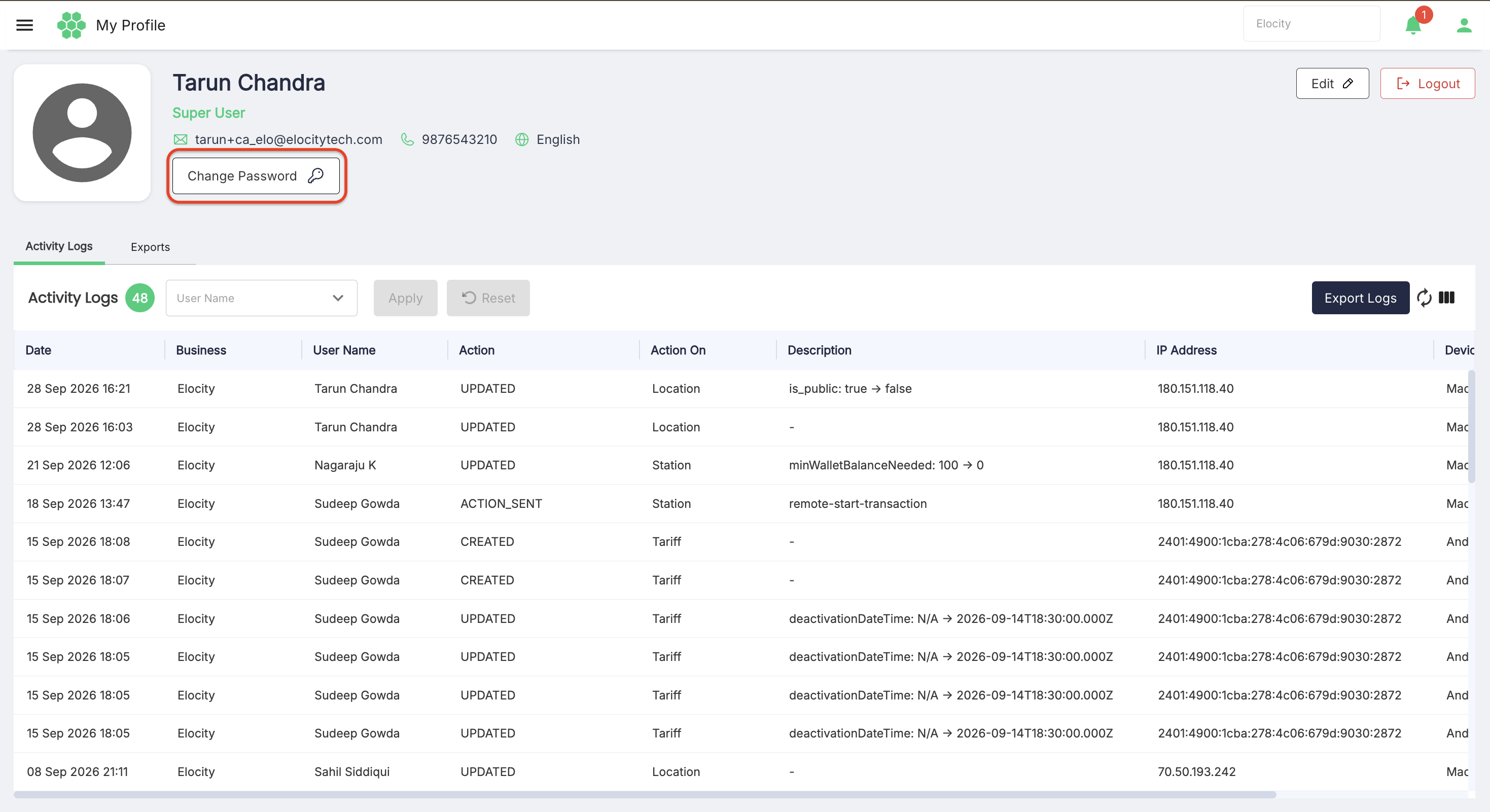
- Complete the password fields:
- Current Password — Enter your existing account password. Use the eye icon (👁️) to toggle password visibility.
- Enter New Password — Enter your new secure password meeting the portal complexity requirements.
- Re-enter New Password — Retype the new password to confirm accuracy.
- Select Submit to apply the new password.
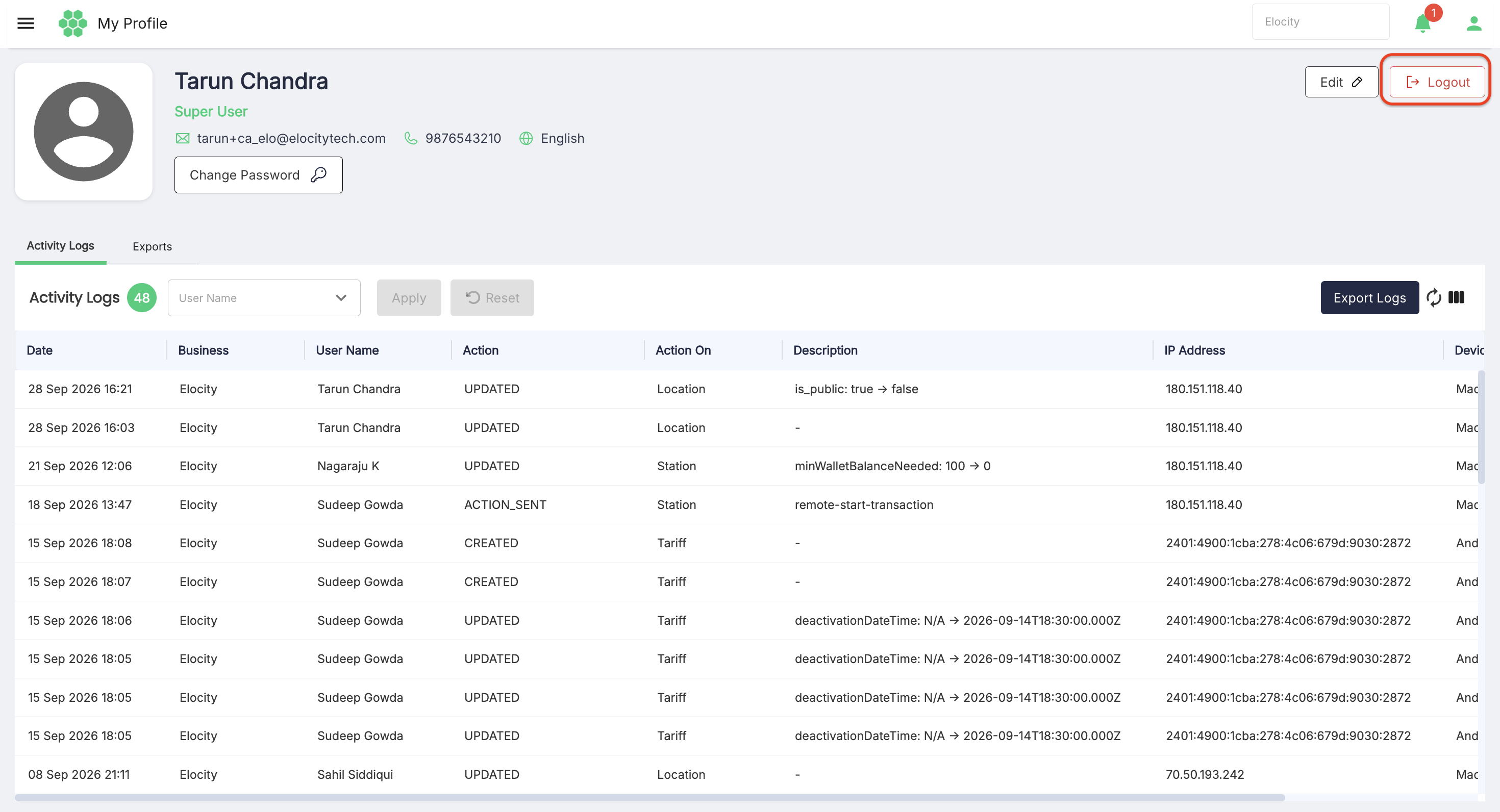
3. Logging Out
Select Logout ↪ in the top-right corner of the profile card to end your active portal session:
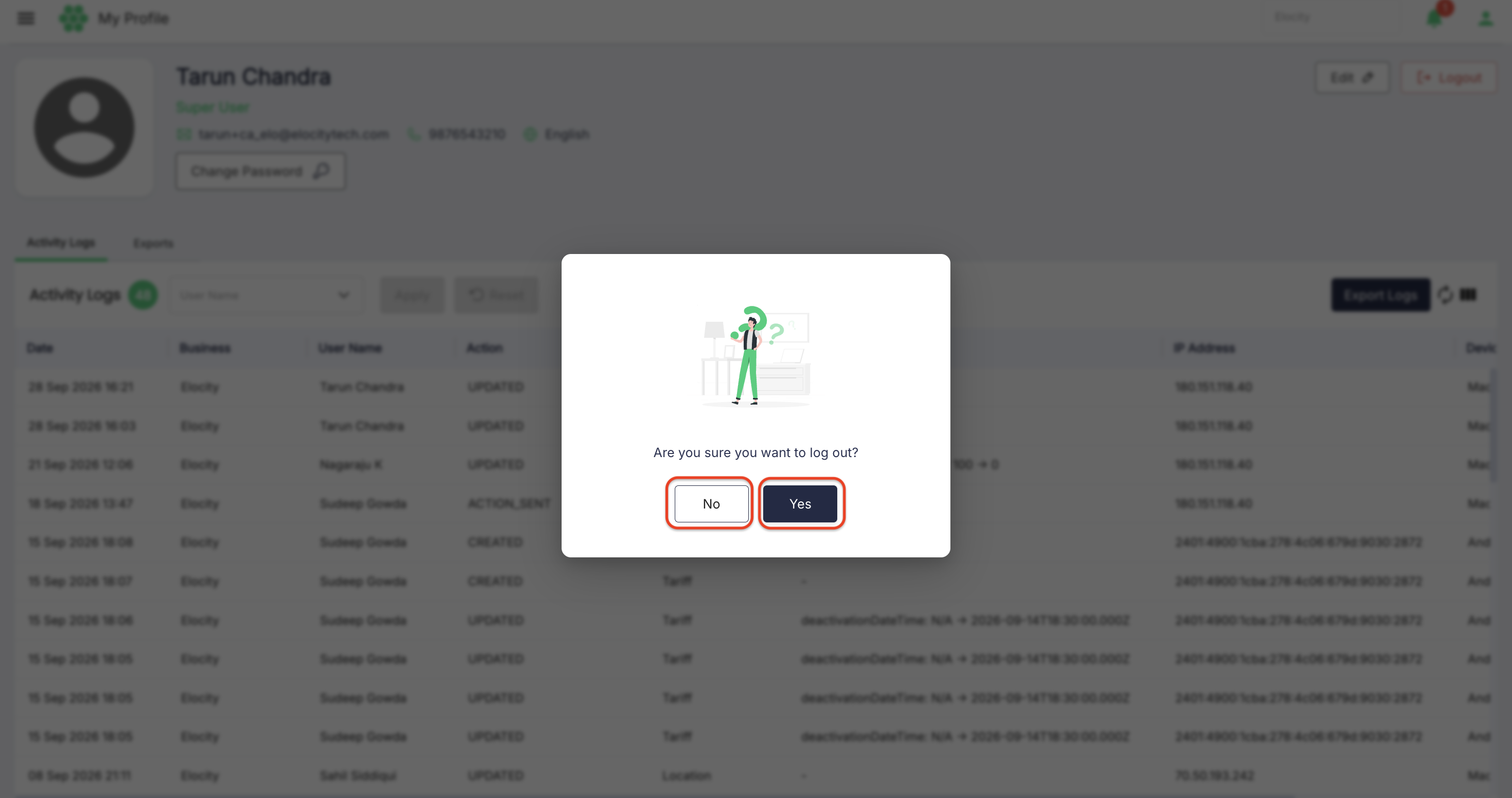
- A confirmation dialog appears: "Are you sure you want to log out?".
- Select Yes to securely terminate your session and return to the login screen.
- Select No to dismiss the prompt and remain logged in.
Activity Logs Tab (User Activity Log Framework)
The Activity Logs tab provides a comprehensive audit trail of administrative and operational actions performed across the portal. This framework ensures complete accountability, compliance, and traceability.
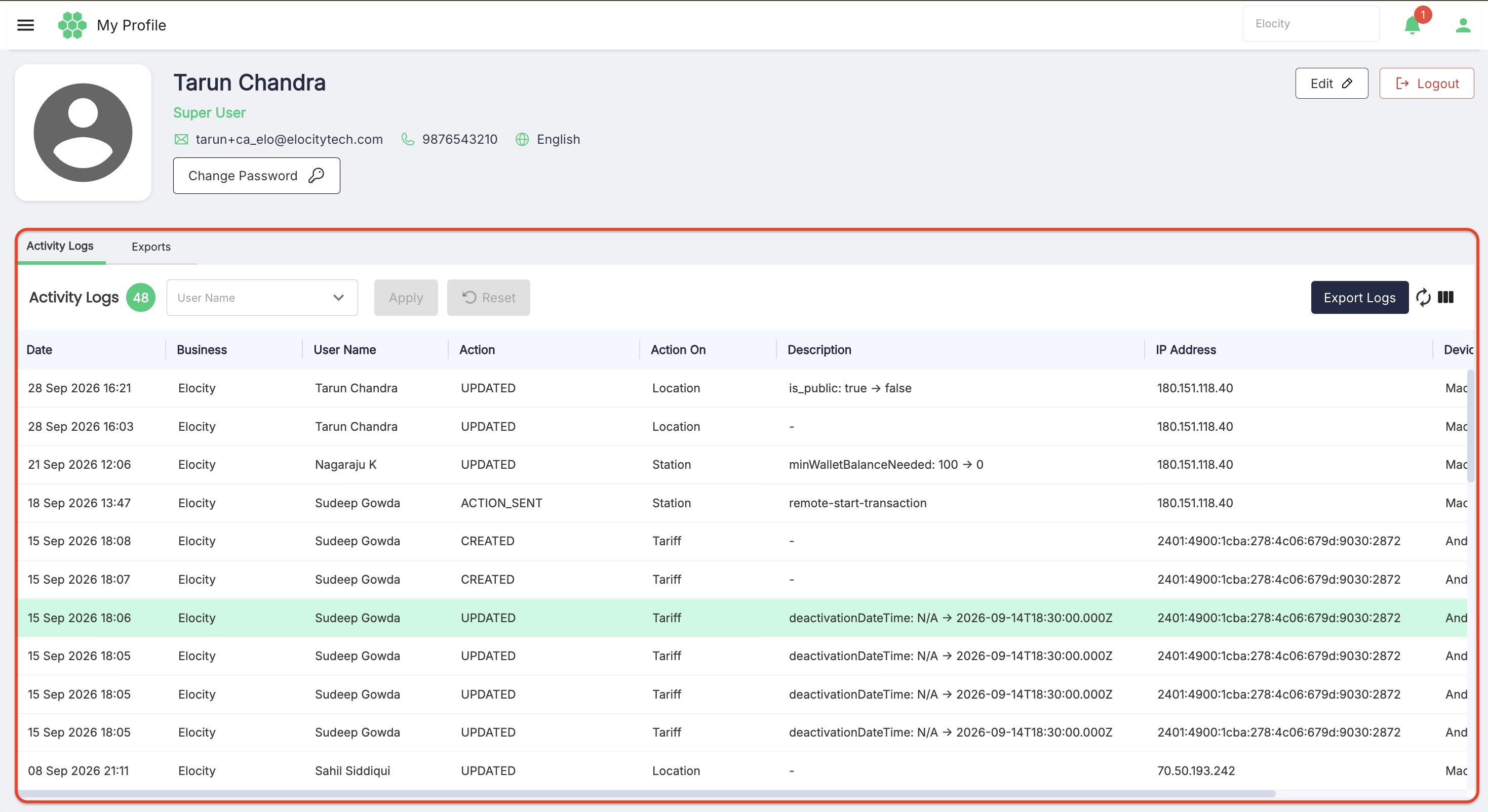
The counter badge beside the heading displays the total number of logged actions (e.g., Activity Logs 46).
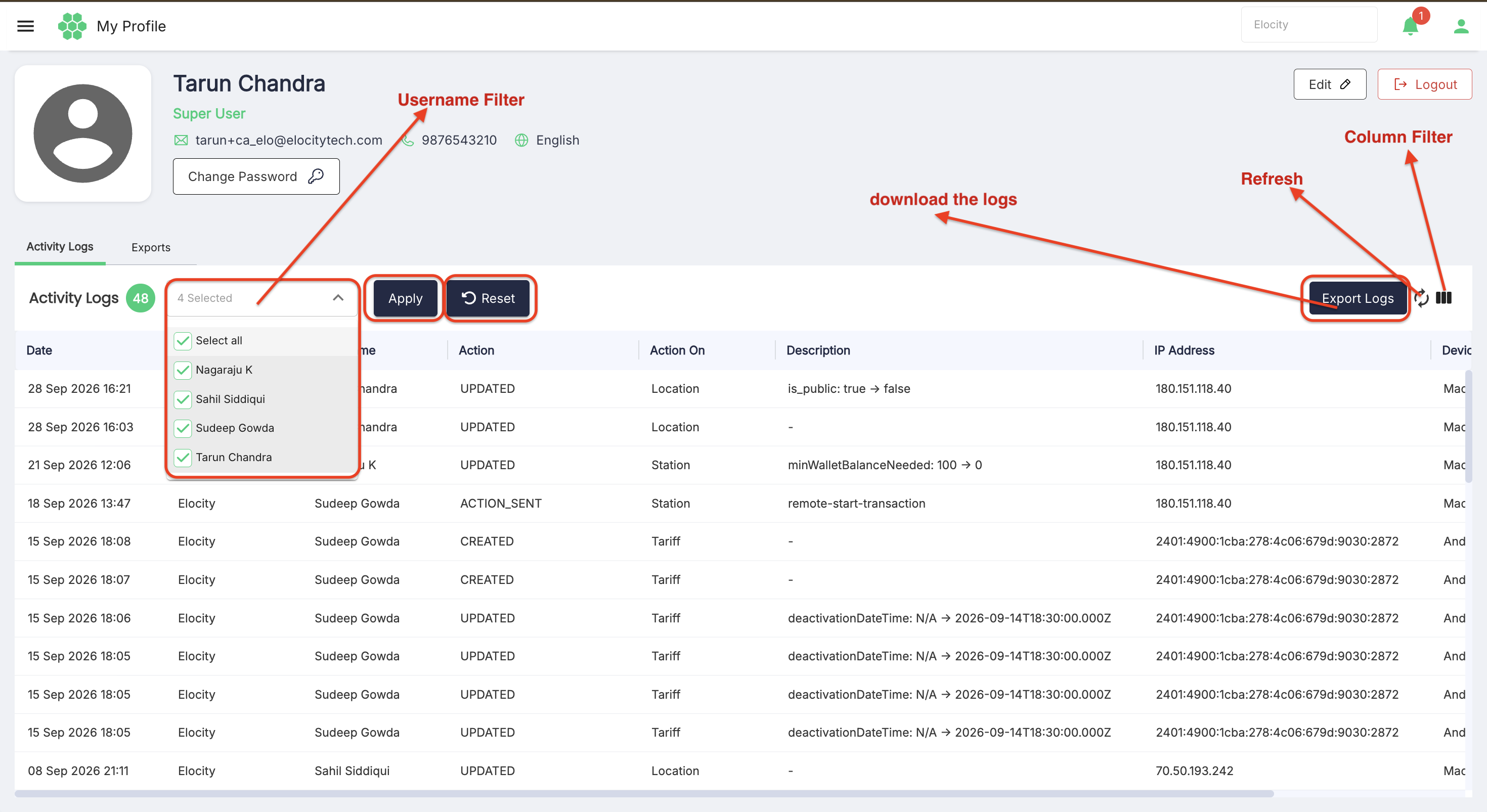
Activity Log Controls & Filters
- User Name Filter: Dropdown menu (
User Name ⌵) to filter the log by a specific administrator or operator. - Apply: Applies the selected user filter.
- Reset: Clears applied filters and restores the full activity log.
- Export Logs: Downloads the visible activity log records as a
.CSVreport. - Refresh (⟳): Retrieves the latest logged events from the server.
- Column Filter (|||): Opens the Show / Hide Columns menu to customize visible table columns.
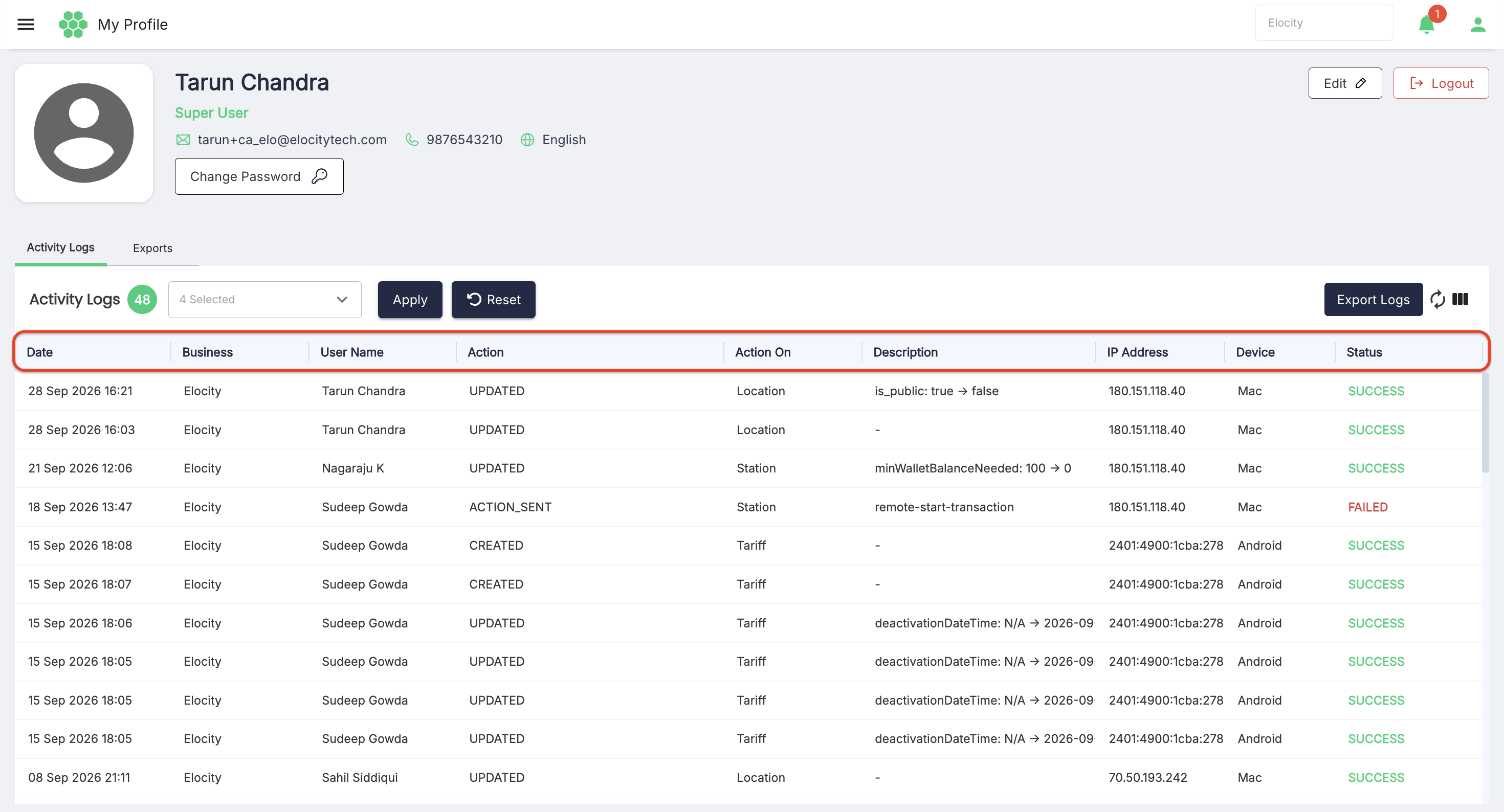
Activity Log Table Columns
| Column | Description |
|---|---|
| Date | Exact date and timestamp when the action occurred (e.g., 21 Sep 2026 12:06). |
| Business | Organizational business context where the event occurred (e.g., Elocity). |
| User Name | Display name of the administrator or user who performed the action (e.g., Nagaraju K, Sudeep Gowda). |
| Action | Action verb executed by the user (e.g., CREATED, UPDATED, ACTION_SENT, DELETED). |
| Action On | Target entity or module affected by the action (e.g., Station, Tariff, Location, Customer). |
| Description | Detailed technical audit payload, diff, or remote command description (e.g., minWalletBalanceNeeded: 100 → 0, remote-start-transaction, deactivationDateTime: N/A → 2026-09-14T18:30:00.000Z). |
| IP Address | Originating IPv4 or IPv6 client network address for security tracking (e.g., 180.151.118.40, 70.50.193.242). |
 Selecting any log entry row highlights it in light green for easier readability.
Exports Tab
The Exports tab serves as the user's personal repository for asynchronous file exports generated throughout the portal (such as customer lists, station records, charging sessions, or firmware logs).
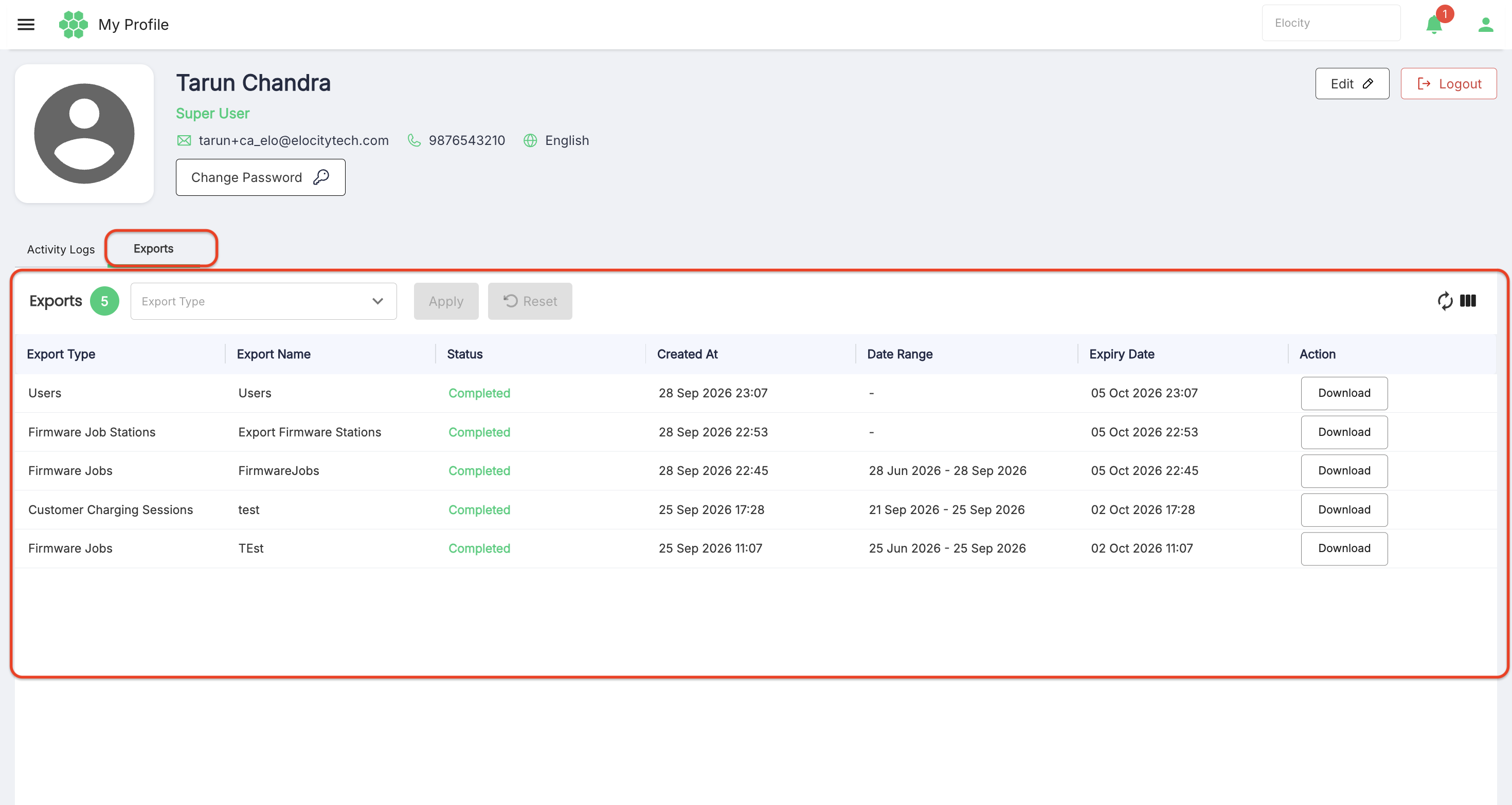
The counter badge beside the heading displays the number of active export files (e.g., Exports 2).
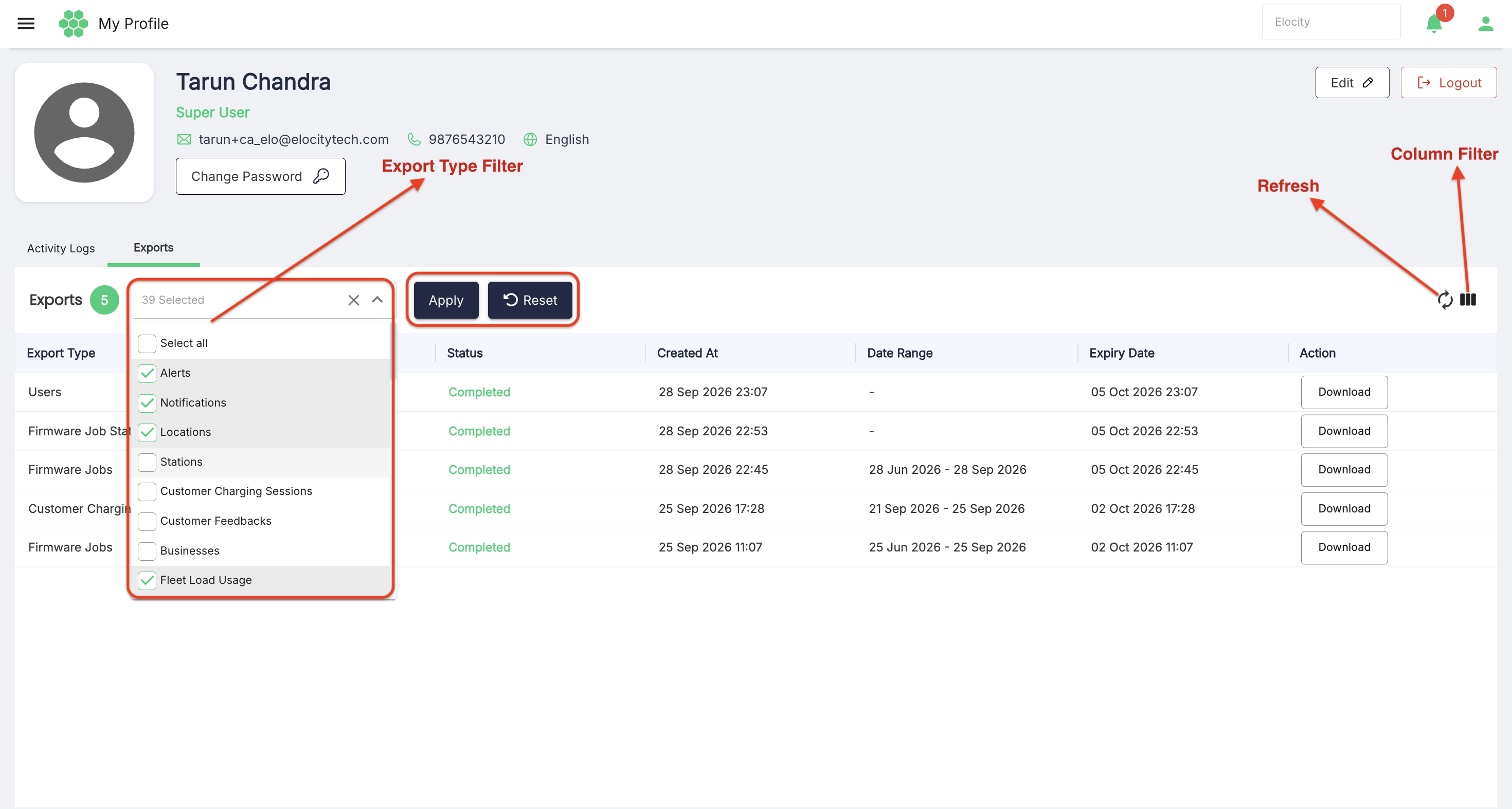
Exports Filtering & Controls
- Export Type Filter: Multi-select dropdown (
Export Type ⌵) to filter files by report category (e.g., Customer Charging Sessions, Firmware Jobs). - Apply & Reset: Applies or clears the export type filter.
- Refresh (⟳): Updates the list with recently generated export requests.
- Column Filter (|||): Controls visible export table columns.
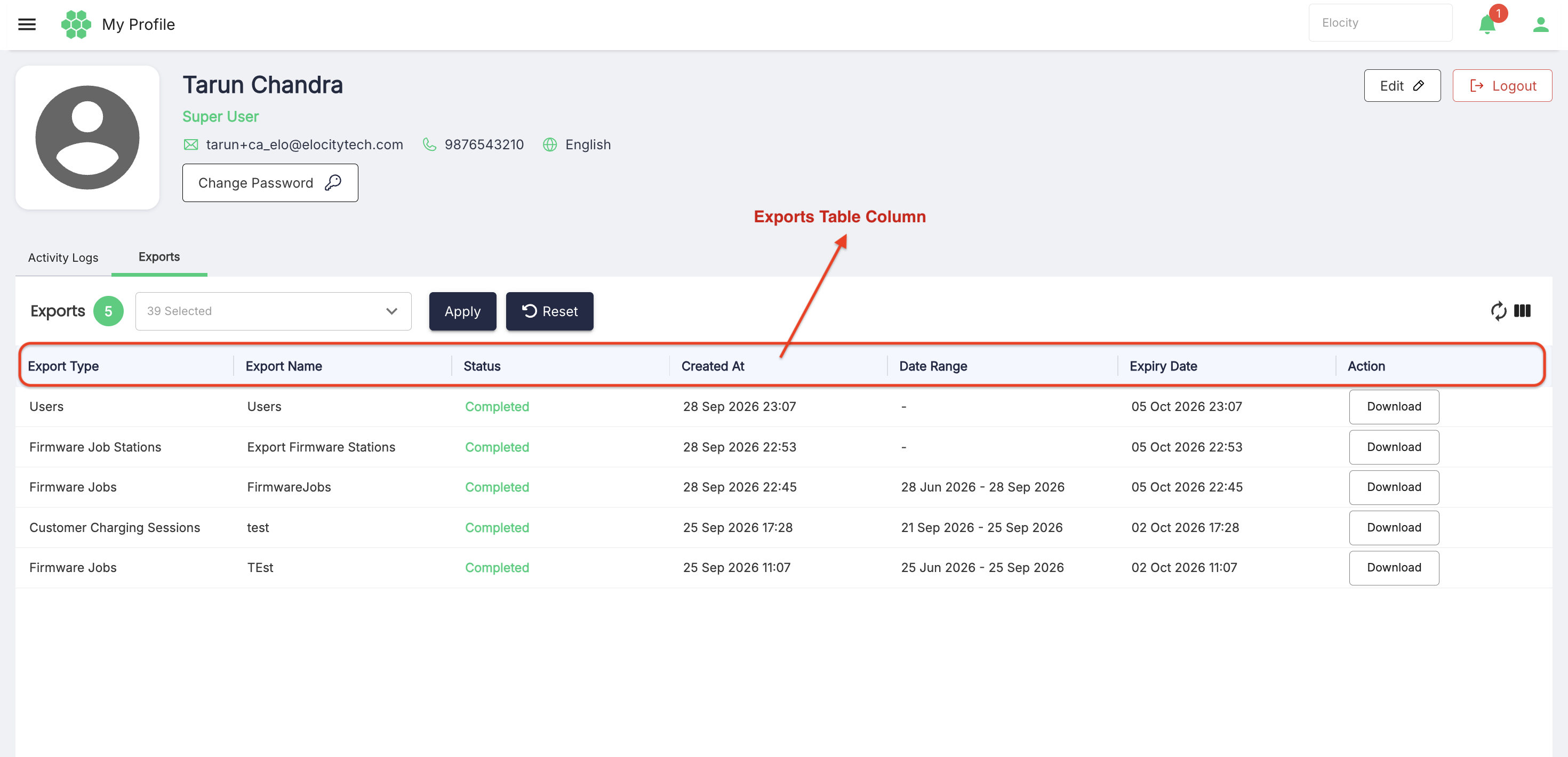
Exports Table Columns
| Column | Description |
|---|---|
| Export Type | The category or module dataset exported (e.g., Customer Charging Sessions, Firmware Jobs). |
| Export Name | User-defined custom filename specified when initiating the export request (e.g., test, TEst). |
| Status | Current processing state of the file (displays Completed in green text). |
| Created At | Timestamp when the export was initiated (e.g., 25 Sep 2026 17:28). |
| Date Range | Reporting time window applied during export generation (e.g., 21 Sep 2026 - 25 Sep 2026). |
| Expiry Date | Download link expiration date and time. By default, files are retained for 7 days after generation (e.g., 02 Oct 2026 17:28). |
| Action | Provides the Download button to save the .CSV report directly to your local computer. |
Downloading an Exported File
- Navigate to My Profile > Exports.
- Locate the desired report row.
- Select Download.
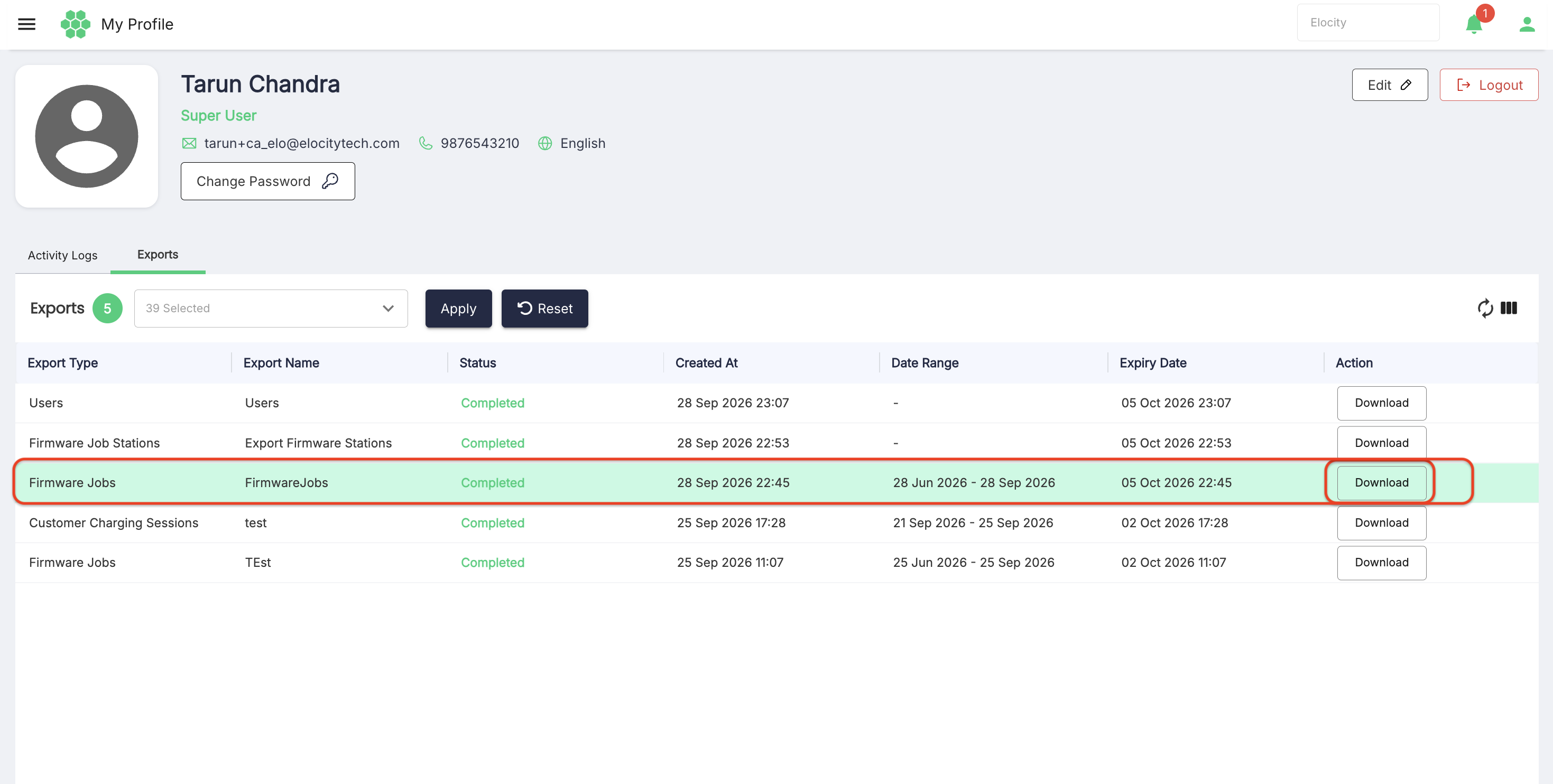
- The file is downloaded to your browser's default downloads directory.
Best Practices & Security Notes
- Primary Email Integrity: The primary email address cannot be edited directly from the profile drawer. Contact your system Super User if an email change is required.
- Password Hygiene: Use strong, unique passwords and update them periodically to maintain account security.
- Audit Compliance: All configuration modifications, remote commands, and credential updates are permanently recorded in the Activity Logs with timestamp and IP address tracking.
- Export File Retention: Export files expire automatically after 7 days. Download required reports promptly to prevent link expiration.