Asset Settings
Application: HIEV Administration Portal
Page: Assets > Asset Settings
Page URL: https://hiev.ca/ca/asset-settings
Document status: Draft based on the live interface reviewed on 22 July 2026
1. Overview
Asset Settings is the reference-data area for charging equipment and electric vehicles. It provides separate registers for connector types, EVSE (charging equipment) manufacturers and models, and electric vehicle manufacturers and models.
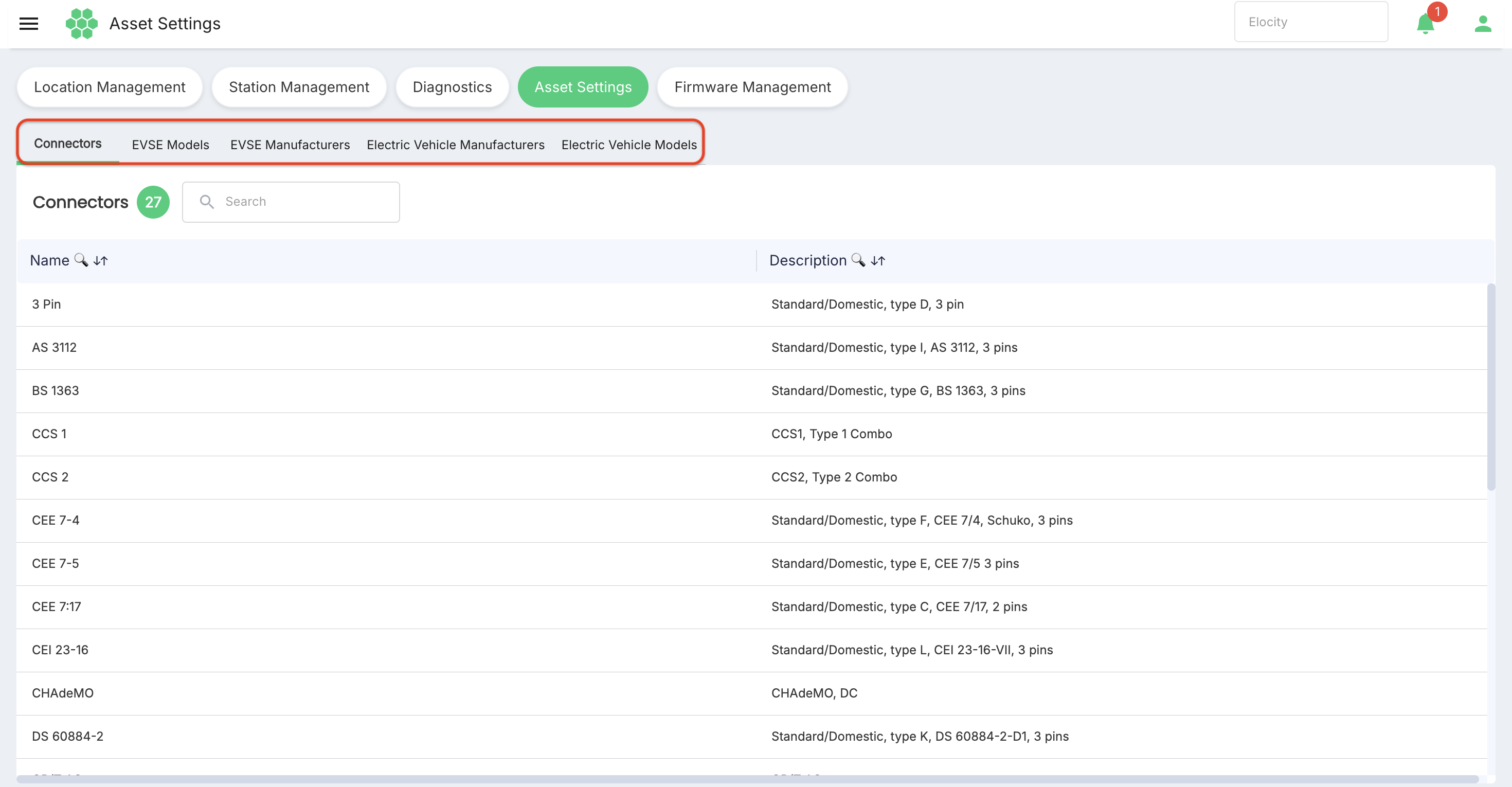 The page contains five tabs:
- Connectors
- EVSE Models
- EVSE Manufacturers
- Electric Vehicle Manufacturers
- Electric Vehicle Models
The functions available to a user may depend on the account configuration. In the reviewed account, users could view all five registers and create EVSE models, EVSE manufacturers, electric vehicle manufacturers, and electric vehicle models. No creation control was available on the Connectors tab.
2. Accessing Asset Settings
- Sign in to the HIEV Administration Portal.
- Open the Assets area.
- Select Asset Settings.
- If the portal provides a business selector, verify the required business context before continuing.
- Select the tab containing the records you want to view or create.
3. Common Page Functions
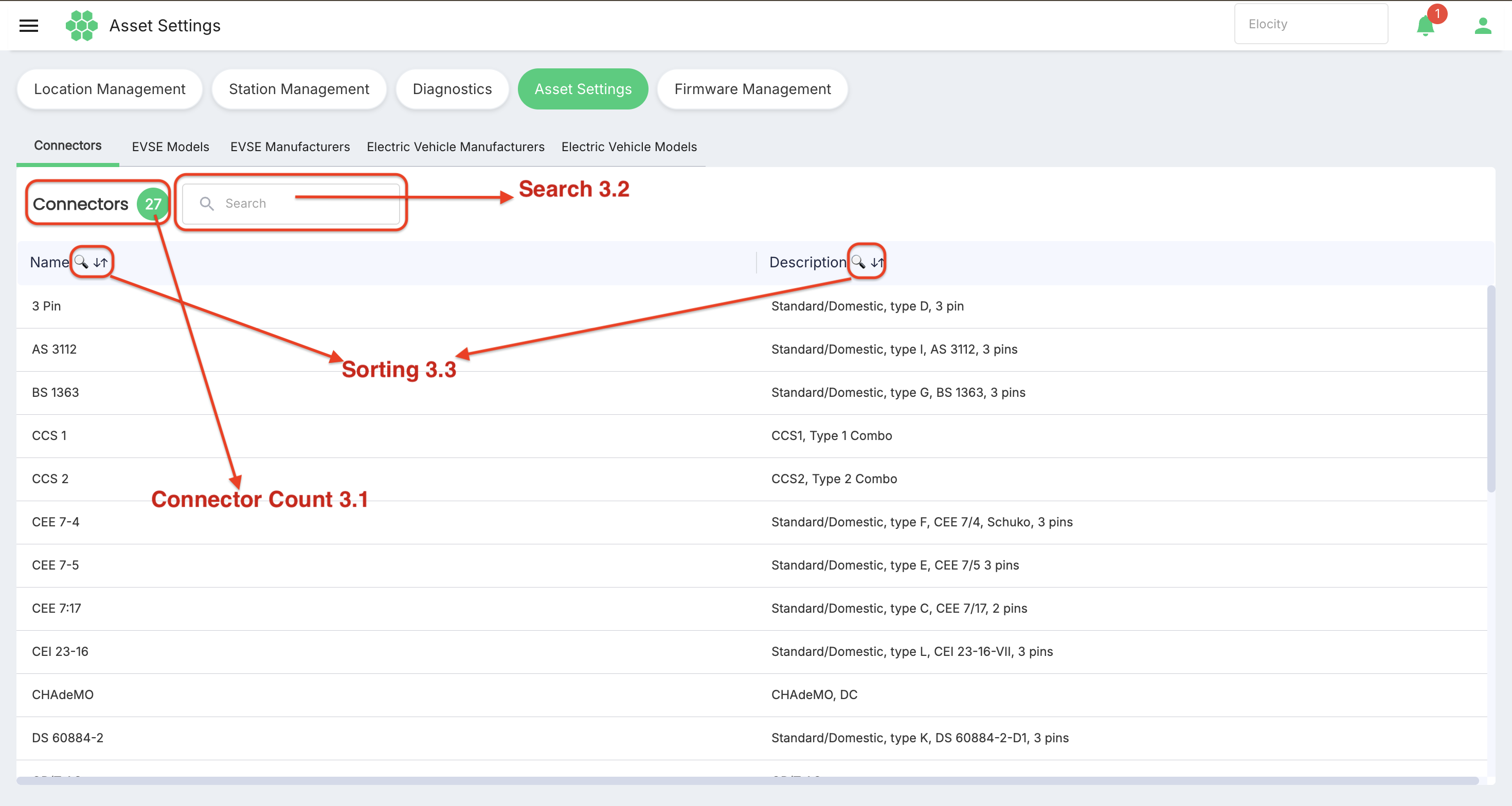
3.1 Record count
A count beside the active tab heading shows the number of records in the current result set. The count updates when the global search narrows the list.
3.2 Search
Use the Search box above the grid to filter the active register.
- Select the Search box.
- Enter a value that appears in a searchable column. Searchable columns are identified by a magnifying-glass symbol in the column heading.
- Review the filtered records and the updated count.
- Clear the search value to restore the full list.
The Search box filters the register displayed on the active tab.
3.3 Sort
All columns in the reviewed grids support sorting.
- Select a column heading once to sort in ascending order.
- Select it again to sort in descending order.
- Select it a third time to remove the sort.
Keyboard users can focus a column heading and press Enter to change its sort order.
3.4 Required fields and form actions
An asterisk (*) identifies a required field.
- Select Save to submit a completed form.
- Select Cancel to close the form without creating a record.
If a required selection is left empty, the form displays a validation message for that field.
4. Connectors
The Connectors tab is a reference list of connector standards shown in Asset Settings.
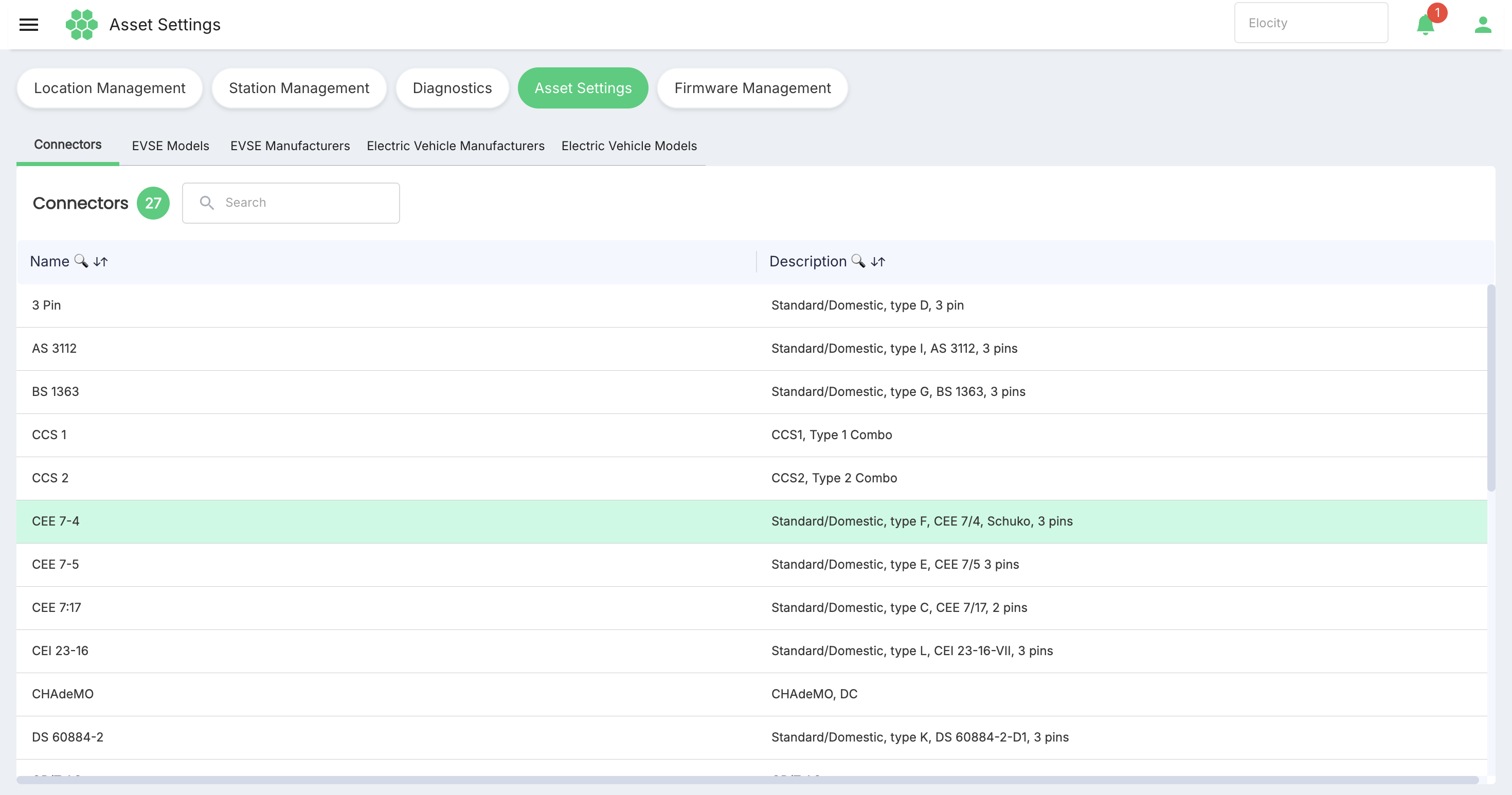
Information displayed
| Column | Description |
|---|---|
| Name | Connector type or standard name. |
| Description | Additional information about the standard, physical type, pin arrangement, or charging method. |
View connector records
- Open Assets > Asset Settings.
- Select the Connectors tab.
- Use Search to narrow the list, if required.
- Select a column heading to change the sort order.
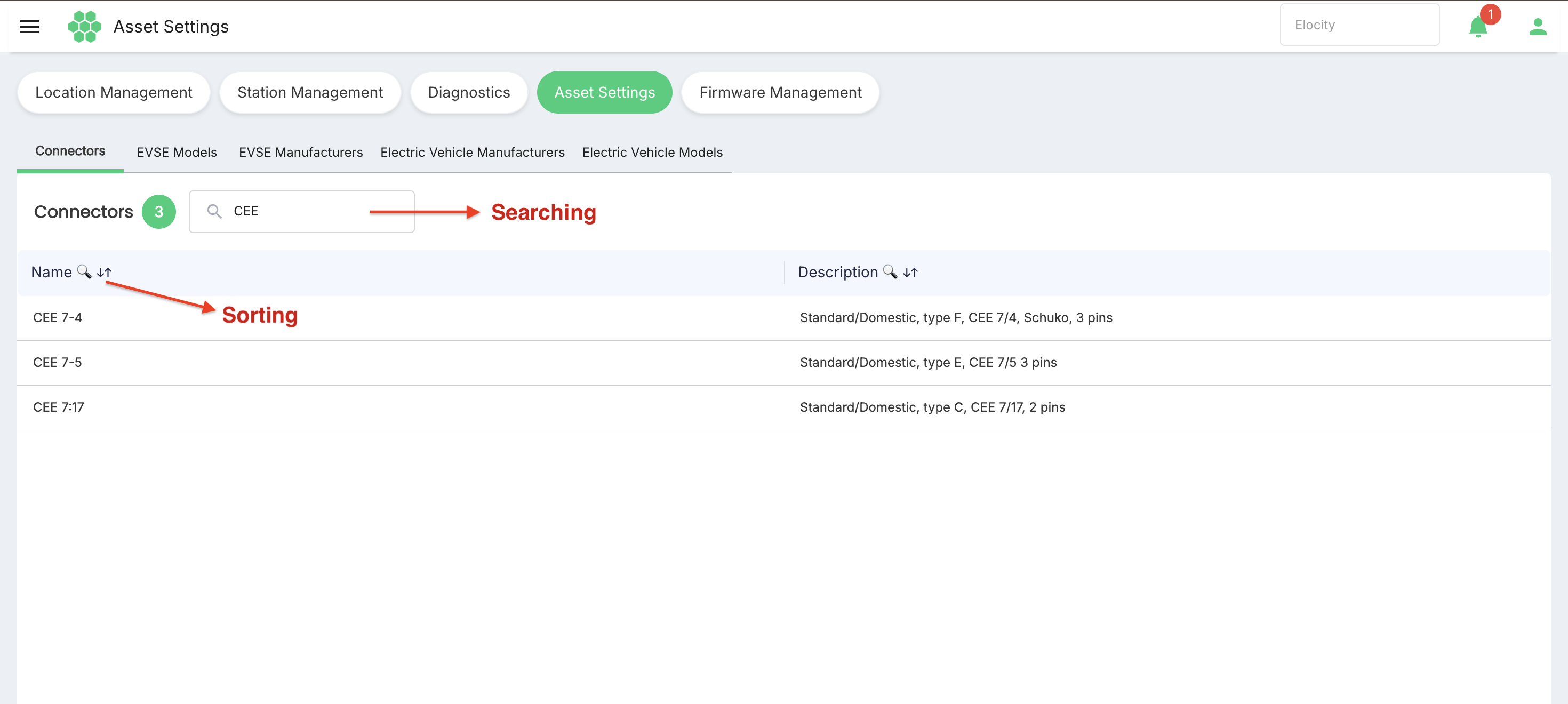 No Add, Edit, or Delete control was visible on this tab in the reviewed account. Connector maintenance is therefore not included in this draft.
5. EVSE Models
The EVSE Models tab contains charging-equipment models and their connector specifications.
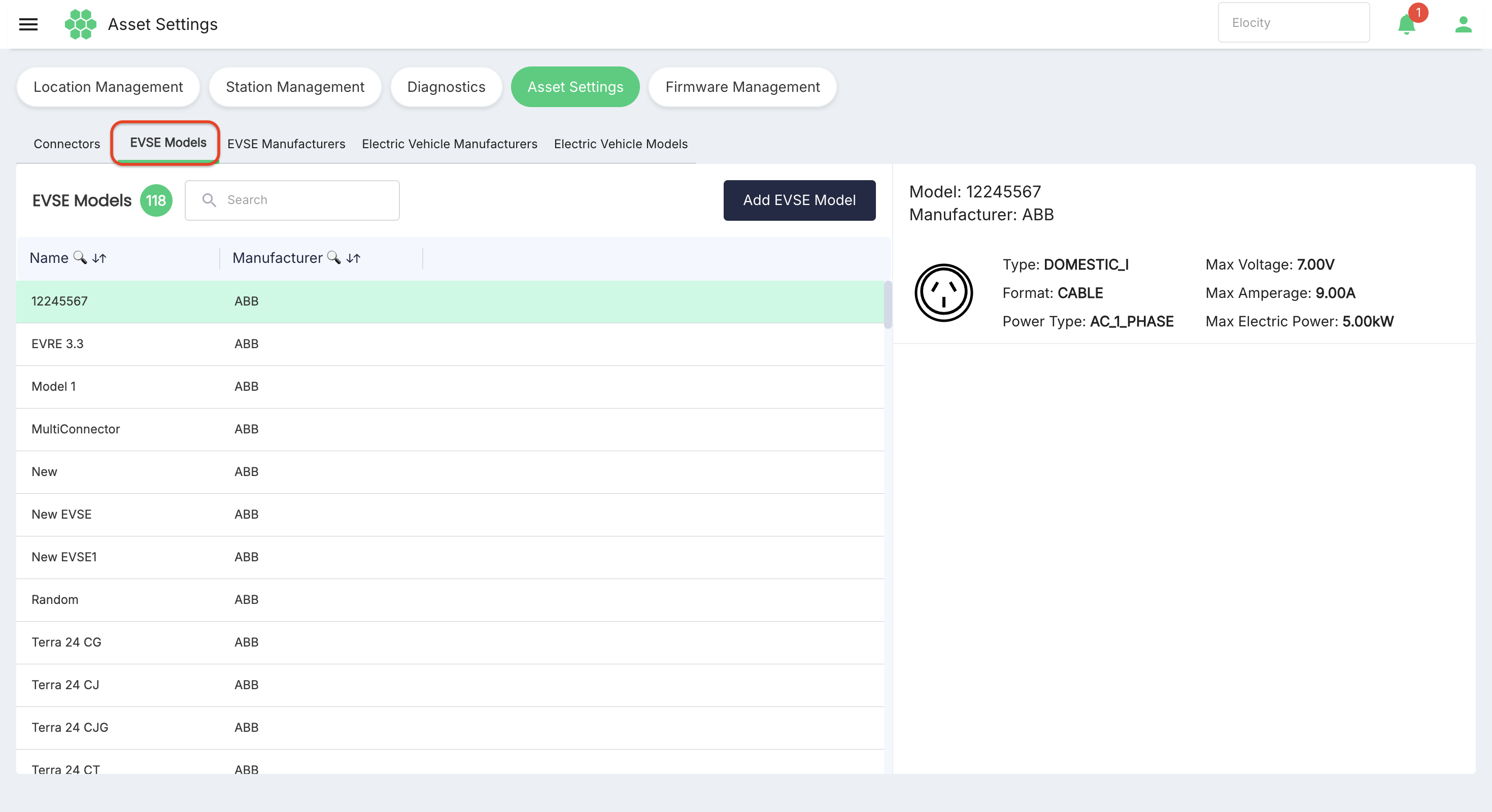
Information displayed in the grid
| Column | Description |
|---|---|
| Name | EVSE model name. |
| Manufacturer | Manufacturer associated with the EVSE model. |
View an EVSE model
- Select the EVSE Models tab.
- Locate a model by browsing, searching, or sorting the grid.
- Select the model's row.
- Review the detail panel displayed beside the grid.
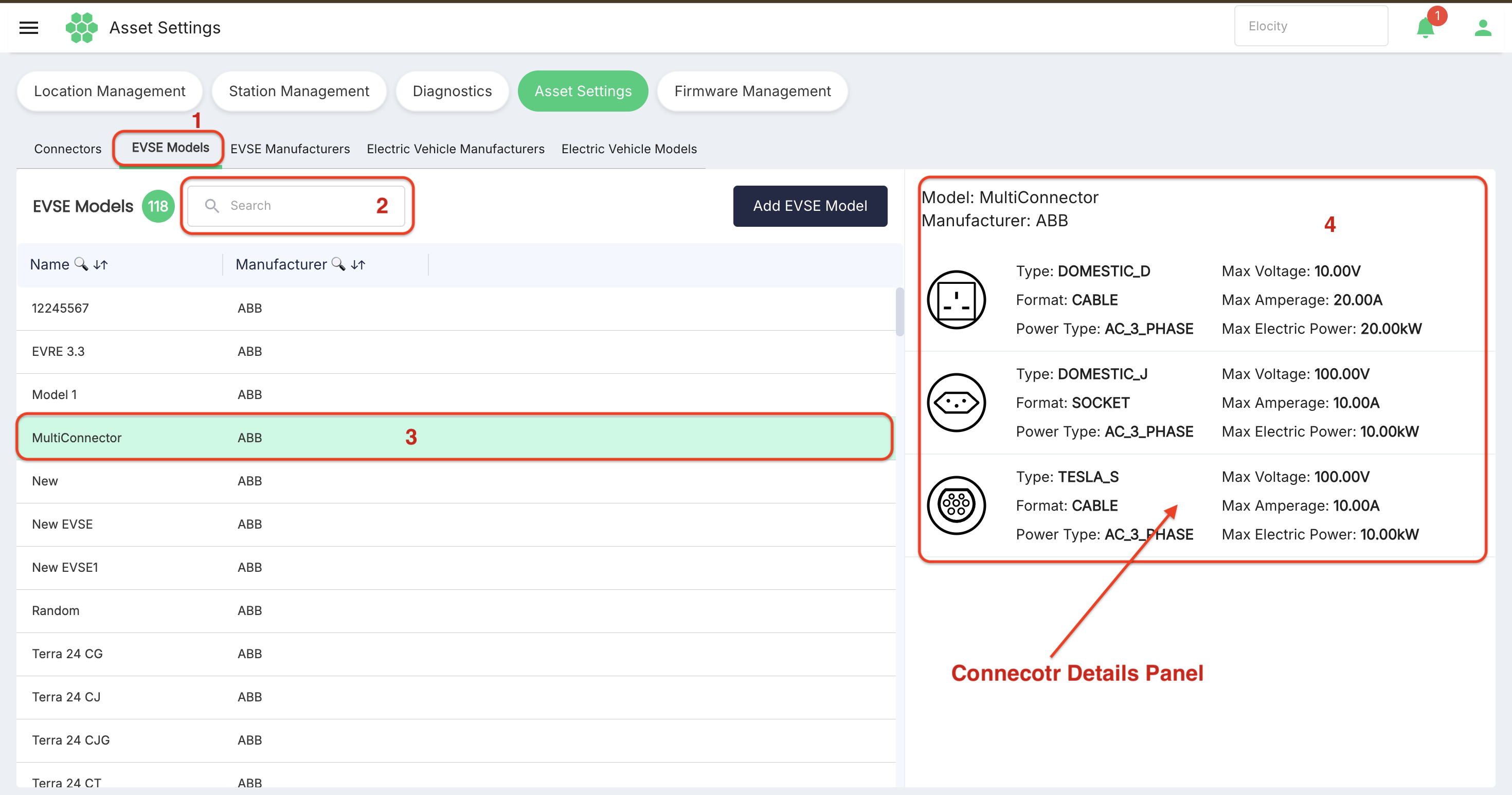 The detail panel shows the model and manufacturer. For each configured connector, it shows:
- Connector Type
- Format
- Power Type
- Max Voltage in volts (V)
- Max Amperage in amperes (A)
- Max Electric Power in kilowatts (kW)
Add an EVSE model
- Select Add EVSE Model.
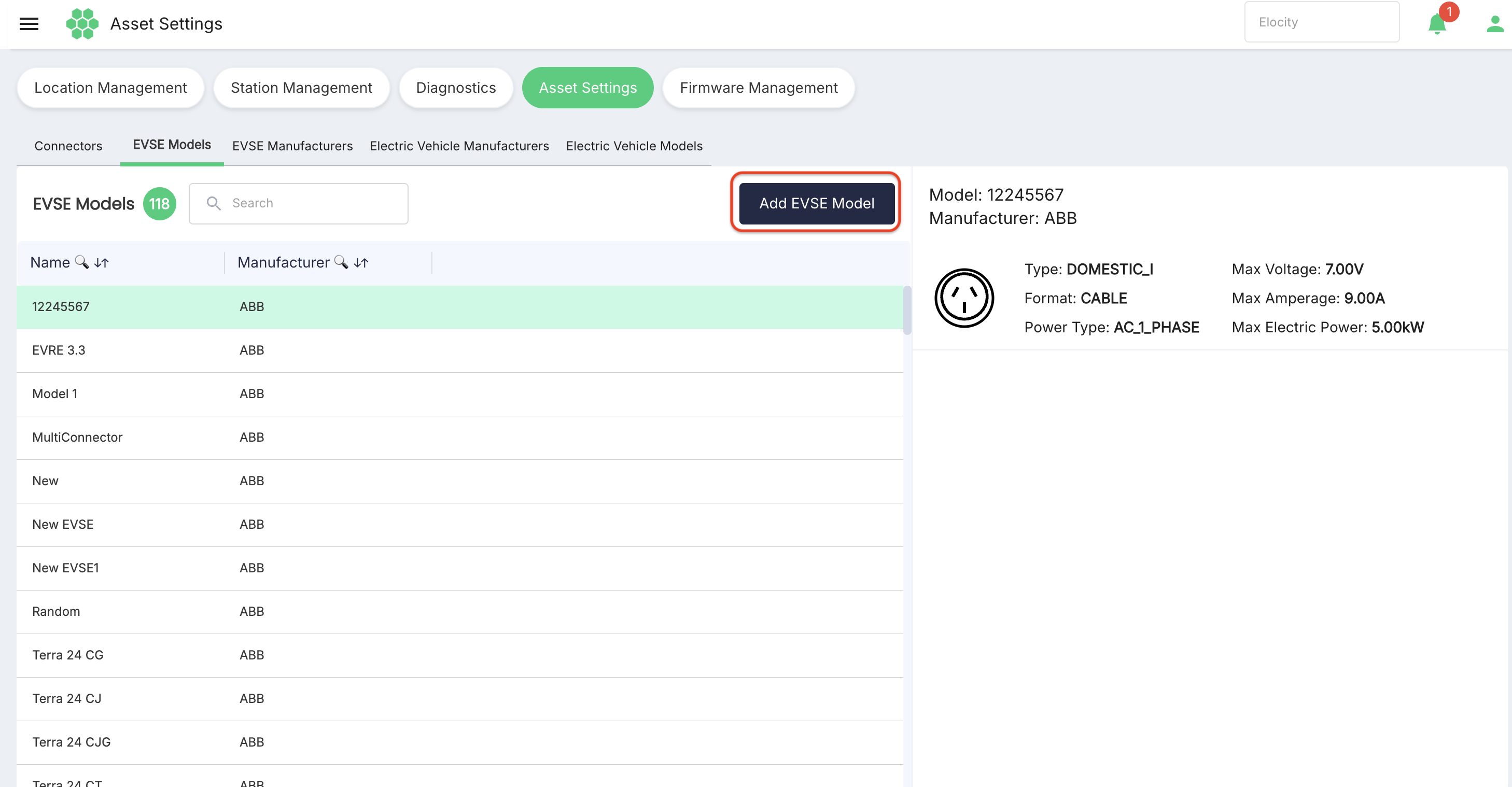
- Complete the model fields.
- Complete all required fields for Connector 1.
- To configure another connector, select Add More Connectors and complete the additional connector fields.
- Review all values and units.
- Select Save.
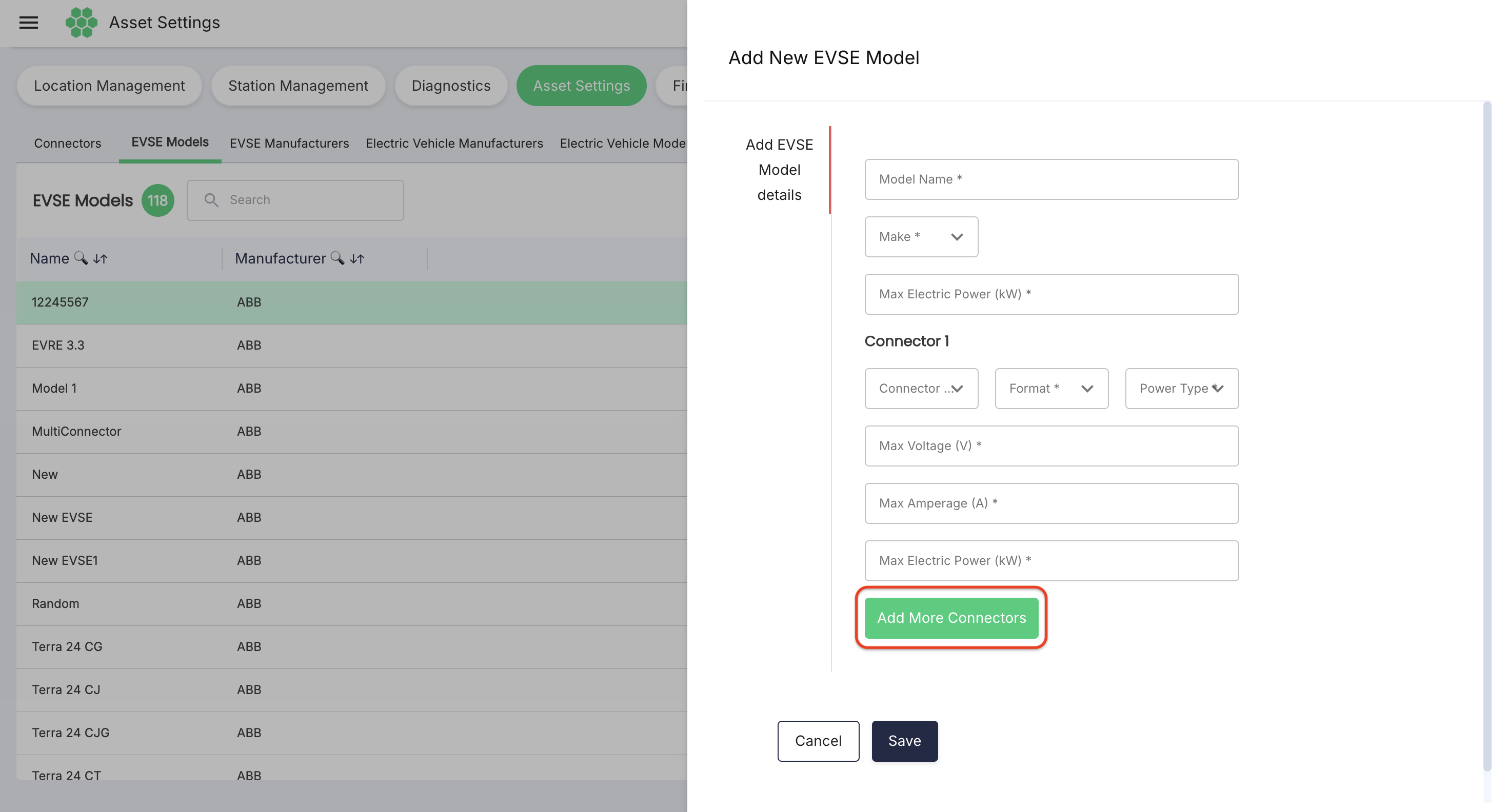
EVSE model fields
| Field | Required | Description |
|---|---|---|
| Model Name | Yes | Name of the EVSE model. |
| Make | Yes | EVSE manufacturer associated with the model. |
| Max Electric Power (kW) | Yes | Model-level maximum electric power value. |
| Connector Type | Yes | Connector standard supported by this connector position. |
| Format | Yes | Connector presentation. The live list contained CABLE and SOCKET. |
| Power Type | Yes | Electrical supply type. The live list contained AC_1_PHASE, AC_3_PHASE, and DC. |
| Max Voltage (V) | Yes | Maximum voltage supported by the connector. |
| Max Amperage (A) | Yes | Maximum current supported by the connector. |
| Max Electric Power (kW) | Yes | Maximum electric power supported by the individual connector. |
Each additional connector repeats the connector-level fields.
6. EVSE Manufacturers
The EVSE Manufacturers tab is the register of charging-equipment manufacturers available for EVSE model configuration.
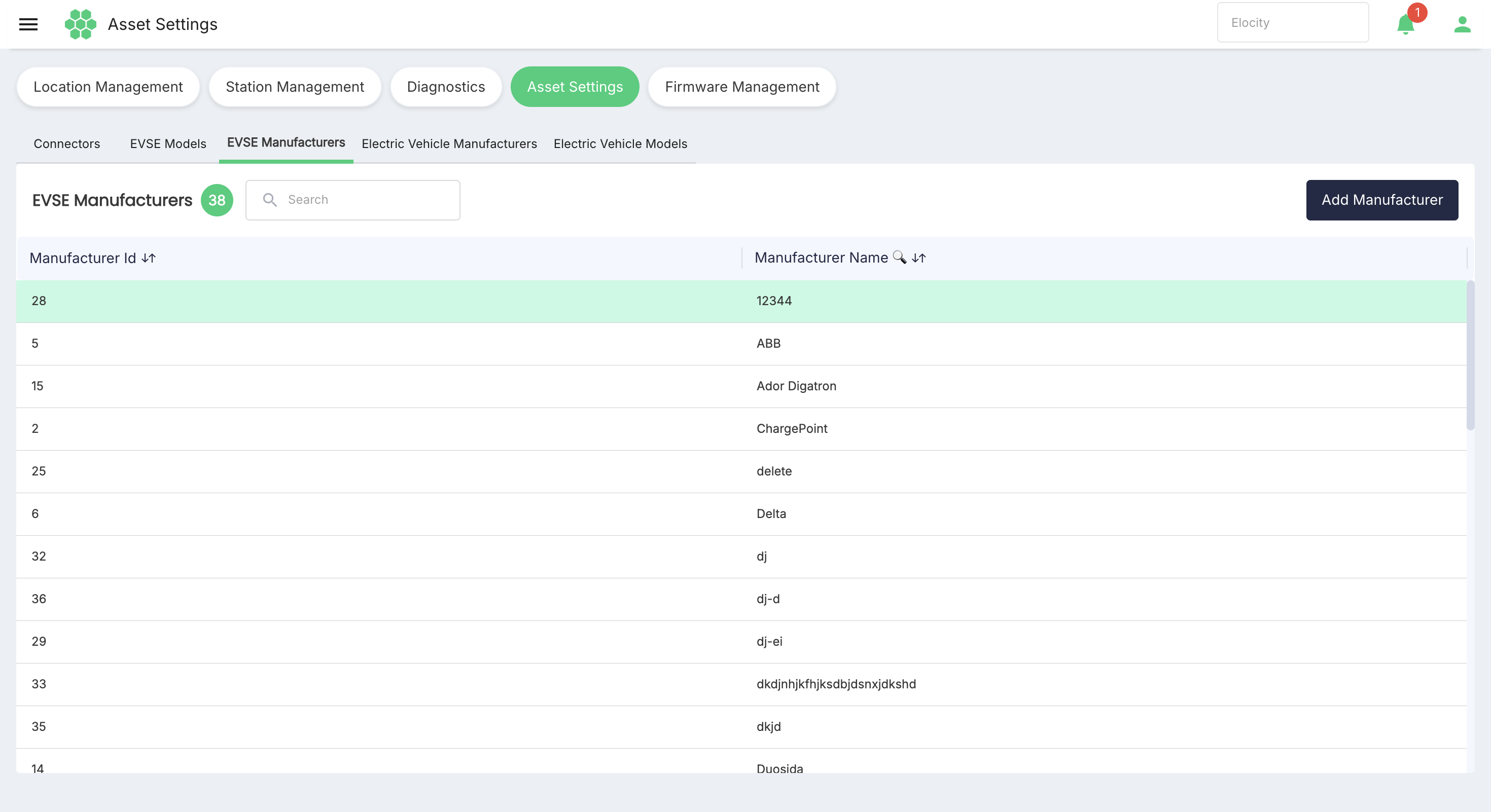
Information displayed
| Column | Description |
|---|---|
| Manufacturer Id | System-assigned identifier. |
| Manufacturer Name | Name of the EVSE manufacturer. |
Add an EVSE manufacturer
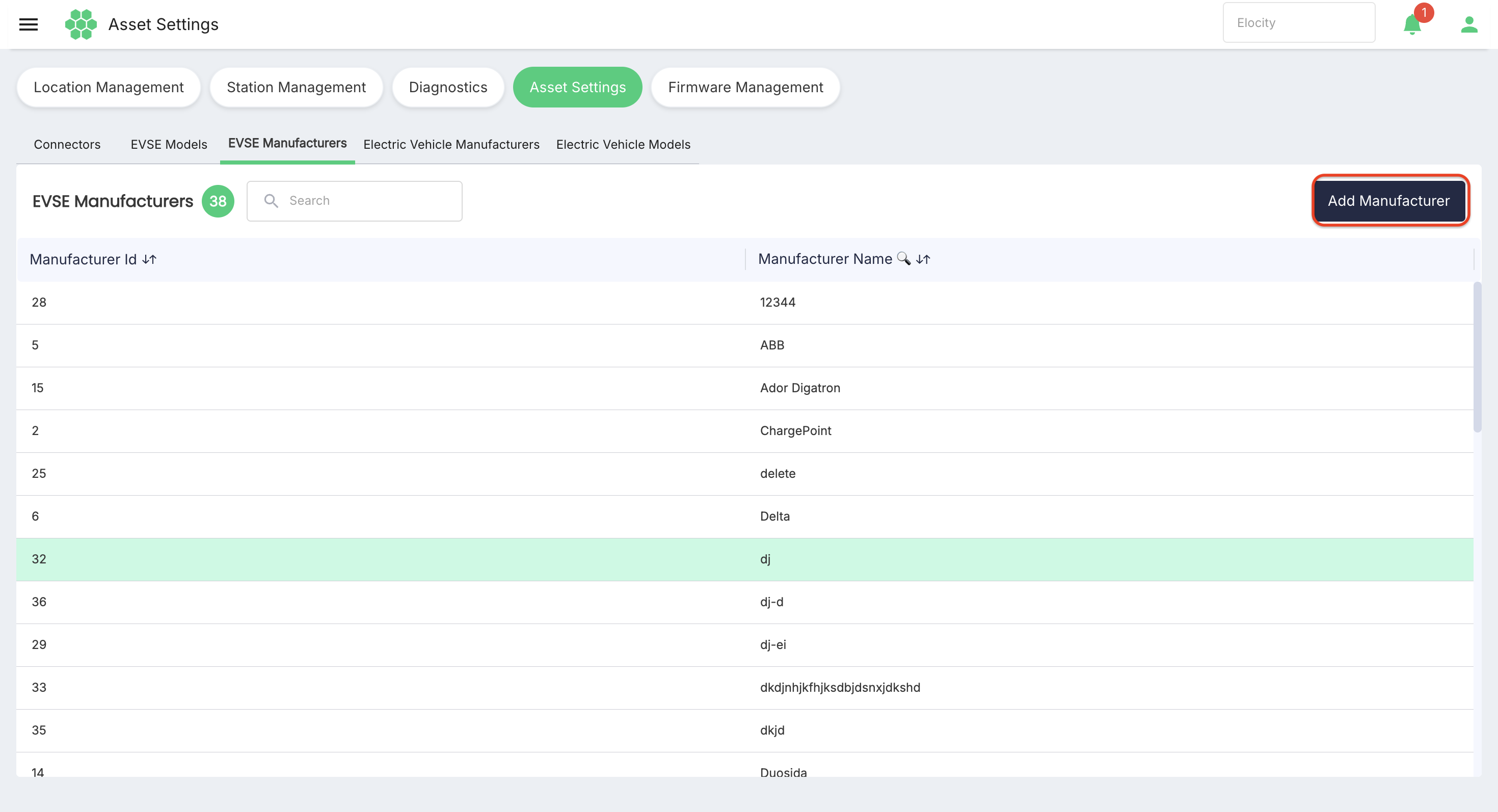
- Select the EVSE Manufacturers tab.
- Select Add Manufacturer.
- Enter the required Manufacturer Name.
- Select Save.
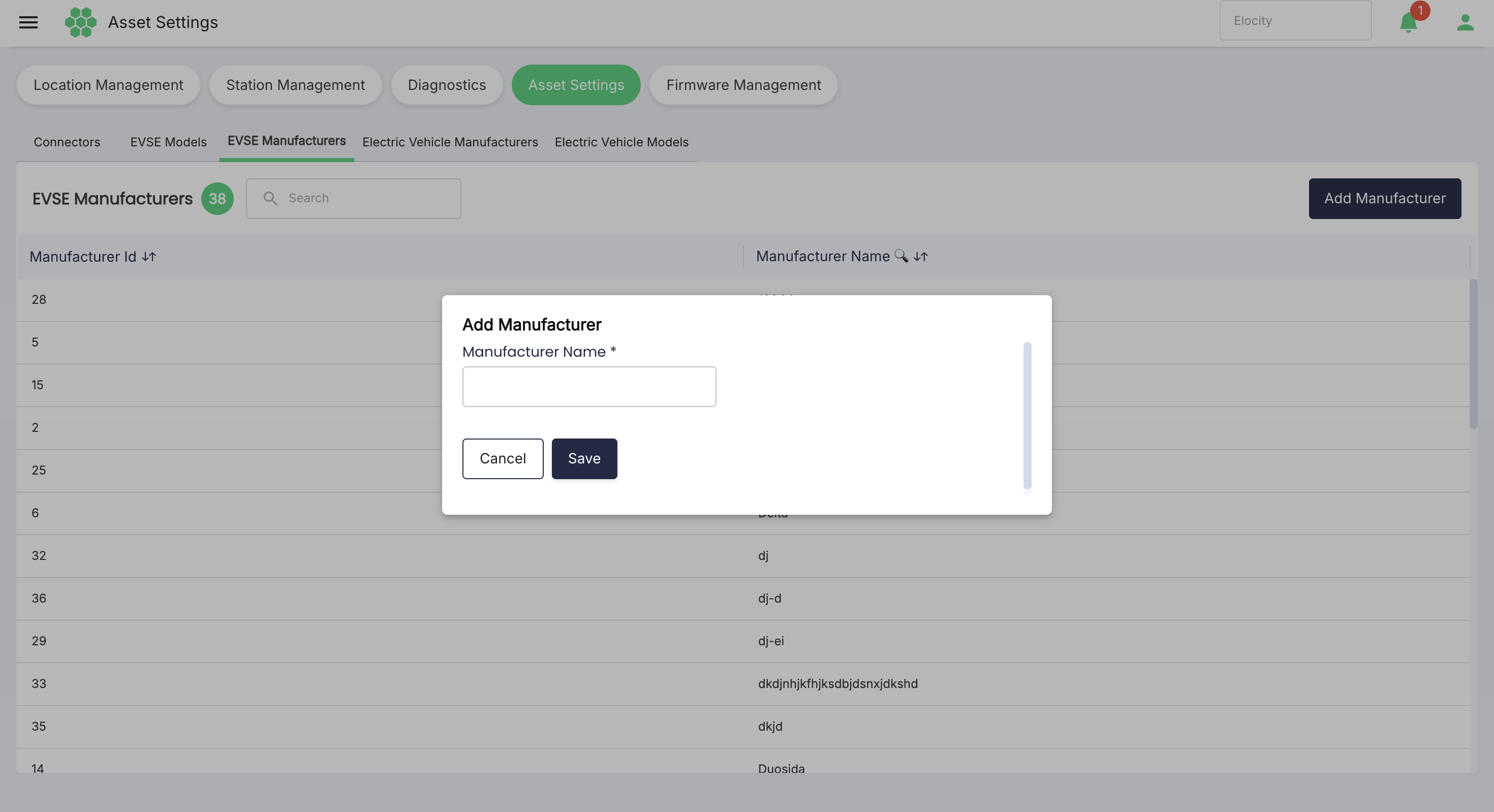
The system assigns the Manufacturer Id; the creation form does not request it.
7. Electric Vehicle Manufacturers
The Electric Vehicle Manufacturers tab is the register of vehicle manufacturers available for electric vehicle model configuration.
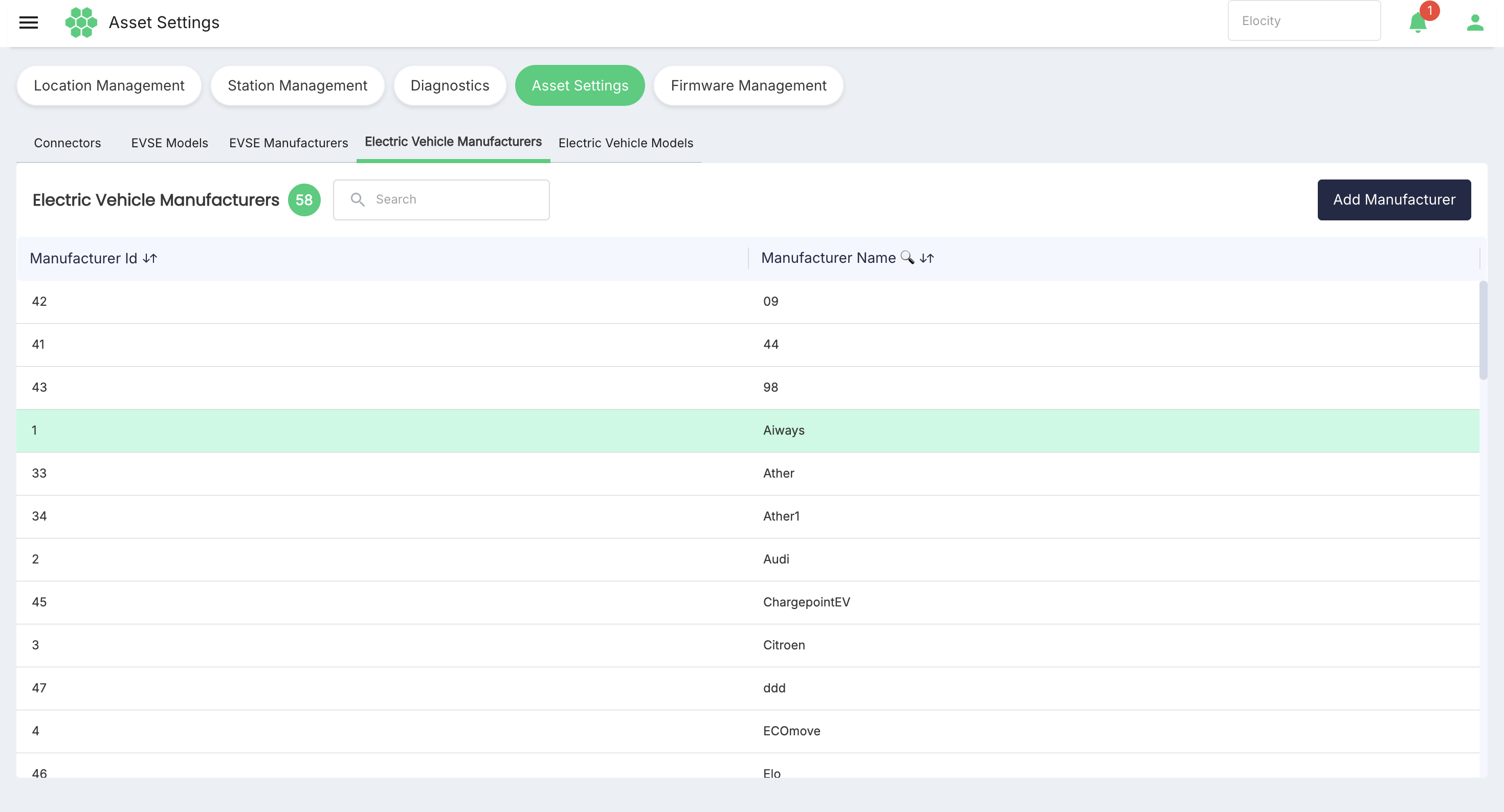
Information displayed
| Column | Description |
|---|---|
| Manufacturer Id | System-assigned identifier. |
| Manufacturer Name | Name of the electric vehicle manufacturer. |
Add an electric vehicle manufacturer
- Select the Electric Vehicle Manufacturers tab.
- Select Add Manufacturer.
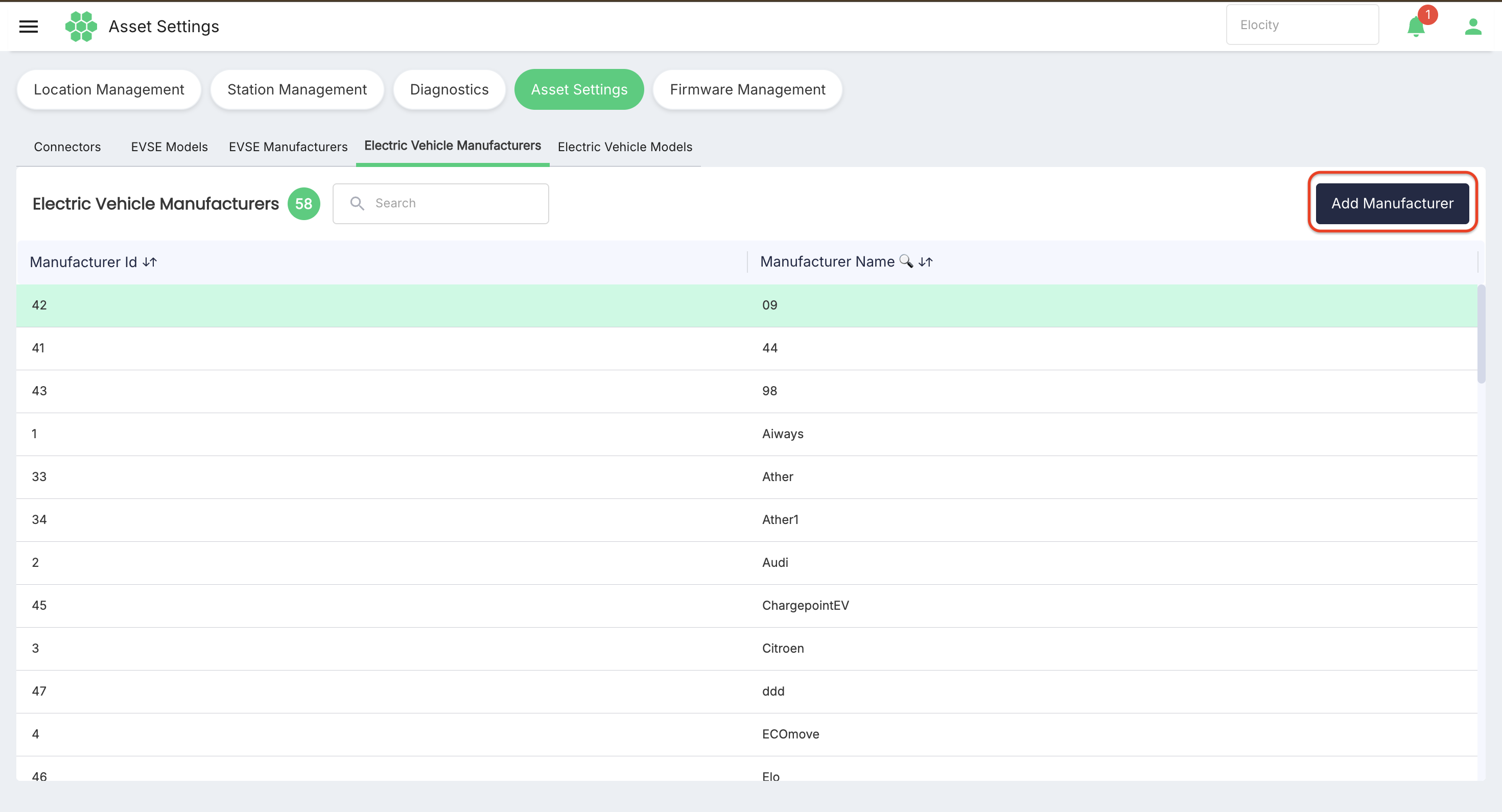
- Enter the required Manufacturer Name.
- Select Save.
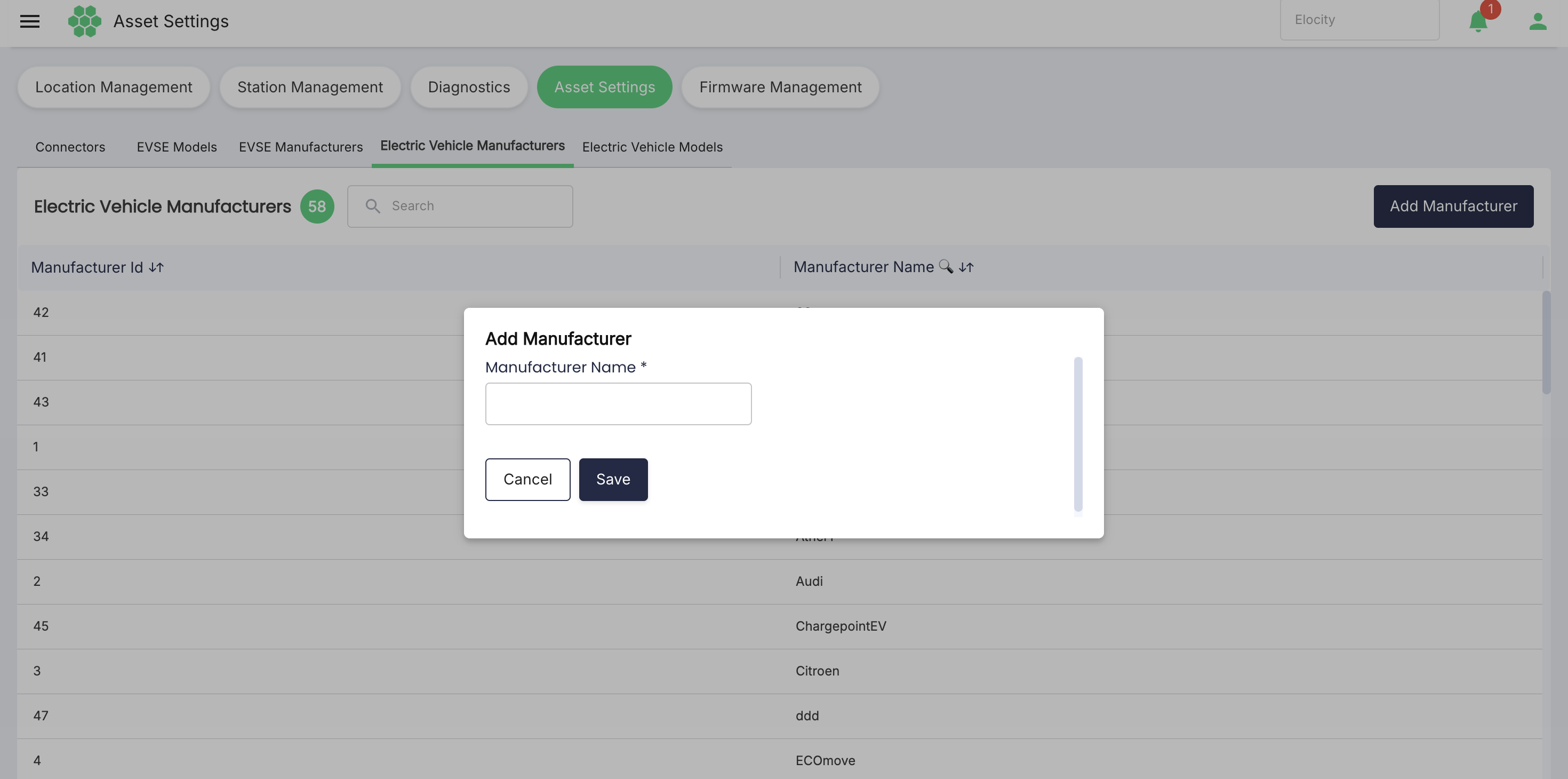
The system assigns the Manufacturer Id; the creation form does not request it.
8. Electric Vehicle Models
The Electric Vehicle Models tab contains vehicle-model specifications used by the portal.
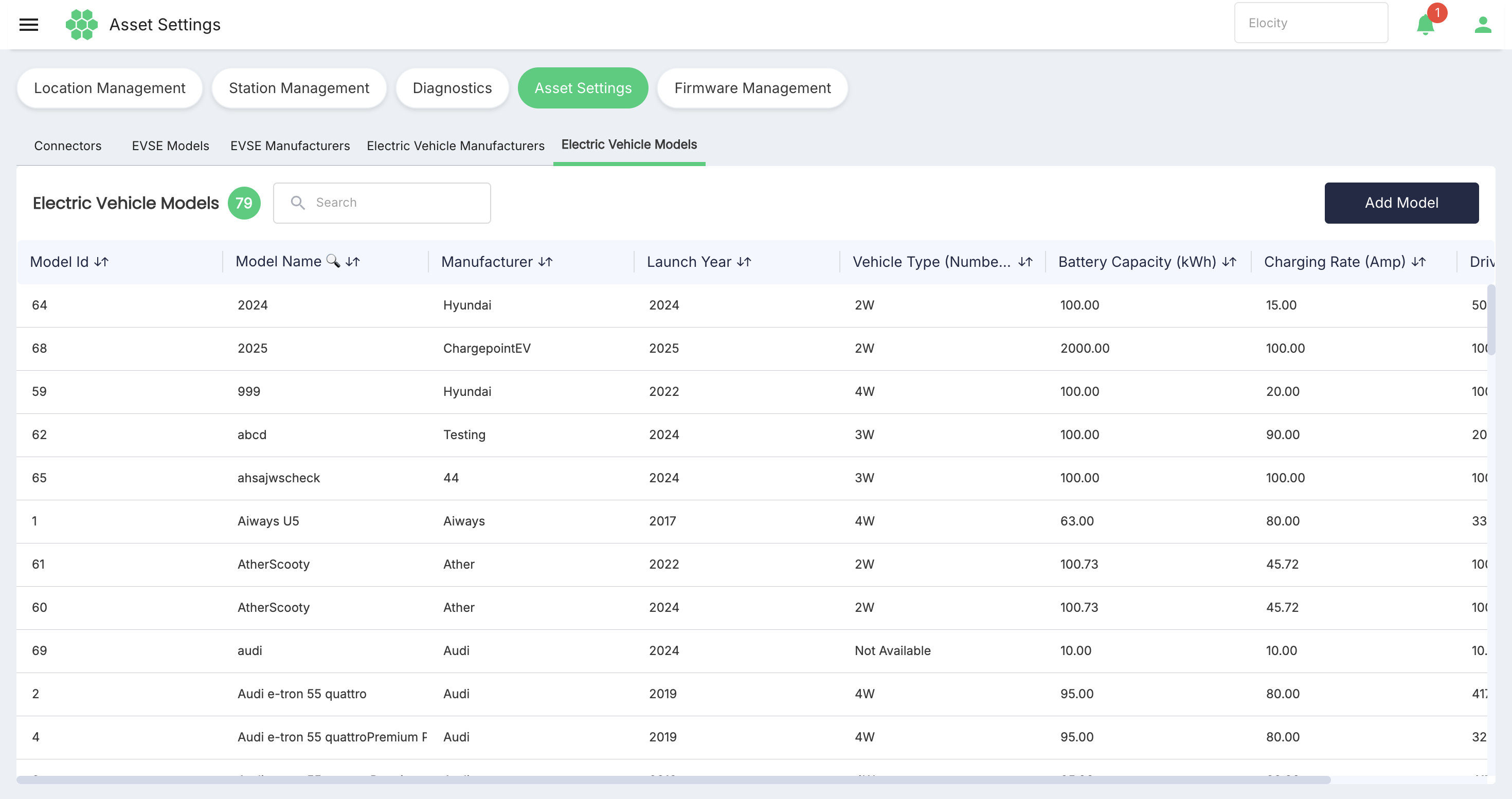
Information displayed
| Column | Description |
|---|---|
| Model Id | System-assigned model identifier. |
| Model Name | Vehicle model name. |
| Manufacturer | Vehicle manufacturer associated with the model. |
| Launch Year | Model launch year. |
| Vehicle Type (Number of Wheels) | Vehicle classification by wheel count. |
| Battery Capacity (kWh) | Battery energy capacity in kilowatt-hours. |
| Charging Rate (Amp) | Charging-current value in amperes. |
| Driving Range (km) | Driving range in kilometres. |
When a specification has not been recorded, the grid may display Not Available.
Add an electric vehicle model
- Select the Electric Vehicle Models tab.
- Select Add Model.
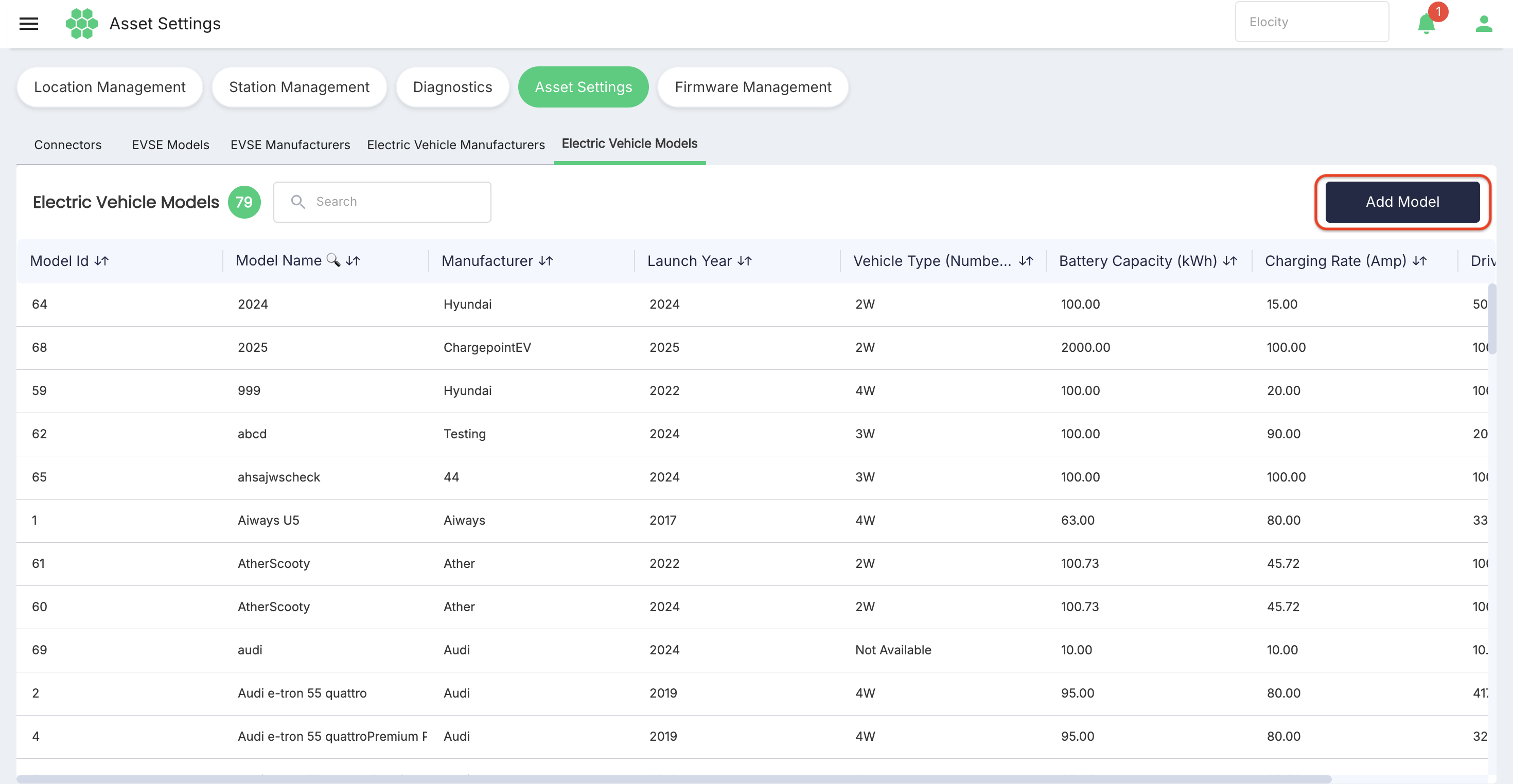
- Select the required Manufacturer.
- Enter the required Model name.
- Verify or select the required Launch Year.
- Complete the remaining specification fields as applicable.
- Select Save.
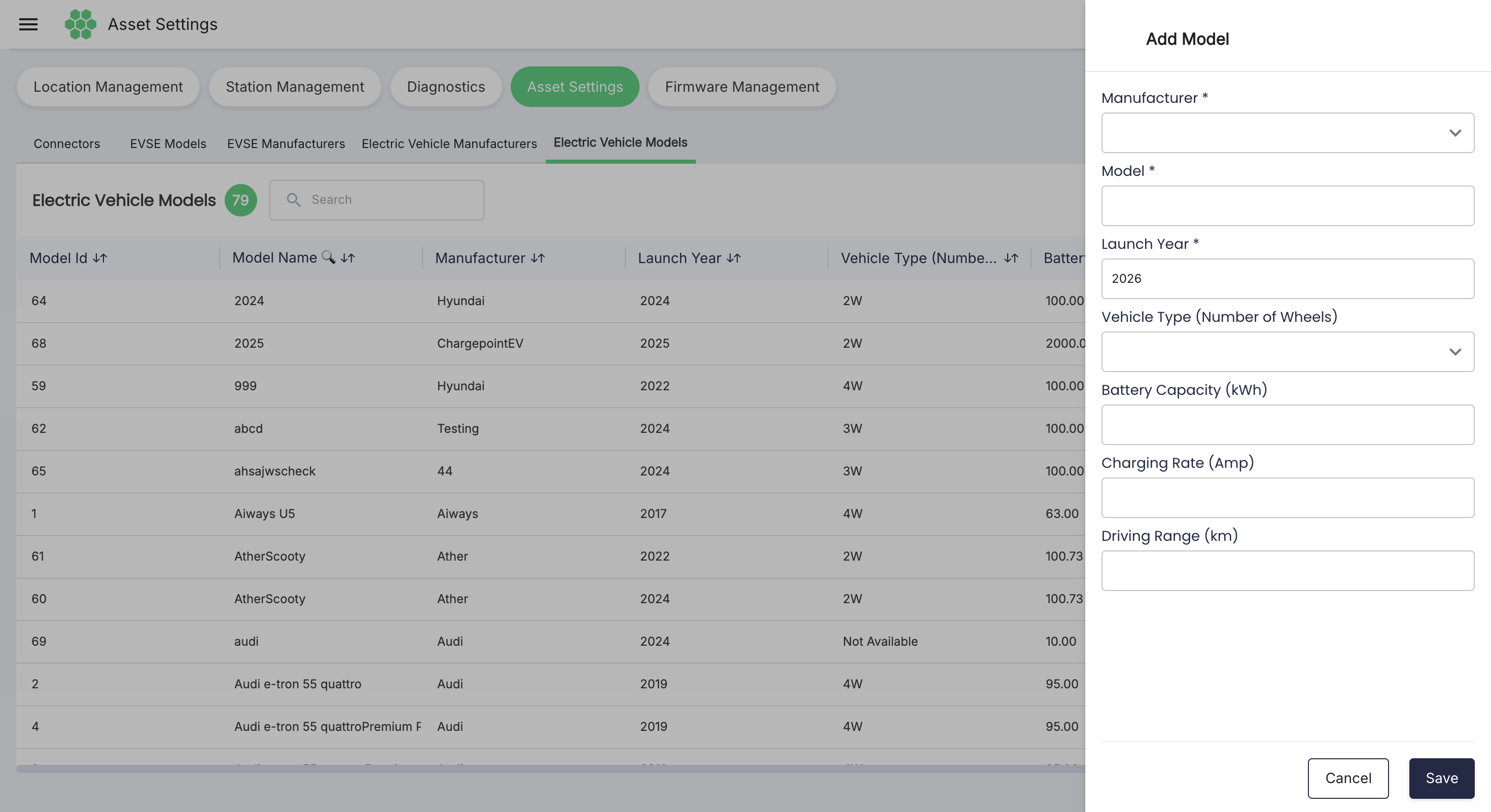
Electric vehicle model fields
| Field | Required | Description |
|---|---|---|
| Manufacturer | Yes | Vehicle manufacturer associated with the model. |
| Model | Yes | Vehicle model name. |
| Launch Year | Yes | Model launch year. In the reviewed form, this field opened with 2026. |
| Vehicle Type (Number of Wheels) | No visible asterisk | Available choices were 2 Wheeler, 3 Wheeler, 4 Wheeler, 6 Wheeler, 8 Wheeler, 10 Wheeler, and 12 Wheeler. |
| Battery Capacity (kWh) | No visible asterisk | Battery energy capacity in kilowatt-hours. |
| Charging Rate (Amp) | No visible asterisk | Charging-current value in amperes. |
| Driving Range (km) | No visible asterisk | Driving range in kilometres. |
9. Data-entry guidance
- Check that the correct manufacturer exists before creating its model.
- Check the units shown in each field label before entering a specification.
- For EVSE models, enter model-level and connector-level power values carefully because the form contains two fields with the same Max Electric Power (kW) label.
- Use Add More Connectors only when the EVSE model supports more than one connector configuration.
- Review manufacturer and model spelling before saving; the interface did not expose a correction workflow during this review.
- If a record is not found, clear the Search box and confirm that the expected tab and business context are active.
10. Limitations of this verified draft
The live review did not create, edit, or delete production data. The following behaviors were not verified and are intentionally not stated as facts:
- Role and permission rules
- Business or tenant ownership of records
- Duplicate-name handling
- Allowed numeric ranges and decimal precision
- Edit and delete workflows
- Downstream impact of changing reference data
- Connector administration outside this page