Station Management
Module: Network Management → Station Management
URL: https://hiev.ca/ca/station-management
Audience: CPMS administrators
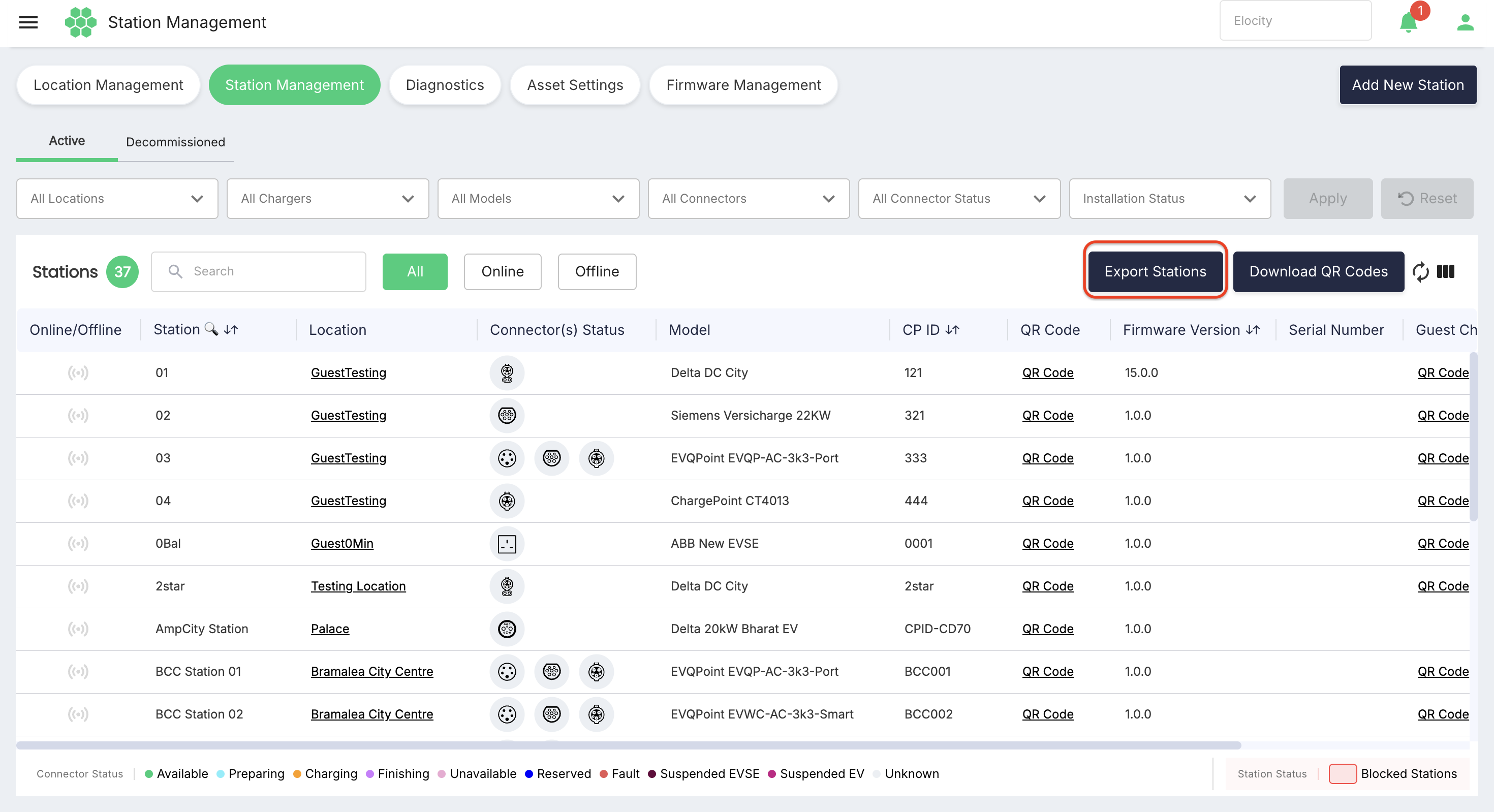
The Station Management page is the central workspace for administering EV charging stations registered on the HIEV platform. From this page an administrator can view the live status of every station at the selected site, filter and search the station inventory, open a station's detail record, issue OCPP commands to a station, review station communication logs, register new stations, and export station data and QR codes.
1. Page Layout
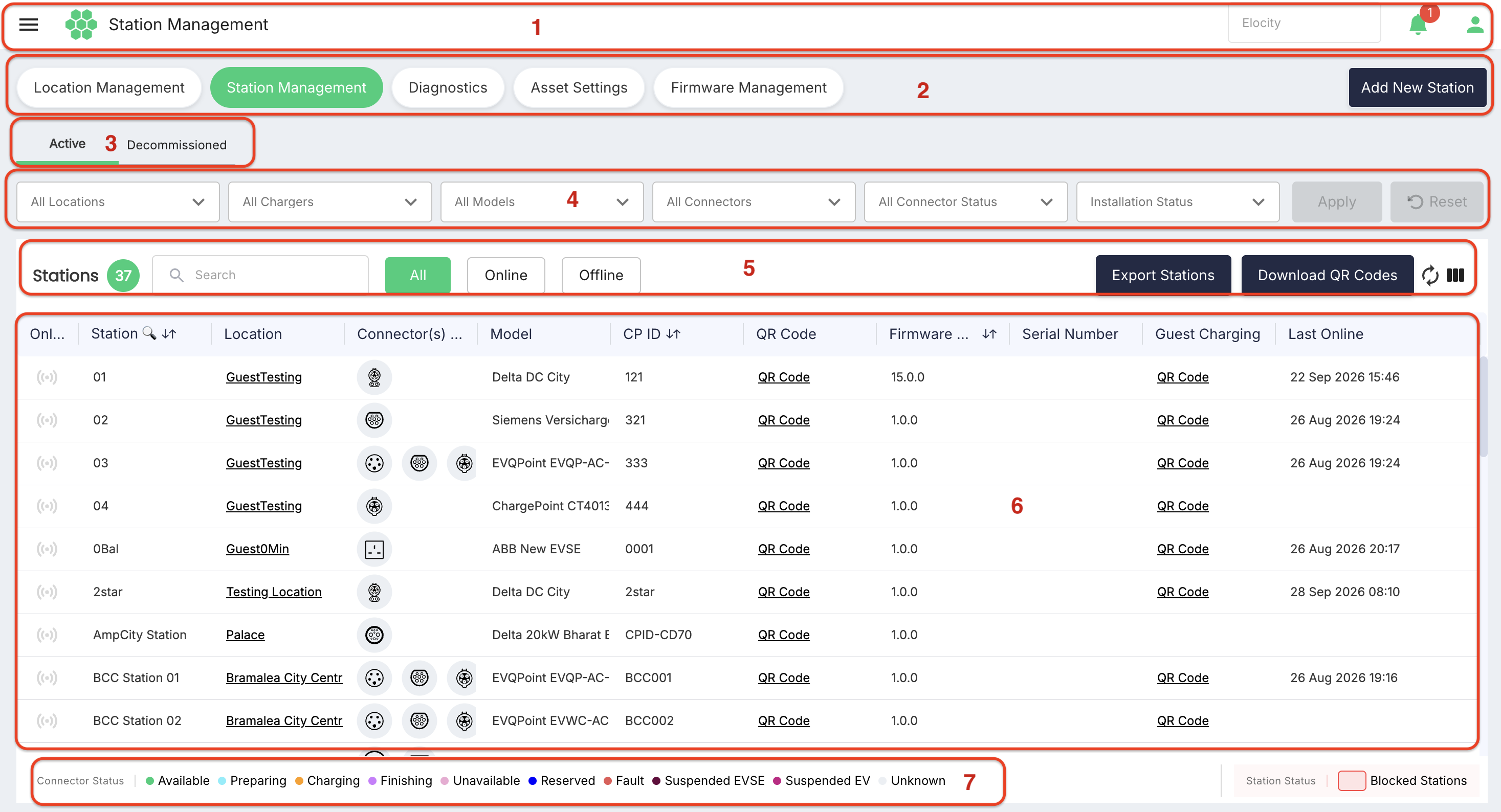
The page is composed of the following areas, from top to bottom:
- Application header — global navigation menu (hamburger icon), page title, the site/business selector (e.g., 10 Eva Rd – Evermore), the notifications bell, and the user profile menu. The station grid always shows stations belonging to the site currently chosen in the site selector.
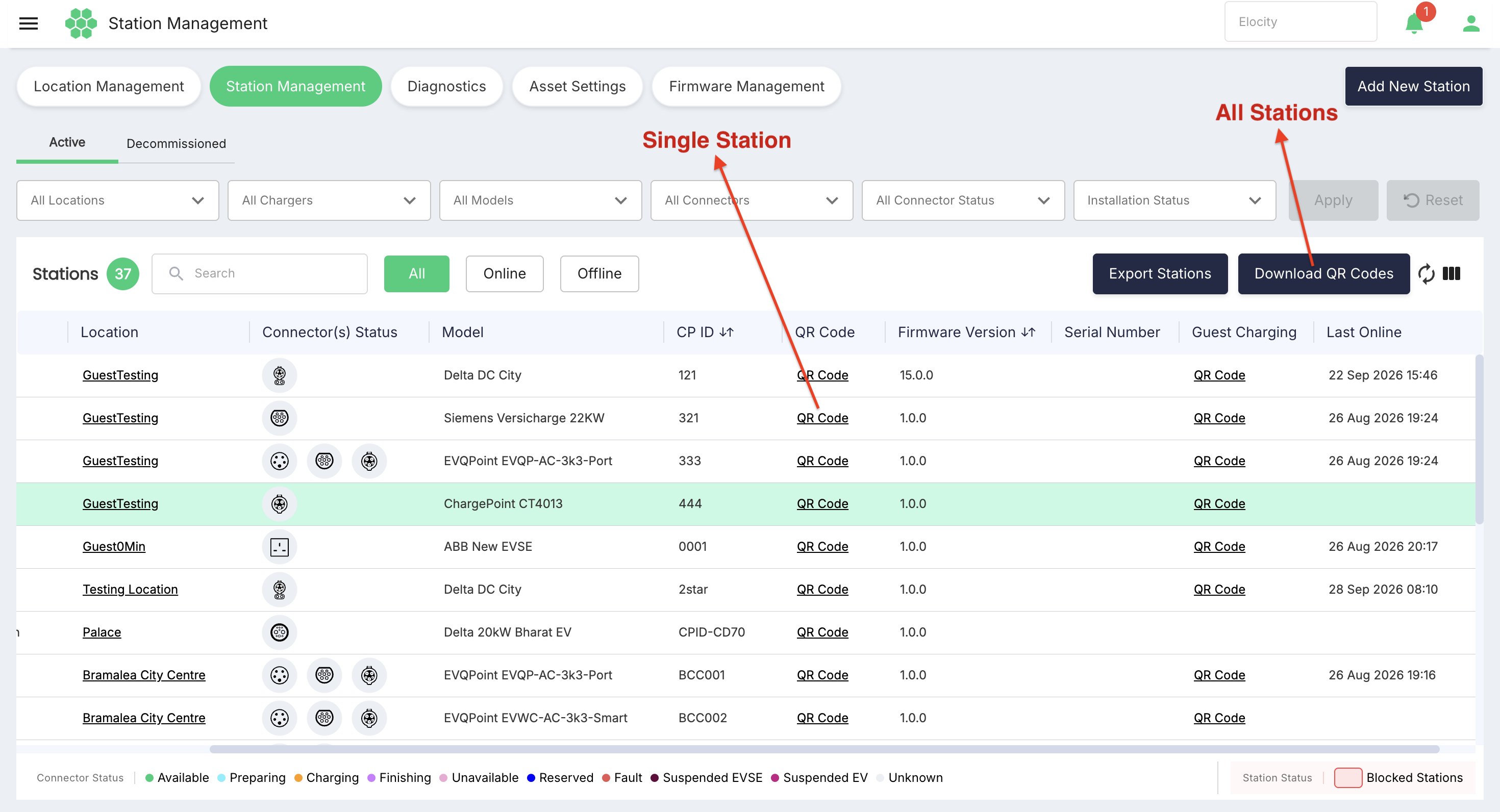
- Module navigation bar — pill-style links to Network Management pages: Location Management, Station Management (highlighted green when active), Diagnostics, Asset Settings, and Firmware Management. The Add New Station button sits at the right end of this bar.
- View tabs — Active and Decommissioned, which switch the grid between in-service stations and stations that have been retired.
- Filter row — six dropdown filters with Apply and Reset actions.
- Grid toolbar — station count, search box, All/Online/Offline quick filters, Export Stations, Download QR Codes, refresh, and column filter controls.
- Stations grid — the main data table.
- Connector status legend — colour key displayed under the grid (Available, Preparing, Charging, Finishing, Unavailable, Reserved, Fault, Suspended EVSE, Suspended EV, Unknown) along with the Blocked Stations indicator.
2. Active / Decommissioned Views

| View | Purpose |
|---|---|
| Active | All stations currently registered and in service at the selected site. Full toolbar is available (Online/Offline quick filters, QR code download, Add New Station). |
| Decommissioned | Stations that have been taken out of service (Installation State set to Decommission). Shown as a reduced grid — see Section 8. |
3. Filter Row
Filters restrict the rows shown in the grid. Select one or more values in any combination of dropdowns, then click Apply. Reset clears every filter and restores the full list. All six dropdowns are multi-select checkbox lists with a Select all option and a type-ahead search field.

| Filter | Description | Example values observed |
|---|---|---|
| All Locations | Filters stations by the location (parking spot / address record) they are assigned to. | 10-P3 81-10 Eva Road, 11-P1 20-10 Eva Road, … |
| All Chargers | Filters by individual charging station. Entries are listed as Station Name (Charge Point ID). | STATION 11-D2130A011A1(D2130A011A1) |
| All Models | Filters by charger model registered in the asset catalogue. | Johns Electric AC Hybrid, 10KW AC, 15kW EVDC Charger, … |
| All Connectors | Filters by connector (plug) type. | 3 Pin, AS 3112, BS 1363, CCS 1, CCS 2, CEE 7-4, CEE 7-5, CEE 7:17, … |
| All Connector Status | Filters by the current OCPP connector status. | Available, Preparing, Charging, Suspended EVSE, Suspended EV, Finishing, Reserved, Unavailable |
| Installation Status | Filters stations by their lifecycle installation state. | Planned, Commissioned, Decommission |
The Apply button remains disabled until at least one filter value is selected.
4. Grid Toolbar
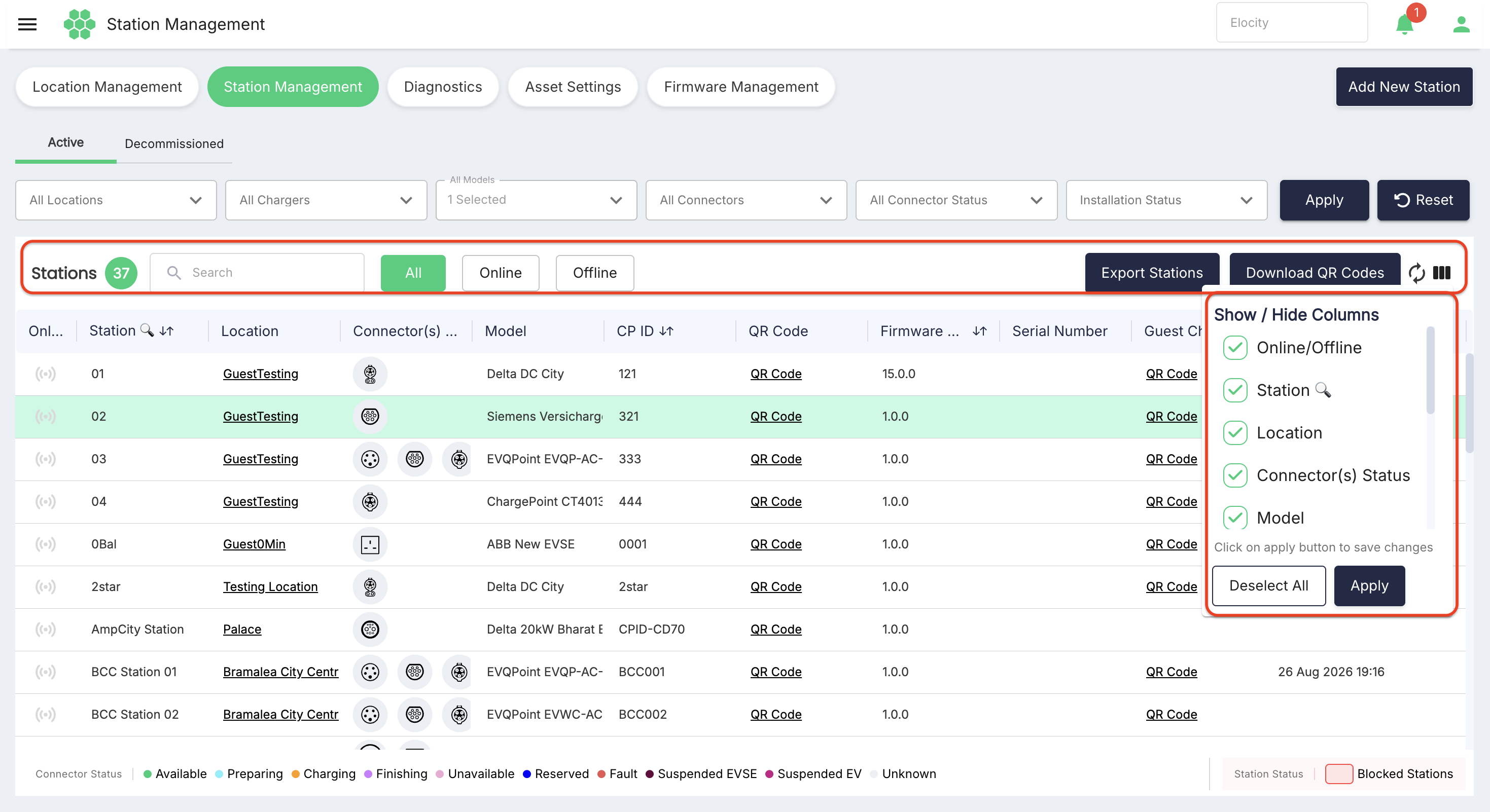
| Control | Description |
|---|---|
Stations n | Count of stations returned by the current view and filters. |
| Search | Free-text search across the station list. |
| All / Online / Offline | Quick filters on station connectivity. All shows every station; Online shows only stations currently connected to the platform; Offline shows stations that are not communicating. The selected button is highlighted. |
| Export Stations | Starts an export of the station list. See Section 9. |
| Download QR Codes | Downloads the QR codes of all stations in the current view in a single file via the browser. Drivers scan a station's QR code to identify the station and start a charging session. |
| Refresh (circular-arrows icon) | Reloads the grid with current data. |
| Column Filter (columns icon) | Opens the Show / Hide Columns panel. Every grid column has a checkbox; Deselect All clears them, Apply saves the visible-column selection. |
5. Stations Grid — Columns
| # | Column | Description |
|---|---|---|
| 1 | Online/Offline | Connectivity indicator icon. Green signal icon = station is online (communicating with the platform); grey icon = offline. |
| 2 | Station | Station display name (e.g., STATION 12-D2130A098A1). The column header includes a search icon and a sort control. Clicking anywhere in the row opens the Station Details page (Section 7). |
| 3 | Location (hyperlink) | The location/parking spot the station is assigned to. Clicking the link opens the Location Details page (/ca/location-details/…) in the Location Management module, showing the location's address, coordinates, contacts, tariffs, and settings. |
| 4 | Connector(s) Status | One icon per connector, colour-coded per the legend beneath the grid. Hovering over the icon shows a tooltip with connector type and live status, e.g., SAE J1772 (AVAILABLE). |
| 5 | Model | Charger model, e.g., Phihong AWLU770001, Elocity E40 Pro EVSE. |
| 6 | CP ID | Charge Point ID — the unique OCPP identity the station uses to connect to the platform. Sortable. |
| 7 | QR Code (hyperlink) | Opens a modal window displaying the station's QR code together with the station name and location, and a Print button for printing a label. |
| 8 | Firmware Version | Firmware version last reported by the station (e.g., V0.69.40.1770.P1). Sortable. |
| 9 | Serial Number | Hardware serial number, if recorded. |
| 10 | Guest Charging | Indicates whether guest (unauthenticated) charging is enabled for the station. |
| 11 | Last Online | The last time the station communicated with the platform. Shows Online for currently connected stations, otherwise a timestamp (e.g., 22 Jul 2026 15:52). |
QR Code modal
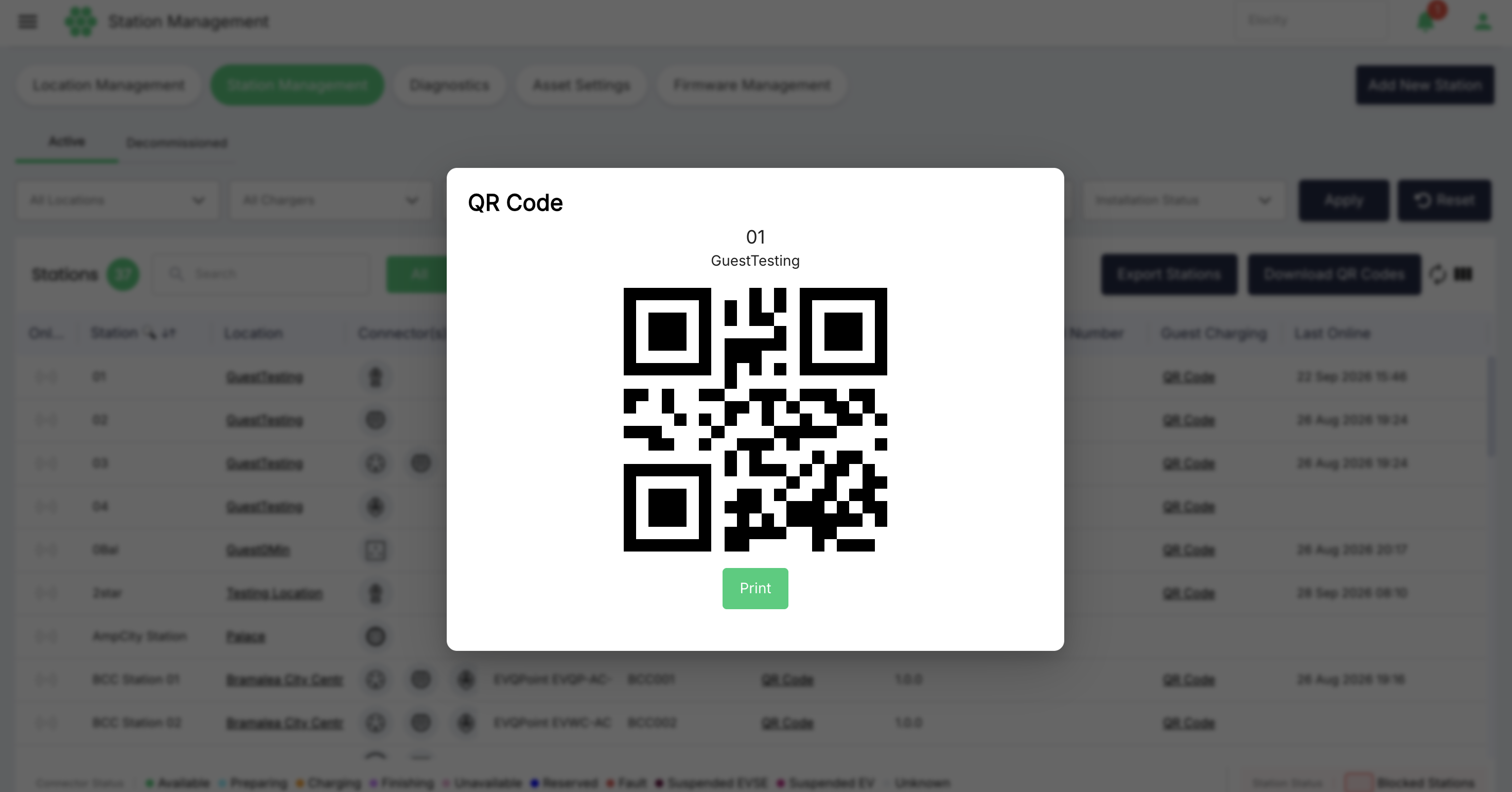
The modal shows the station name, its location label, the QR code image, and a Print button. Click outside the modal (or press Escape) to close it.
6. Connector Status Legend
The legend below the grid maps the connector icon colours to OCPP connector states:

| Status | Meaning |
|---|---|
| Available | Connector is free and ready for use. |
| Preparing | A vehicle has plugged in or a session is being authorized. |
| Charging | An active charging session is in progress. |
| Finishing | A session has ended and the connector is wrapping up. |
| Unavailable | Connector has been made inoperative (e.g., via Change Availability). |
| Reserved | Connector is held by a reservation. |
| Fault | The connector has reported a fault. |
| Suspended EVSE | Charging paused by the station/EVSE side. |
| Suspended EV | Charging paused by the vehicle side. |
| Unknown | Status has not been reported. |
Additionally, the legend displays the Station Status: Blocked Stations indicator (pink/red outlined box) to identify stations currently blocked from operational charging.
7. Station Details Page
Clicking any row in the Active grid opens the Station Details page (/ca/station-details/<station-id>). The page header shows the station name with a back arrow to return to the grid, and five tabs: INFO, ACTIONS, LOGS HISTORY, CONNECTORS, and REPORTS.
7.1 INFO tab
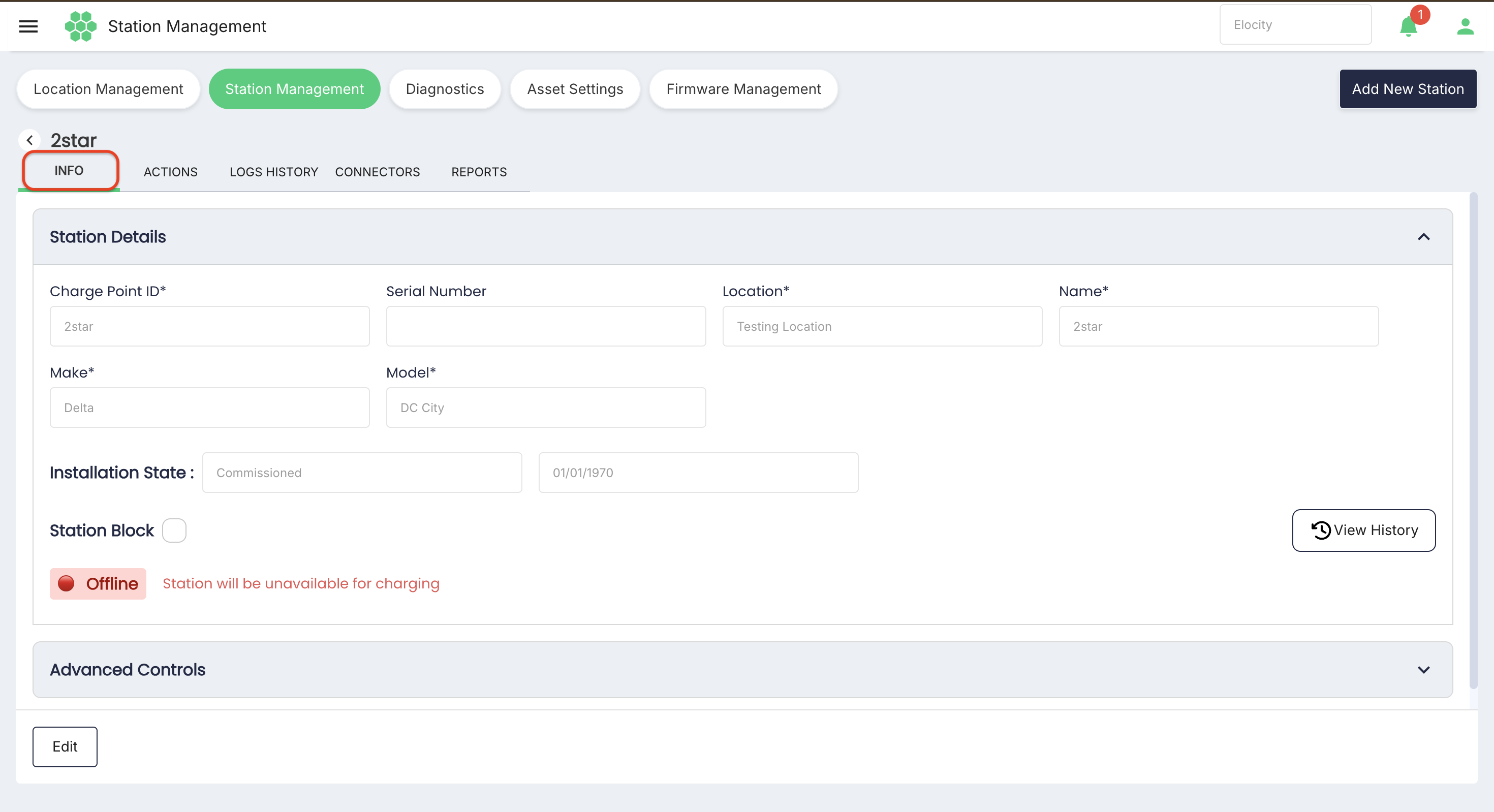
The INFO tab contains two accordion sections and an Edit button.
Station Details section
| Field | Required | Description |
|---|---|---|
| Charge Point ID | Yes | OCPP identity of the station. |
| Serial Number | No | Hardware serial number. |
| Location | Yes | Assigned location/parking spot (dropdown in edit mode). |
| Name | Yes | Station display name. |
| Make | Yes | Charger manufacturer (dropdown in edit mode), e.g., Delta, Phihong. |
| Model | Yes | Charger model (dropdown in edit mode, dependent on Make), e.g., DC City, AWLU770001. |
| Installation State | — | Displays current state (e.g., Commissioned, Planned) along with relevant date. |
| Station Block | No | Toggle checkbox to block the station from the operational lifecycle (displays Offline - Station will be unavailable for charging). Click View History to inspect the audit log of previous block/unblock events. |
Advanced Controls section
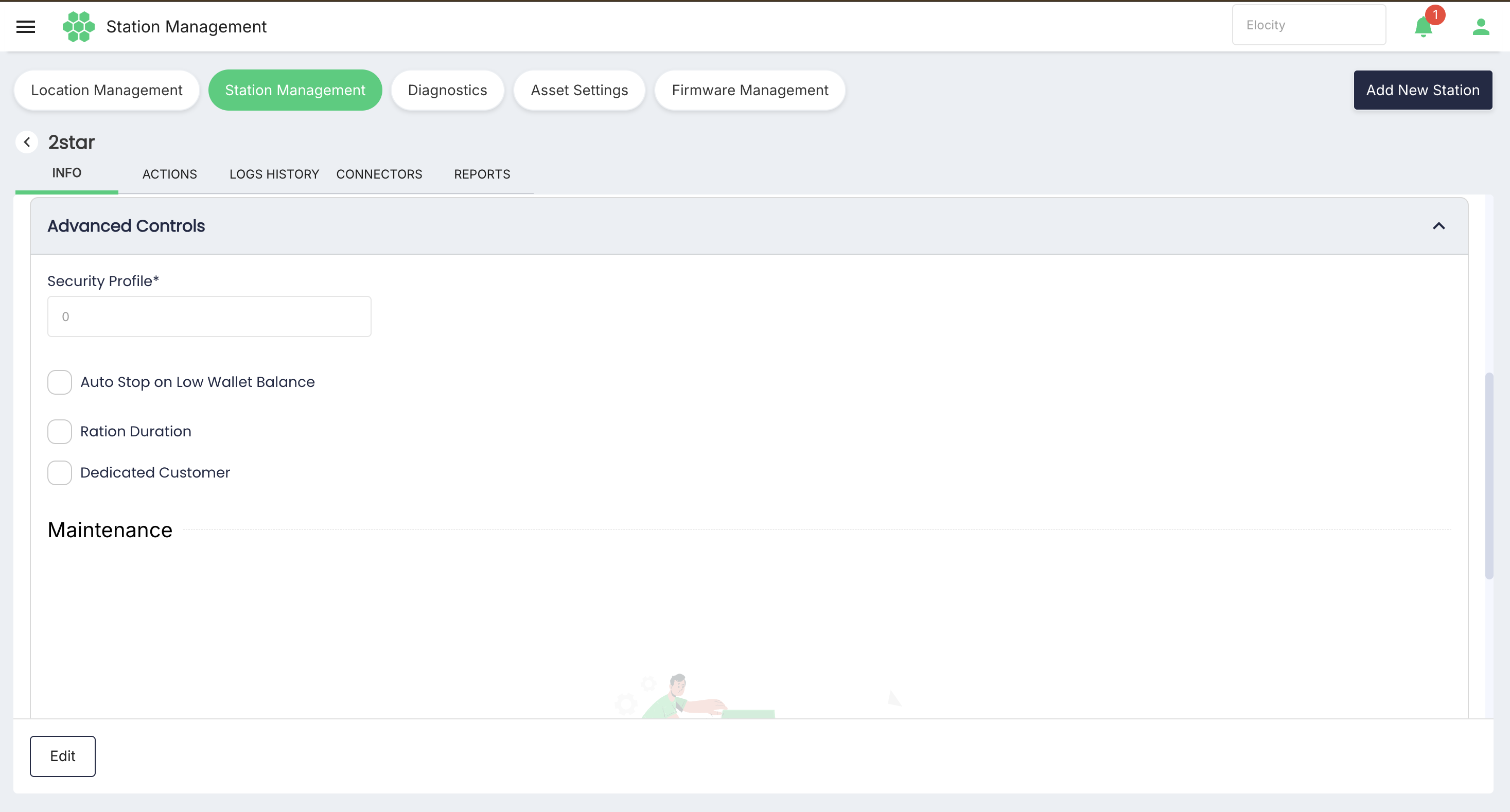
| Field | Description |
|---|---|
| Security Profile (required) | OCPP security profile used by the station connection. Selectable values: 0, 1, 2. |
| Minimum Balance | Minimum account balance required for charging sessions. |
| Auto Stop on Low Wallet Balance (checkbox) | When enabled, sessions are stopped automatically if the driver's wallet balance runs low. |
| Ration Duration (checkbox) | When enabled, limits/rations session duration on this station. |
| Dedicated Customer (checkbox) | Marks the station as dedicated to a specific customer. |
| Maintenance → Created Time Slots | Read-only chips listing scheduled maintenance windows for the station, each showing the date and time range (e.g., Jul 28, 2026 · 02:04 PM – 03:04 PM). |
Editing. Click Edit to make the fields editable; the button row changes to Cancel / Save. Location, Make, and Model become dropdowns, and the Installation State becomes selectable. Cancel discards changes.
7.2 ACTIONS tab
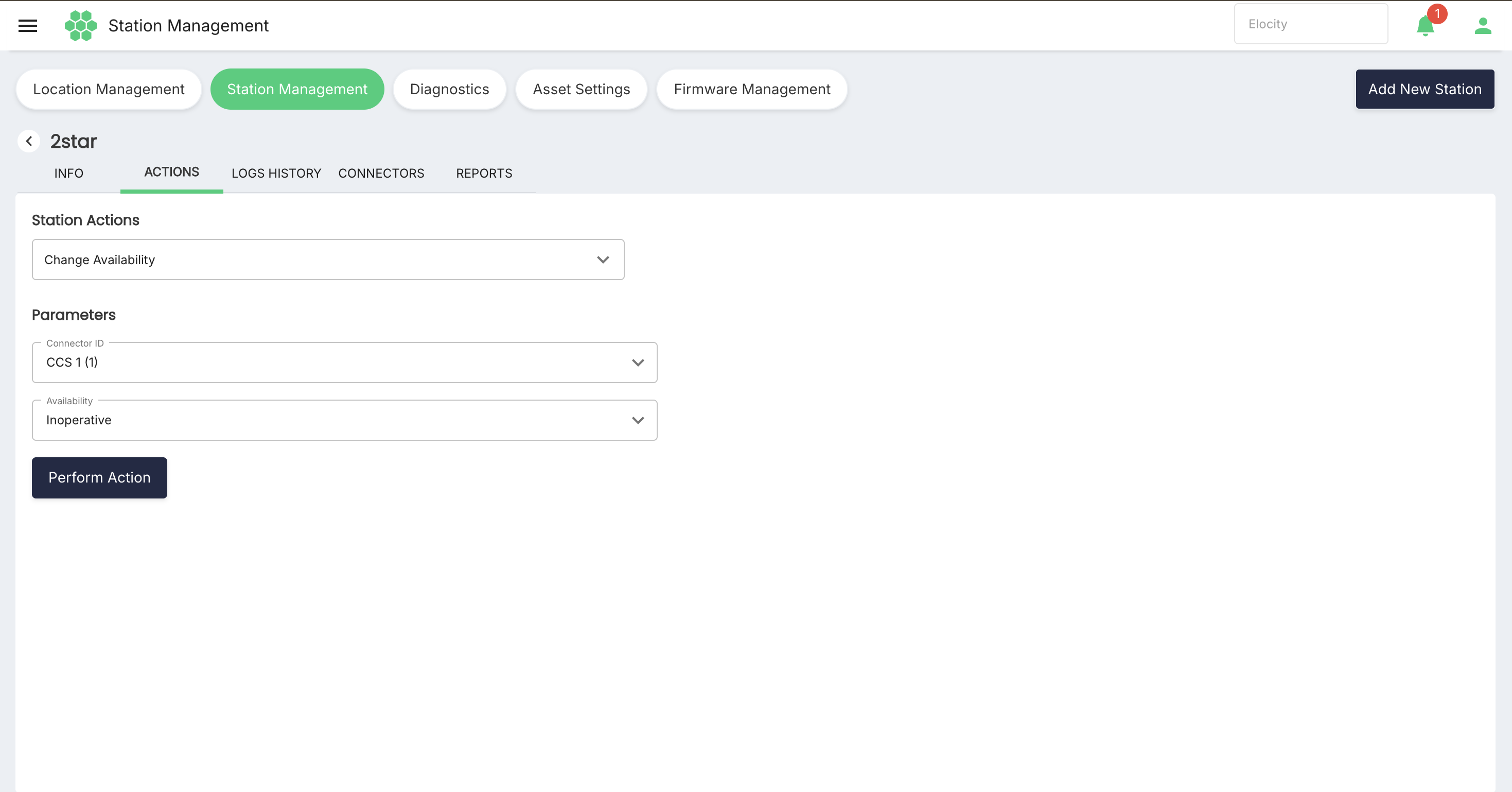
The ACTIONS tab sends OCPP commands to the station in real time. The left panel contains the Station Actions selector, a Parameters area that changes with the selected action, and a Perform Action button. The right panel, Recent Logs, shows the request/response messages for actions performed in the current session (No logs found until an action is executed). Perform Action stays disabled until all mandatory parameters are supplied.
Available actions and their parameters:
| Action | Parameters |
|---|---|
| Change Availability | Connector ID (dropdown of the station's connectors); Availability: Inoperative / Operative. |
| Reset Station | Reset Type: Hard / Soft. |
| Change Configuration | Key Type (e.g., Predefined); Configuration Key (dropdown of OCPP configuration keys, e.g., Allow Offline Tx For Unknown Id); Value. |
| Data Transfer | Vendor ID; Message ID; Data. |
| Get Diagnostics | Retries; Retry Interval; Start Date/Time; Stop Date/Time. |
| Clear Cache | No parameters. |
| Get Configuration | Configuration Key (select the key(s) to read). |
| Get Local List Version | No parameters. |
| Send Local List | List; Update Type: Full / Differential; Add/Update List (CSV); Delete List (CSV). |
| Trigger Messages | Trigger Message: Boot Notification, DiagnosticsStatusNotification, FirmwareStatusNotification, Heartbeat, MeterValues, StatusNotification; Connector Type. |
| Get Composite Schedule | Connector ID; Duration (in seconds); Charging Rate Unit (W / A). |
| Clear Charging Profile | Filter Type (e.g., Charging Profile Field); Charging Profile ID; Connector Type; Charging Profile Purpose (e.g., CHARGE_POINT_MAX_PROFILE); Stack Level. |
| Set Charging Profile | Connector Type; Stack Level; Charging Profile Purpose (e.g., ChargePointMaxProfile); Charging Profile Kind (e.g., Absolute); Recurrence Kind (e.g., Daily); Duration (in seconds); Start Schedule; Valid From; Valid To; Charging Rate Unit (A / W); Min Charging Rate; Charging Schedule Period (add one or more periods with the + control). |
| Unlock Connector | Connector Type. |
| Remote Stop Transaction | Select the active transaction to stop. Shows No transaction found when no session is running. |
| Remote Start Transaction | Connector ID; OCPP ID Tag. |
| Reserve Now | Connector ID (required); Expiry Date/Time (required); RFID Number (required); Reservation ID (required). |
| Cancel Reservation | Reservation ID. |
7.3 LOGS HISTORY tab
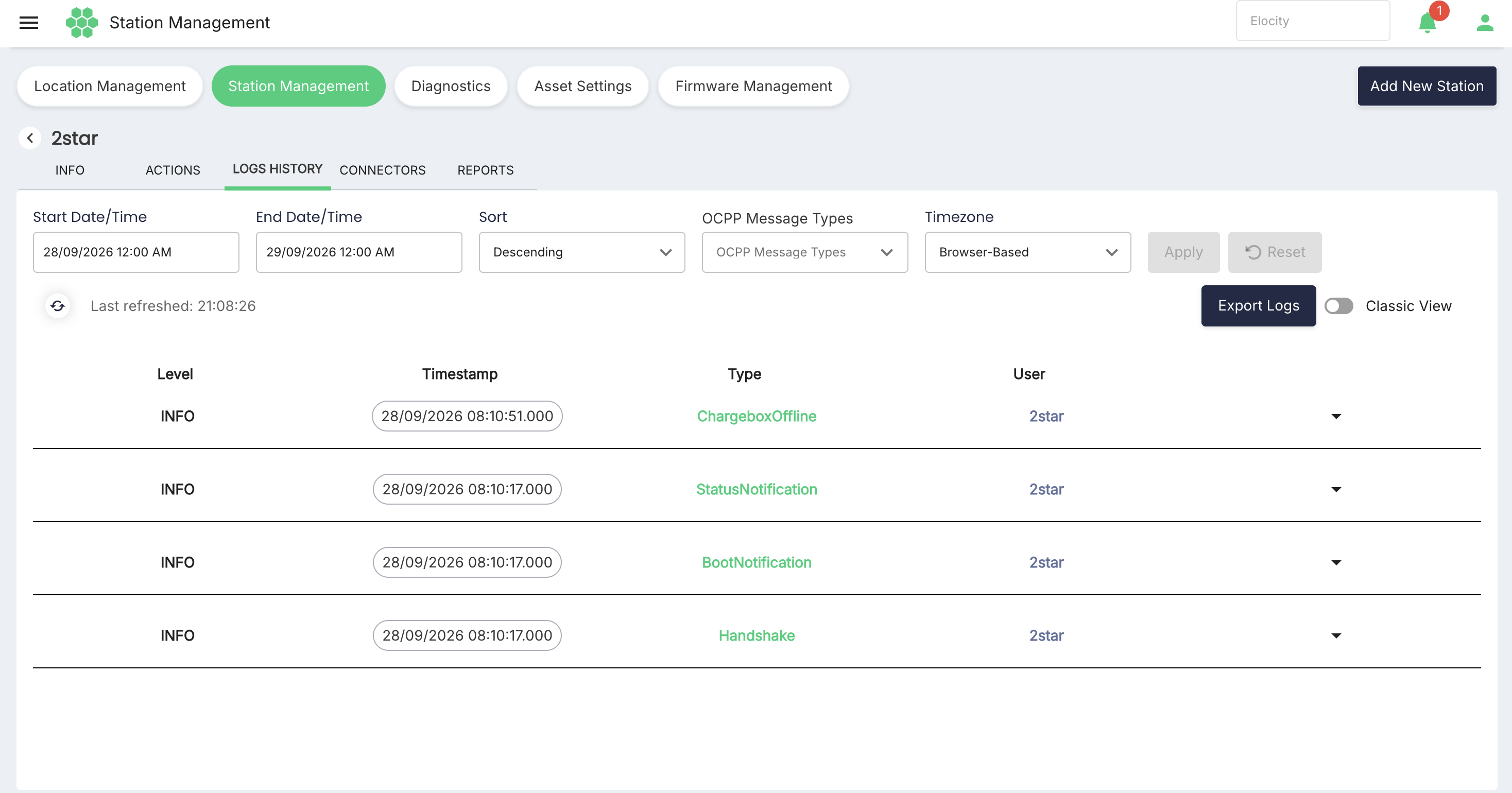
The LOGS HISTORY tab shows the OCPP message history exchanged between the station and the platform.
Filters
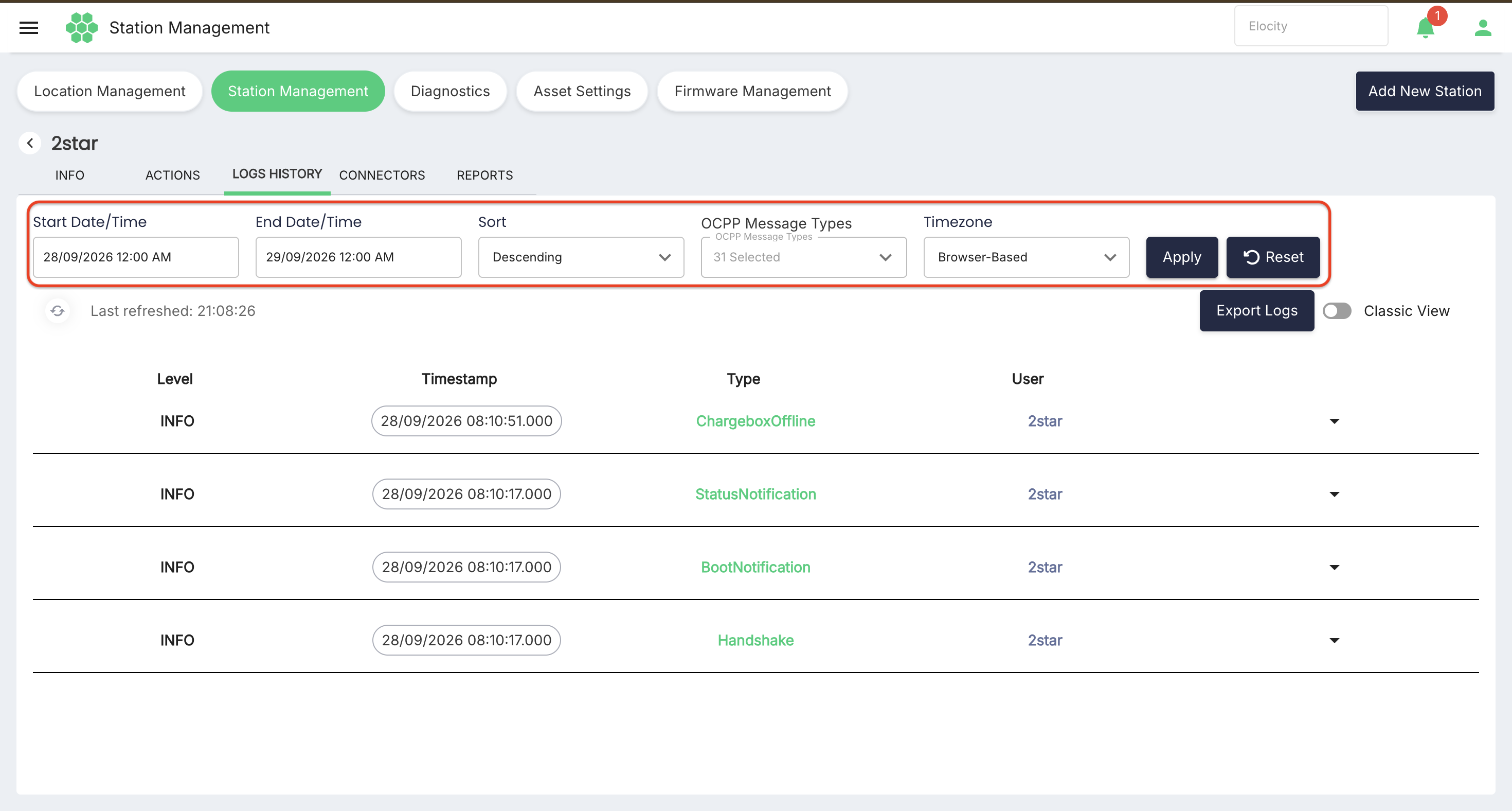
| Filter | Description |
|---|---|
| Start Date/Time, End Date/Time | Date-time range of logs to display (defaults to the current day). |
| Sort | Ascending / Descending by timestamp. |
| OCPP Message Types | Multi-select of message types, including: Authorize, Handshake, Chargebox Offline, Boot Notification, Data Transfer, Heartbeat, Meter Values, Status Notification, Stop Transaction, Start Transaction, Diagnostics Status Notification, Firmware Status Notification, Change Availability, Change Configuration, Clear Cache, Get Configuration, Remote Start Transaction, Remote Stop Transaction, Reset, Unlock Connector, Get Diagnostics, Update Firmware, Get Local List Version, Send Local List, and others. |
| Timezone | Browser-Based / UTC for the displayed timestamps. |
| Apply / Reset | Apply or clear the filter selection. |
Toolbar
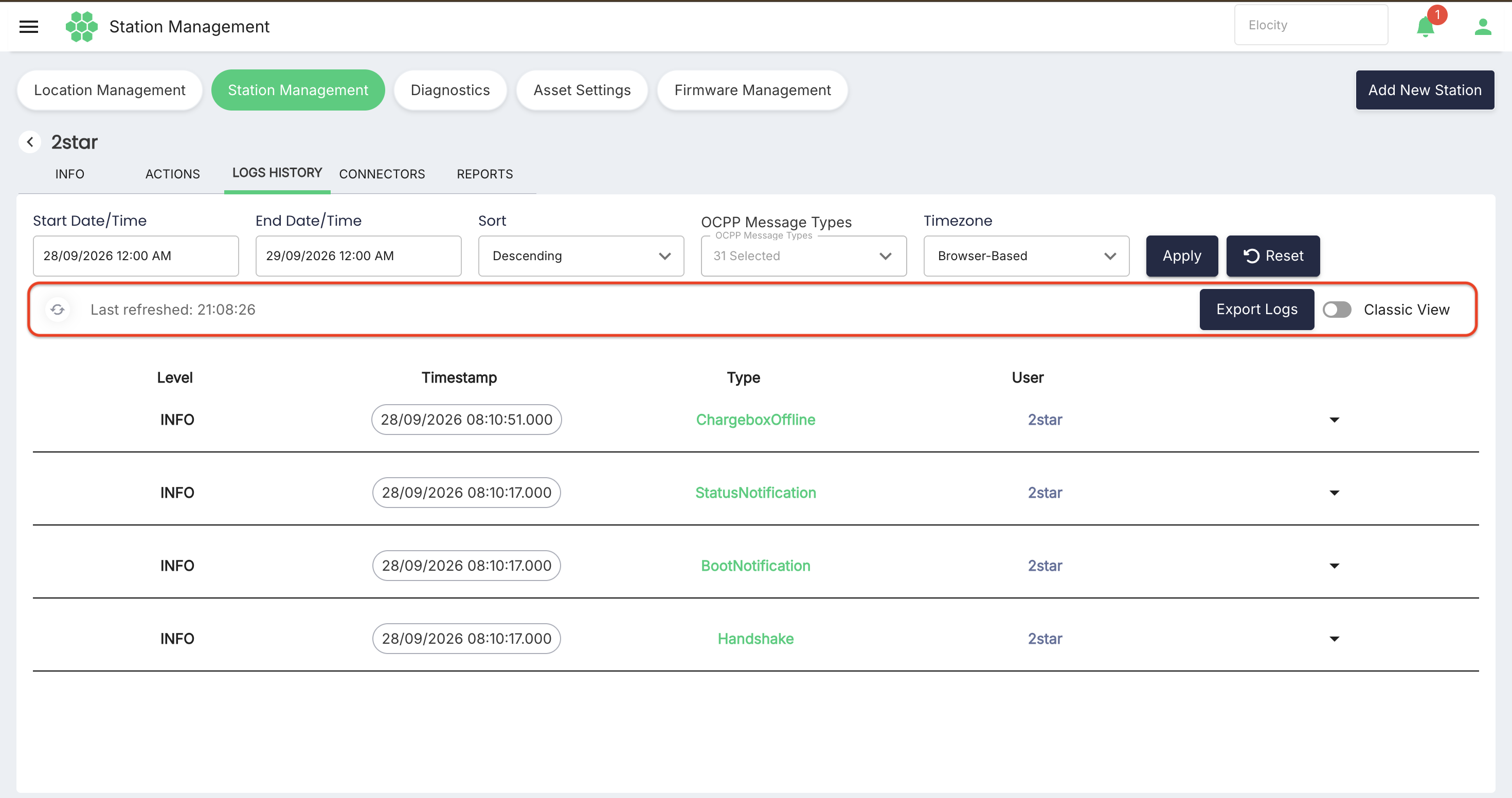
| Control | Description |
|---|---|
| Refresh icon with Last refreshed time | Reloads the log list and shows when it was last refreshed. |
| Export Logs | Exports the filtered logs to a file. |
| Classic View toggle | Switches from the formatted list to a raw single-line view where each entry shows `level |
Log list columns
| Column | Description |
|---|---|
| Level | Log severity (e.g., INFO). |
| Timestamp | Message time with millisecond precision. |
| Type | OCPP message type (e.g., Heartbeat), colour-coded. |
| User | The Charge Point ID that produced the message. |
| Expand (caret) | Expands the row to show the full OCPP request and response payloads as JSON, e.g., {"messageType":2, "uniqueId":"…", "command":"Heartbeat", "payload":{}} and the corresponding response. |
7.4 CONNECTORS tab
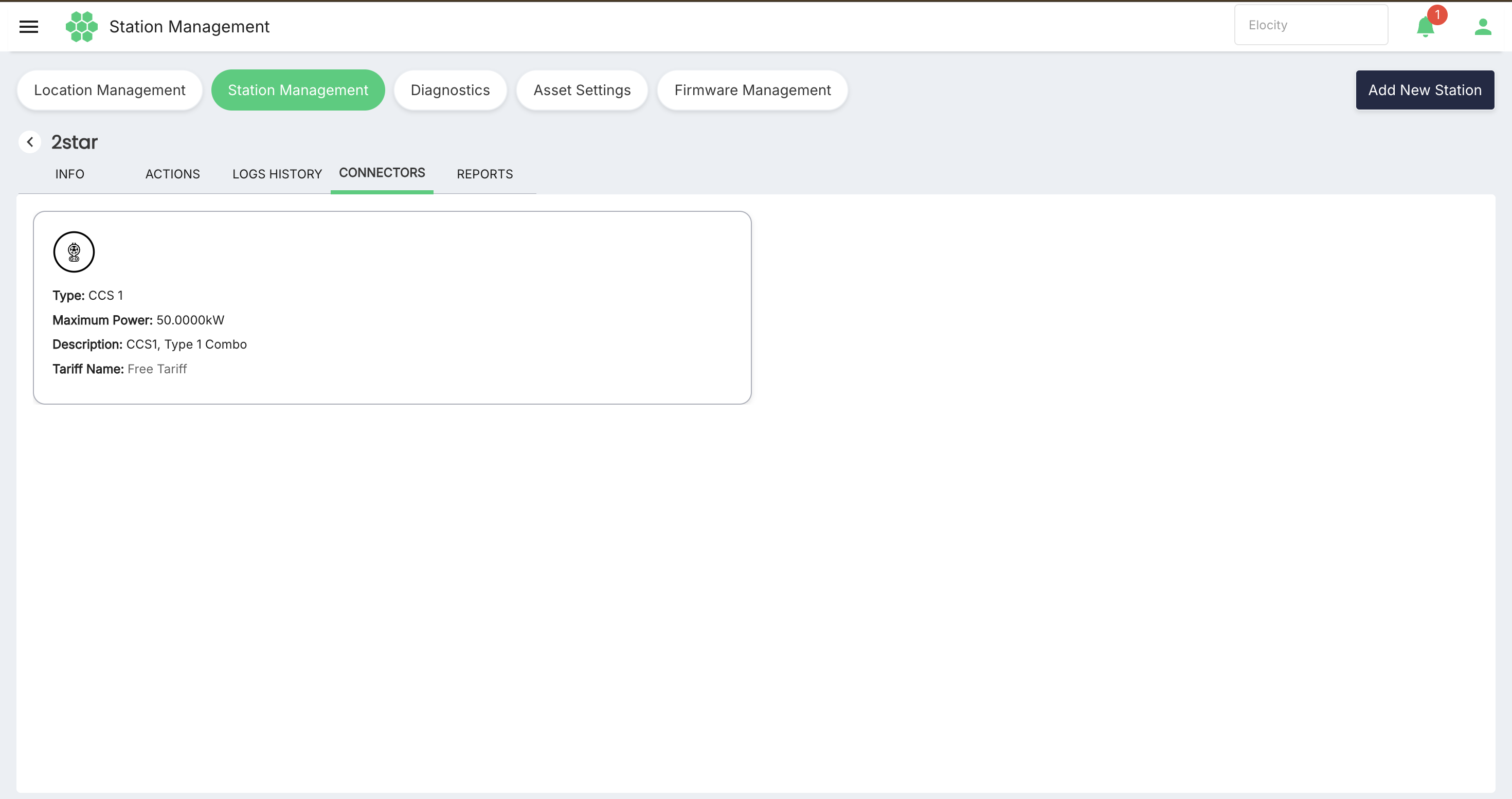
Shows one card per connector on the station:
| Field | Description |
|---|---|
| Type | Connector type, e.g., SAE J1772, CCS 1. |
| Maximum Power | Rated maximum power, e.g., 7.7000kW, 50.0000kW. |
| Description | Standards description, e.g., IEC 62196 Type 1, SAE J1772, CCS1, Type 1 Combo. |
| Tariff Name | Tariff currently applied to the connector, e.g., Free Tariff. |
7.5 REPORTS tab
The REPORTS tab provides station-level operational and historical diagnostic reports:
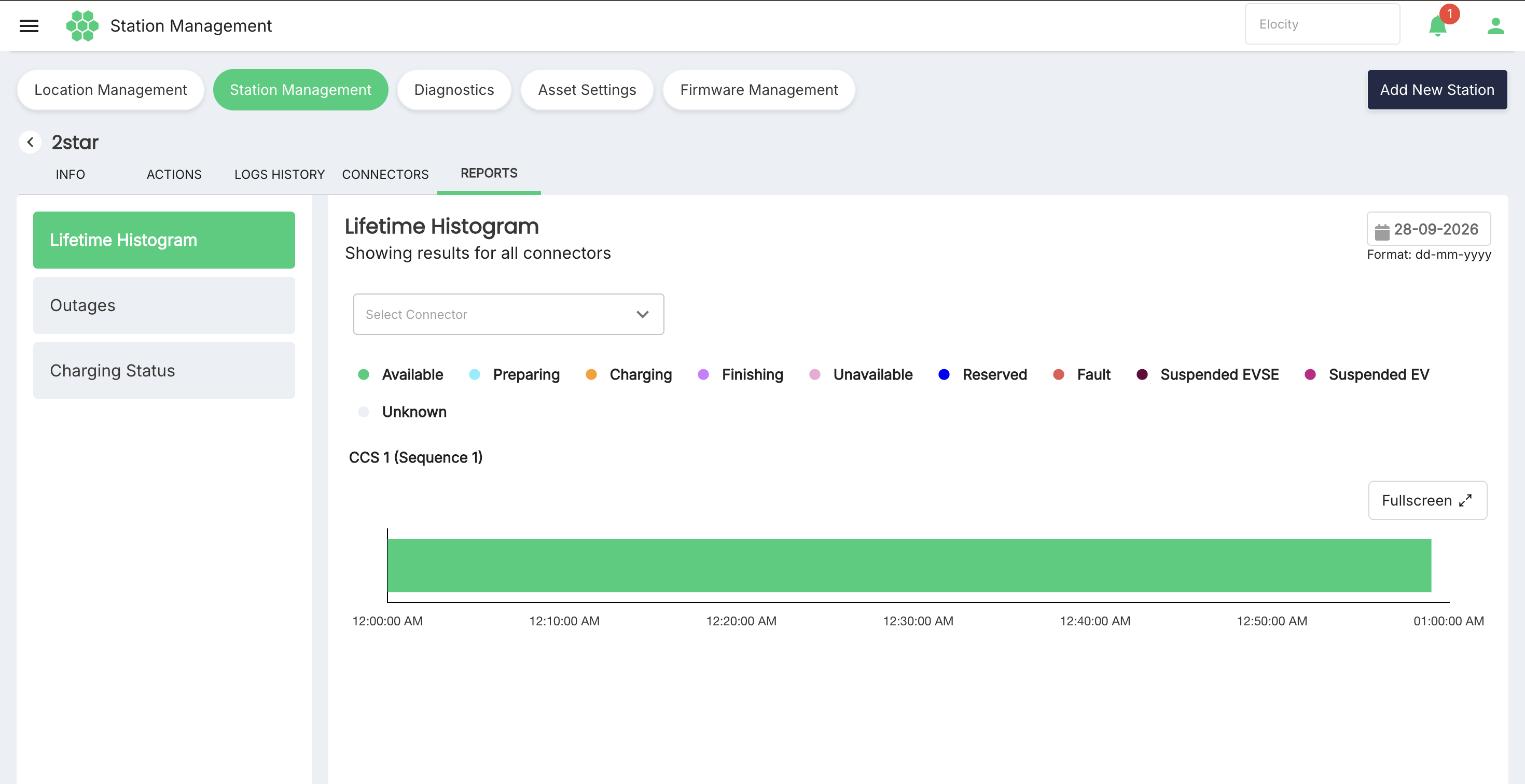
- Lifetime Histogram — Displays a color-coded timeline of connector operational states over time for a selected date (
dd-mm-yyyy) and connector. Supports Fullscreen mode and displays states (Available, Preparing, Charging, Finishing, Unavailable, Reserved, Fault, Suspended EVSE, Suspended EV, Unknown). - Outages — Tracks recorded downtime, disconnection, and outage history for the station.
- Charging Status — Provides session and charging-state history.
8. Decommissioned View
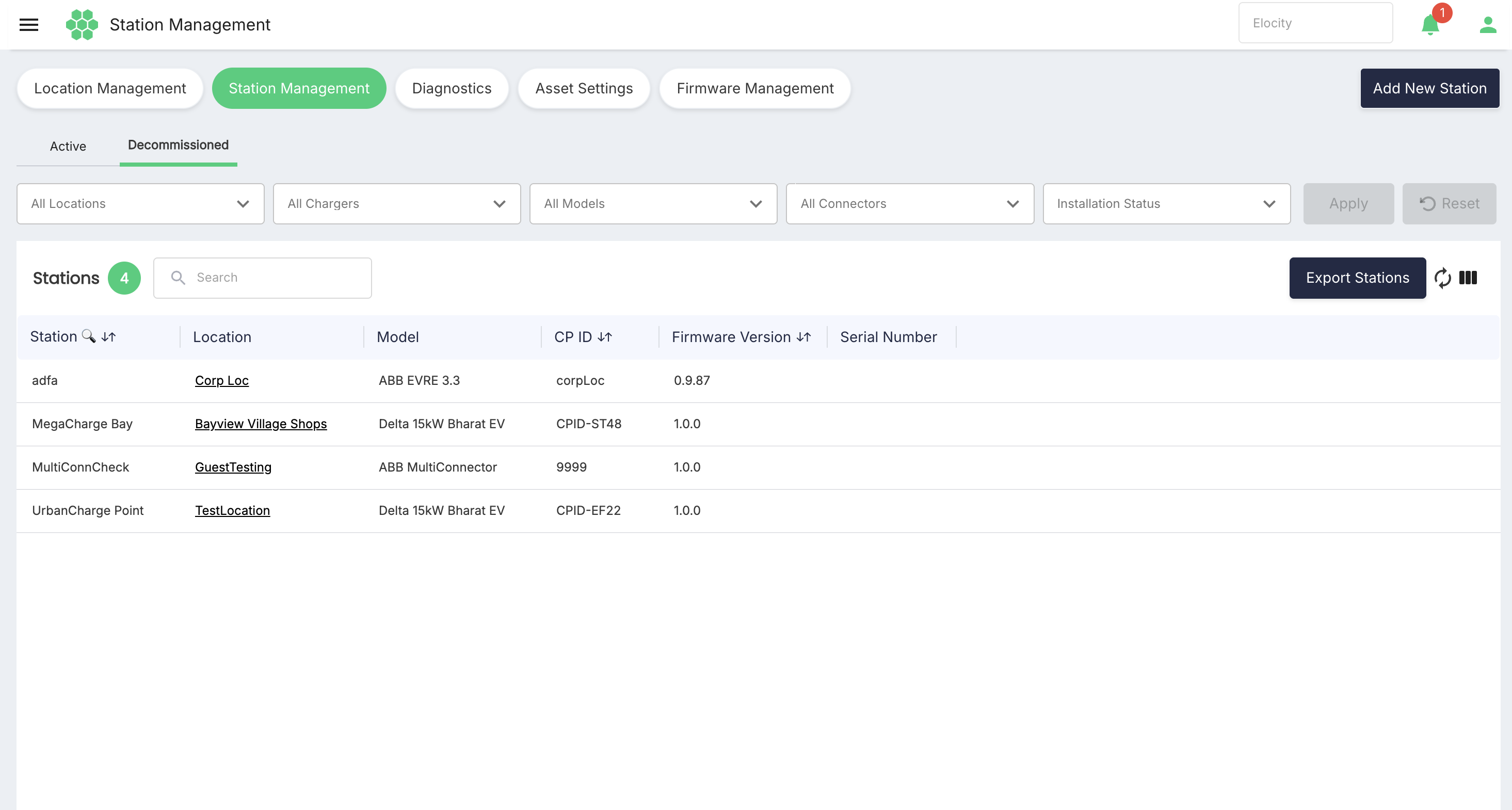
The Decommissioned tab lists stations whose Installation State has been set to Decommission. Differences from the Active view:
- Filter row includes Installation Status and omits All Connector Status (no live status for retired stations).
- Toolbar offers Search, Export Stations, refresh, and column filter only — there are no Online/Offline quick filters and no QR code download.
- Grid columns: Station, Location (hyperlink to Location Details), Model, CP ID, Firmware Version, Serial Number.
9. Exporting Station Data
- Click Export Stations in the grid toolbar.
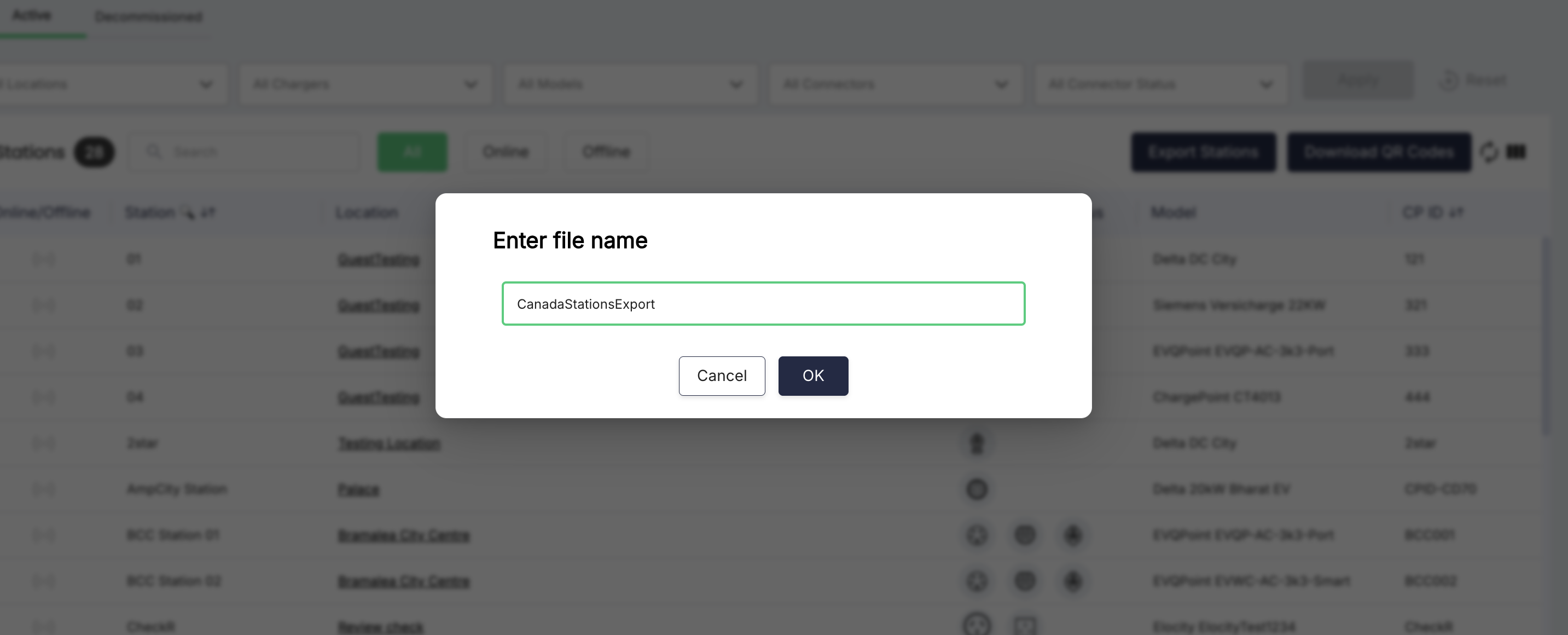
- In the Enter file name dialog, type a file name and click OK (or Cancel to abort).
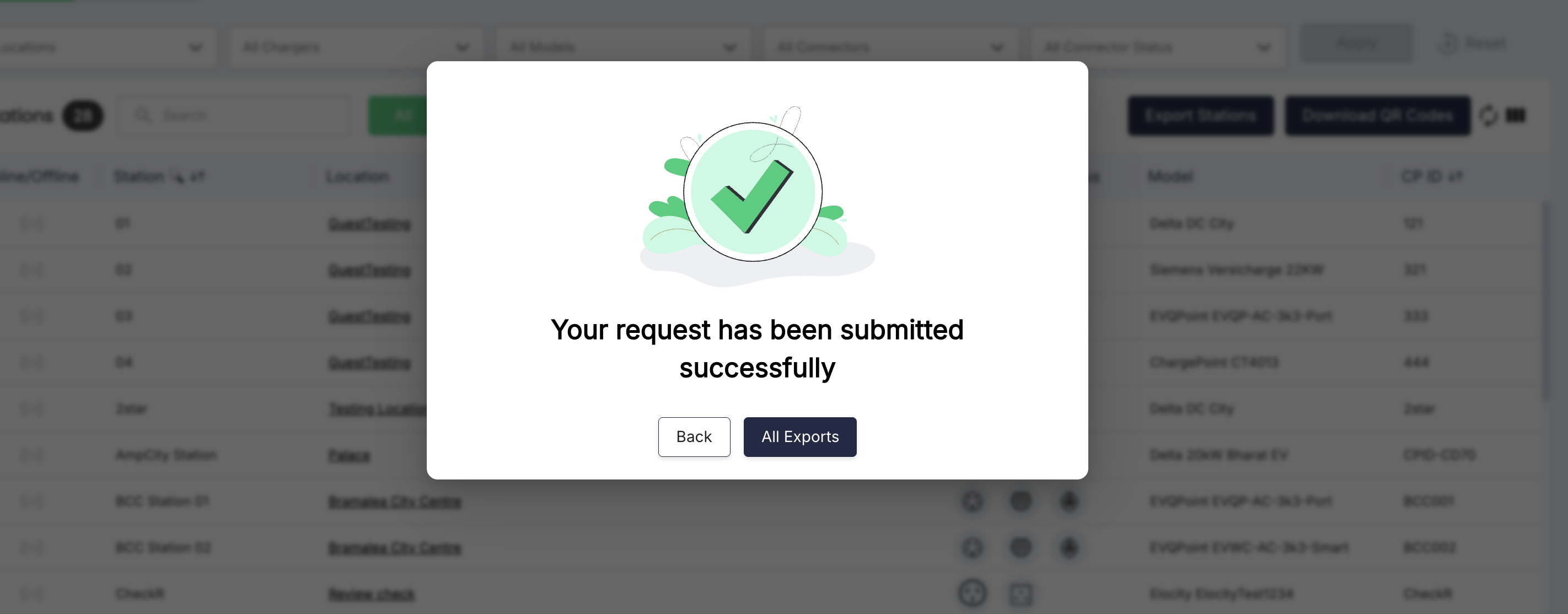
- A confirmation appears: Your request has been submitted successfully, with two options: Back (return to the grid) and All Exports.
- All Exports opens the Exports page (
/ca/export-history, also reachable under administrative settings). Each export request is listed with: Export Type (e.g., Stations), Export Name (the file name you entered), Status (e.g., Completed), Created At, Date Range, Expiry Date (the date until which the file remains available for download), and an Action column with a Download button that saves the file through the browser.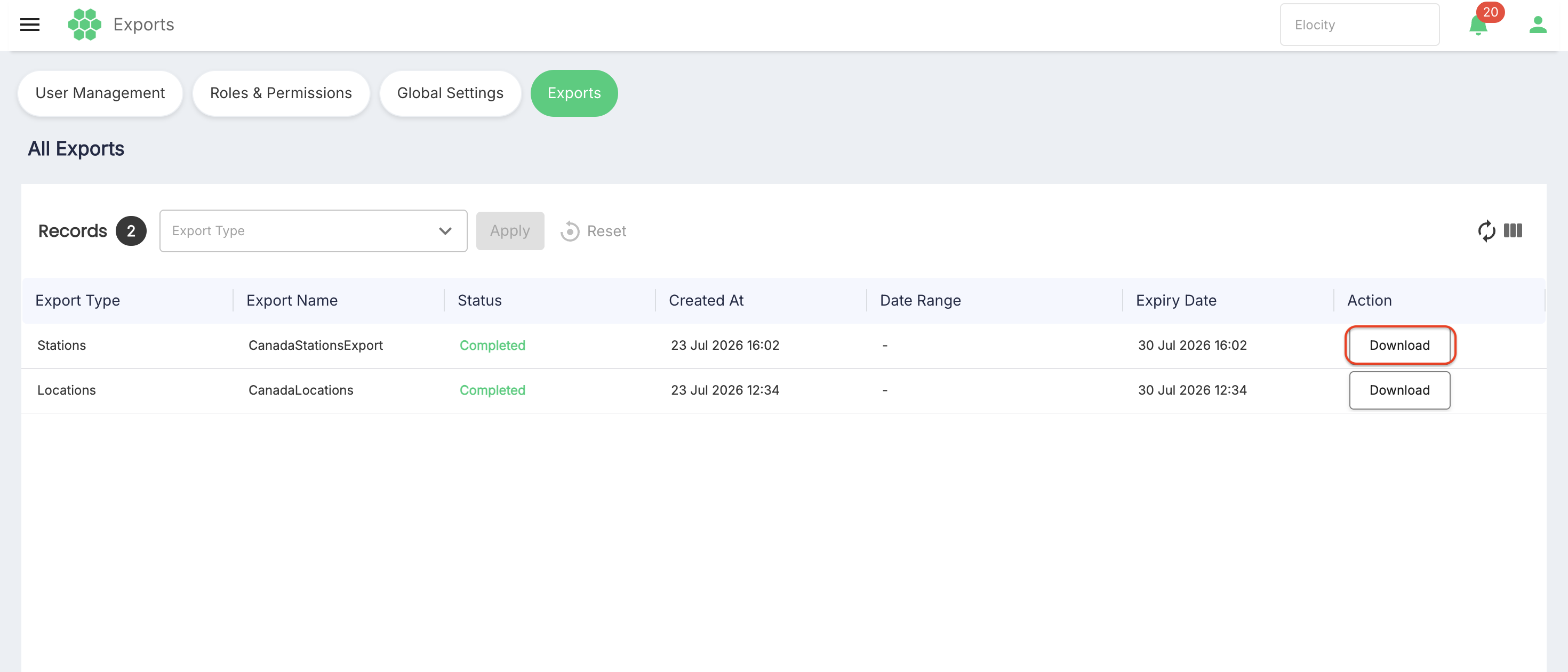 Exports are generated asynchronously — large exports may take a moment to reach Completed status before the download link becomes available.
10. Downloading QR Codes
- Single station: click the QR Code link in the station's row, then use Print in the modal.
- All stations: click Download QR Codes in the grid toolbar; the file downloads directly through the browser.
11. Adding a New Station
Click Add New Station (top right) to open the registration form (/ca/add-new-station).
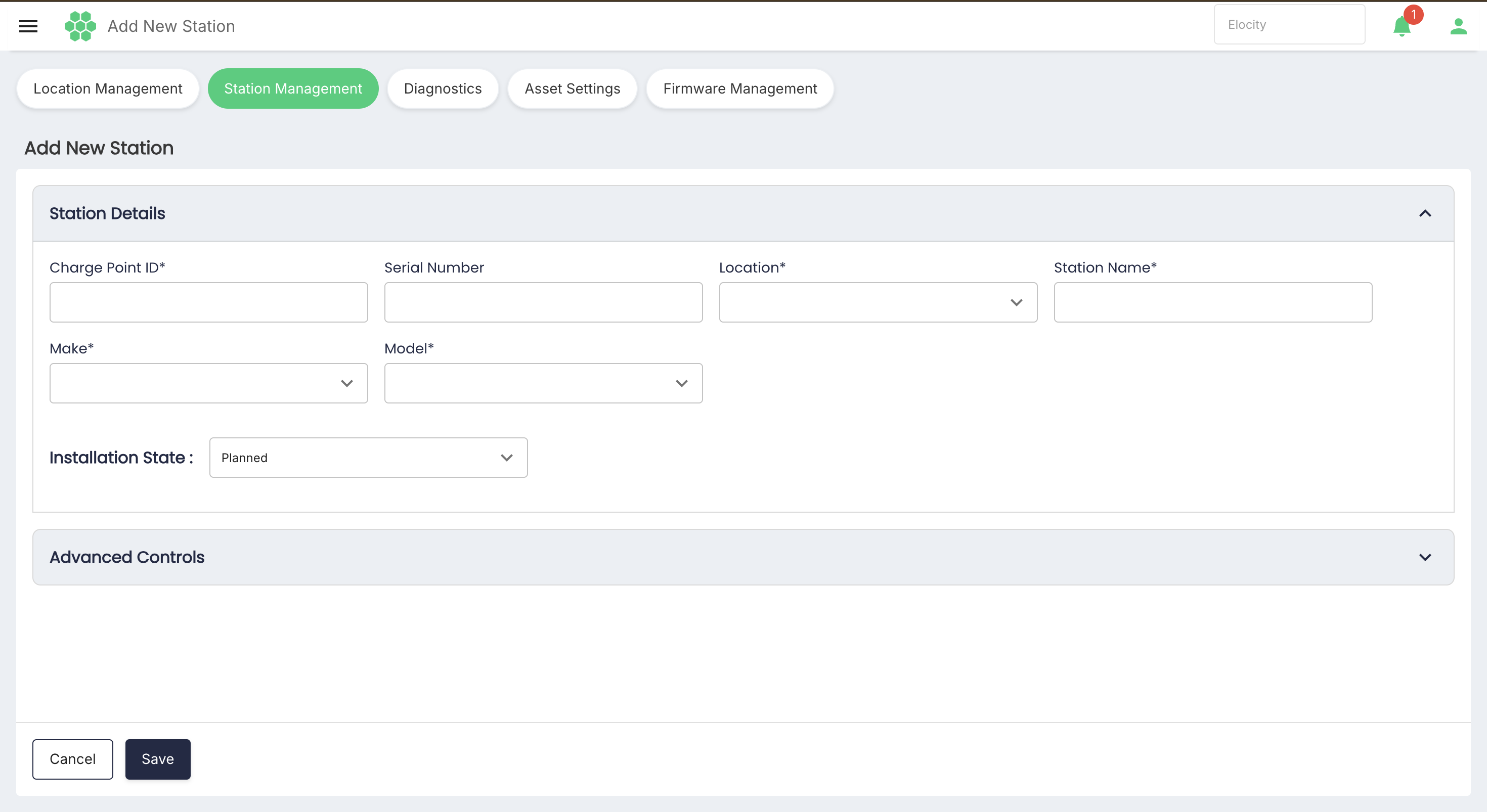
Station Details
| Field | Required | Description |
|---|---|---|
| Charge Point ID | Yes | The OCPP identity the station will use to connect. Must match the ID configured on the charger. |
| Serial Number | No | Hardware serial number. |
| Location | Yes | Location/parking spot to assign the station to (dropdown of the site's locations). |
| Station Name | Yes | Display name shown in the grid and to drivers. |
| Make | Yes | Manufacturer (dropdown from the asset catalogue). |
| Model | Yes | Model (dropdown, dependent on the selected Make). |
| Installation State | — | Planned (default) or Commissioned. |
Advanced Controls — same options as the Station Details INFO tab: Security Profile (0/1/2), Auto Stop on Low Wallet Balance, Ration Duration, Dedicated Customer.
Click Save to register the station or Cancel to discard the form.
12. Related Pages
| Link on this page | Destination |
|---|---|
| Location Management (pill bar) | Location inventory for the selected site. |
| Diagnostics (pill bar) | EVSE diagnostics management and troubleshooting. |
| Asset Settings (pill bar) | Charger make/model asset catalogue. |
| Firmware Management (pill bar) | Firmware images and update campaigns. |
| Location column hyperlink | Location Details page for the station's location. |
| All Exports (after an export) | Exports history page with downloadable files. |